The ReadyView mobile app has ceased development and is no longer available on the App store or the Google Play store.
If you still would like to use your ReadyView system, it is recommended you download another IP camera app, most should work with your existing system.
As the ReadyView cameras use RTSP You should be able to use an app like VLC Media player to view live streams of your cameras.
You just need to know your RTSP URL, there will be a different URL for each camera, It will look like this but with your Info filled out:
rtsp://<ip>:<port>/unicast/c<channel>/s<stream>/live
If you do not want it to ask for a password every time you open the stream, then format it this way replacing password with your Readyview password:
rtsp://admin:<password>@<IP address>:<port>/unicast/c<channel>/s<stream>/live
To get the URL, you need to know the IP <ip> Address of your NVR, the Port <Port> your NVR is using for RTSP streaming, the number of the camera you want to stream from <Channel>, and which stream you want to use for the camera <stream>(Primary 0, sub 1) , to get that info from your NVR, connect a Monitor and a wired USB Mouse to it and follow these steps:
Note: We understand wanting to keep your already existing security system, ReadyView has not been supported for a few years now, we are providing this guide both as a courtesy for our loyal customers and in the interest of having as much information available as possible, we are not able to walk you through the steps.
By following these steps, you acknowledge and agree that you are proceeding at your own risk.
Obtaining the NVR IP and RTSP port info:
1.Using the mouse, right click anywhere on the main camera feed page and choose the Menu option:
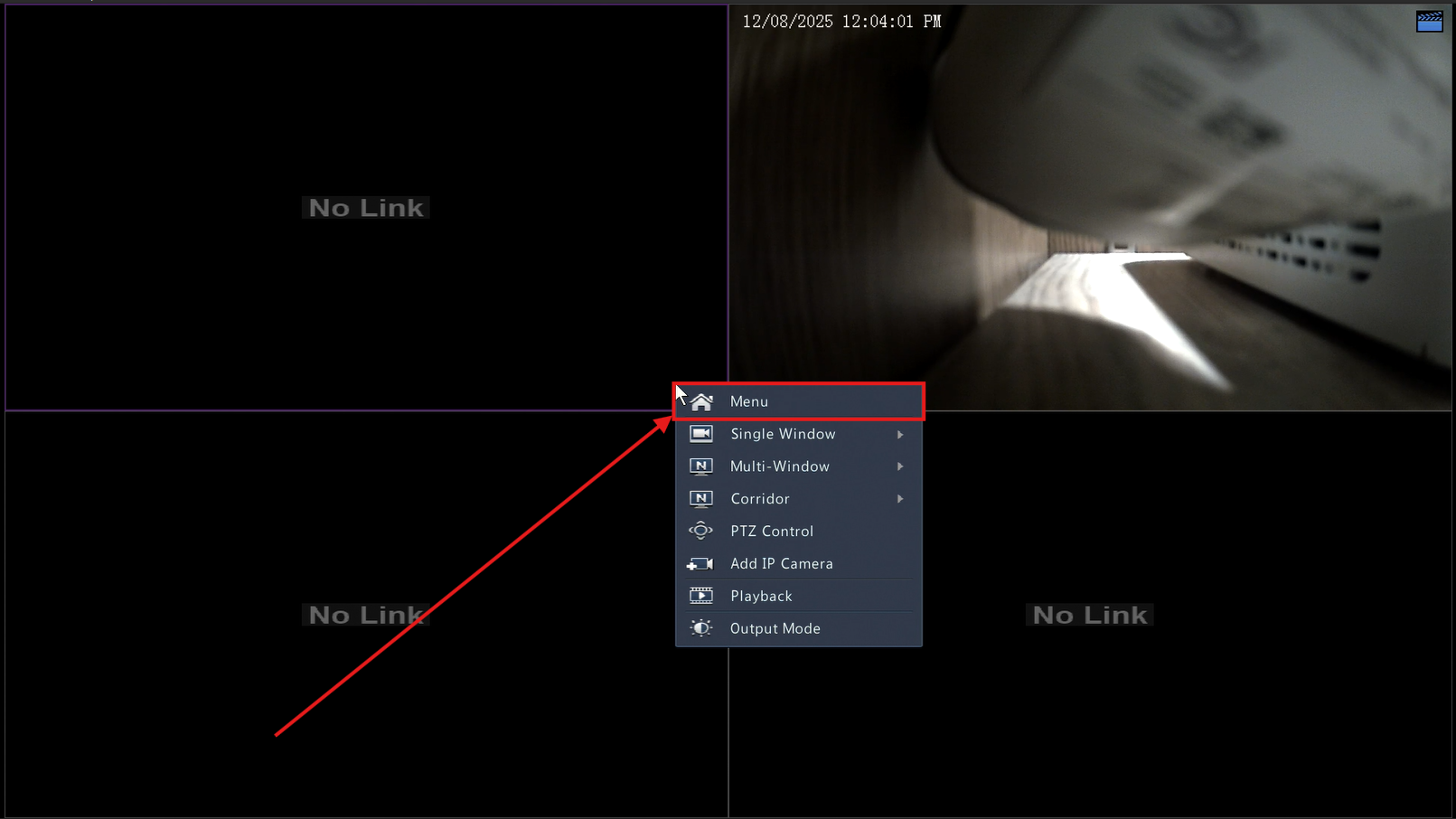
You will be prompted to login, if this is your first time doing so, the Default username is Admin, and the default password is Readyview123.
2. Once logged in you want to click on System on the left hand side:
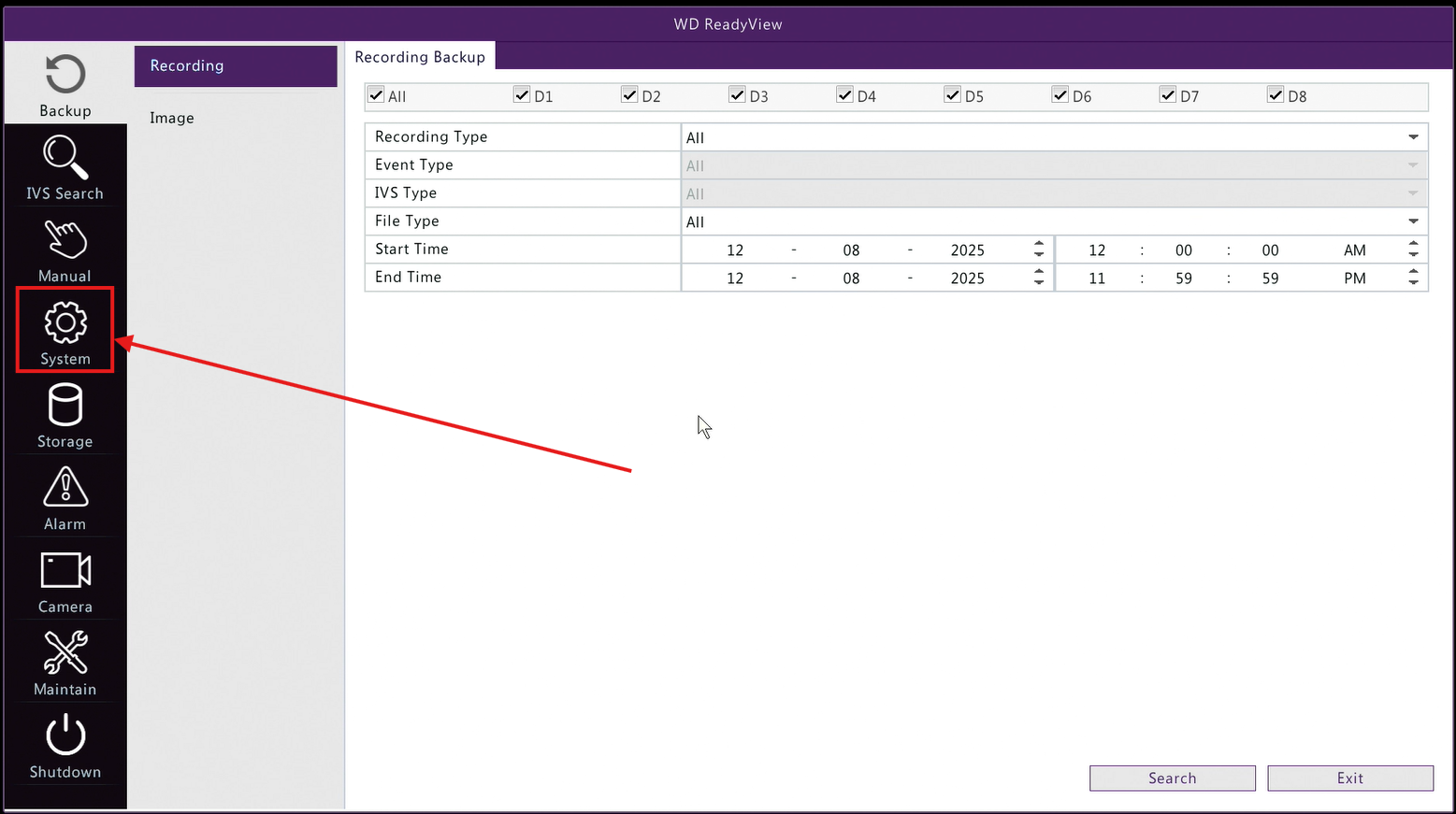
3. Click Network on the left hand side:
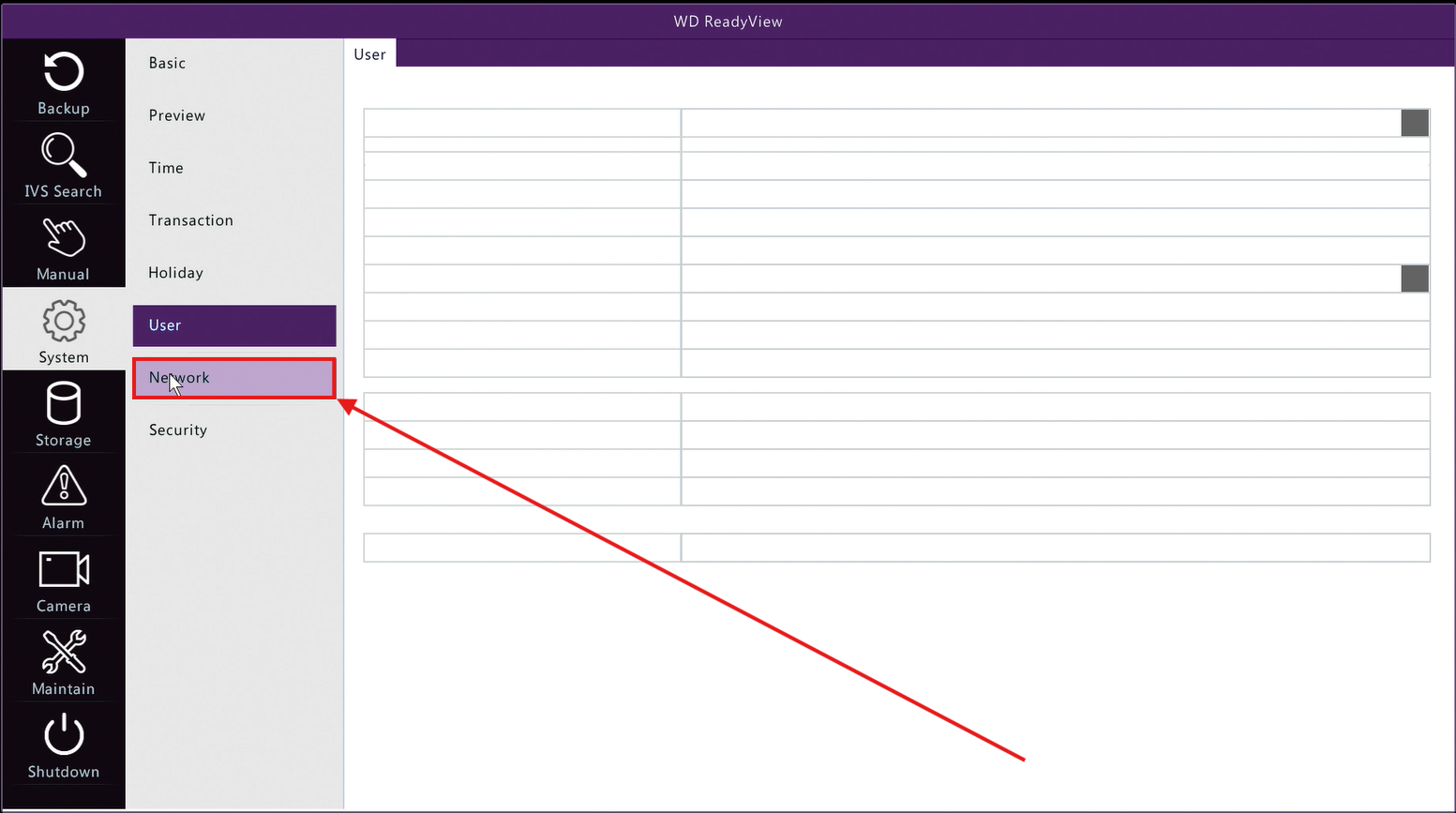
4. In the main Network window you can get your NVR IP address, you want to use the IPV4 address:
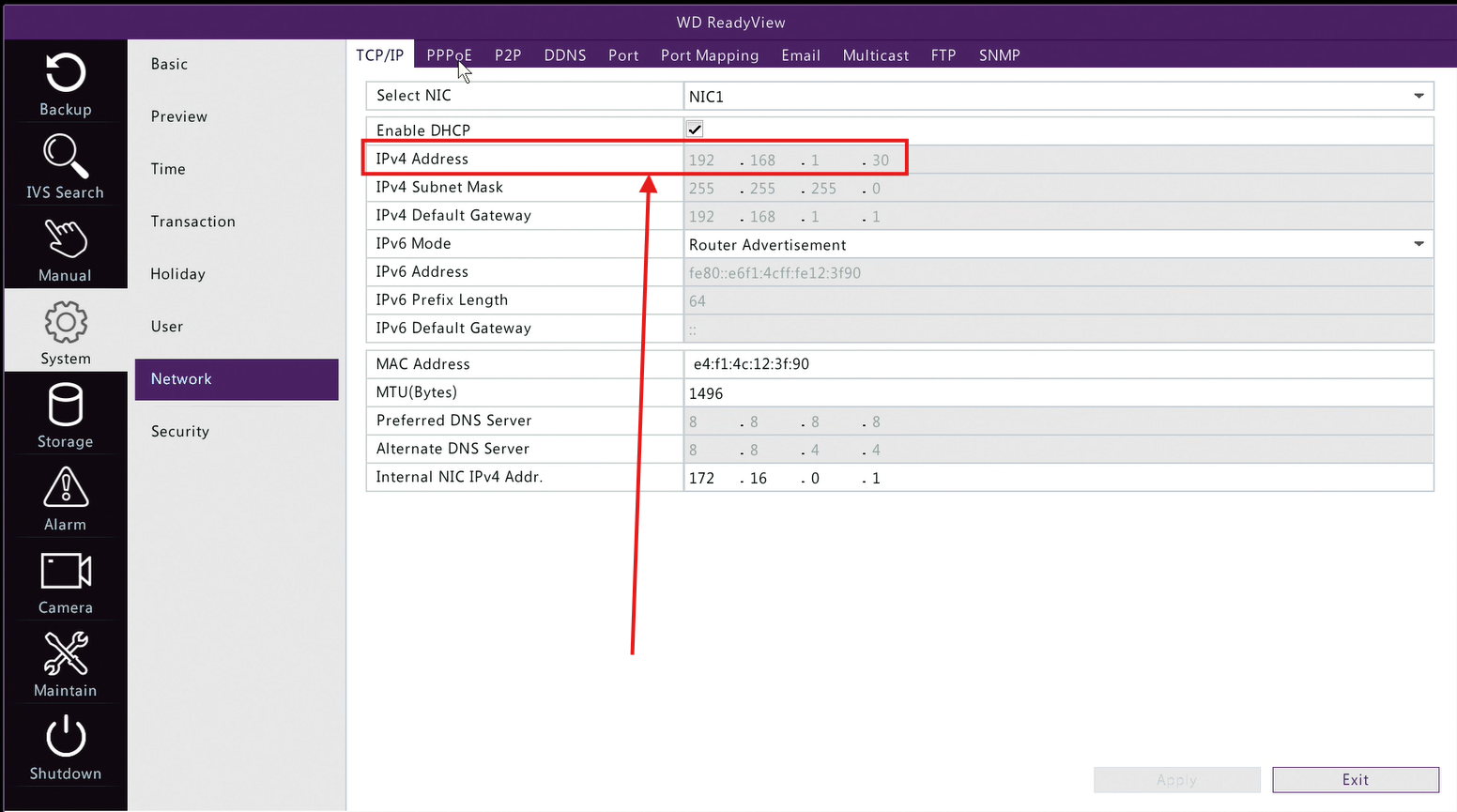
In this example the IP is 192.168.1.30, that would make our example URL so far:
rtsp://192.168.1.30:<port>/unicast/c<channel>/s<stream>/live
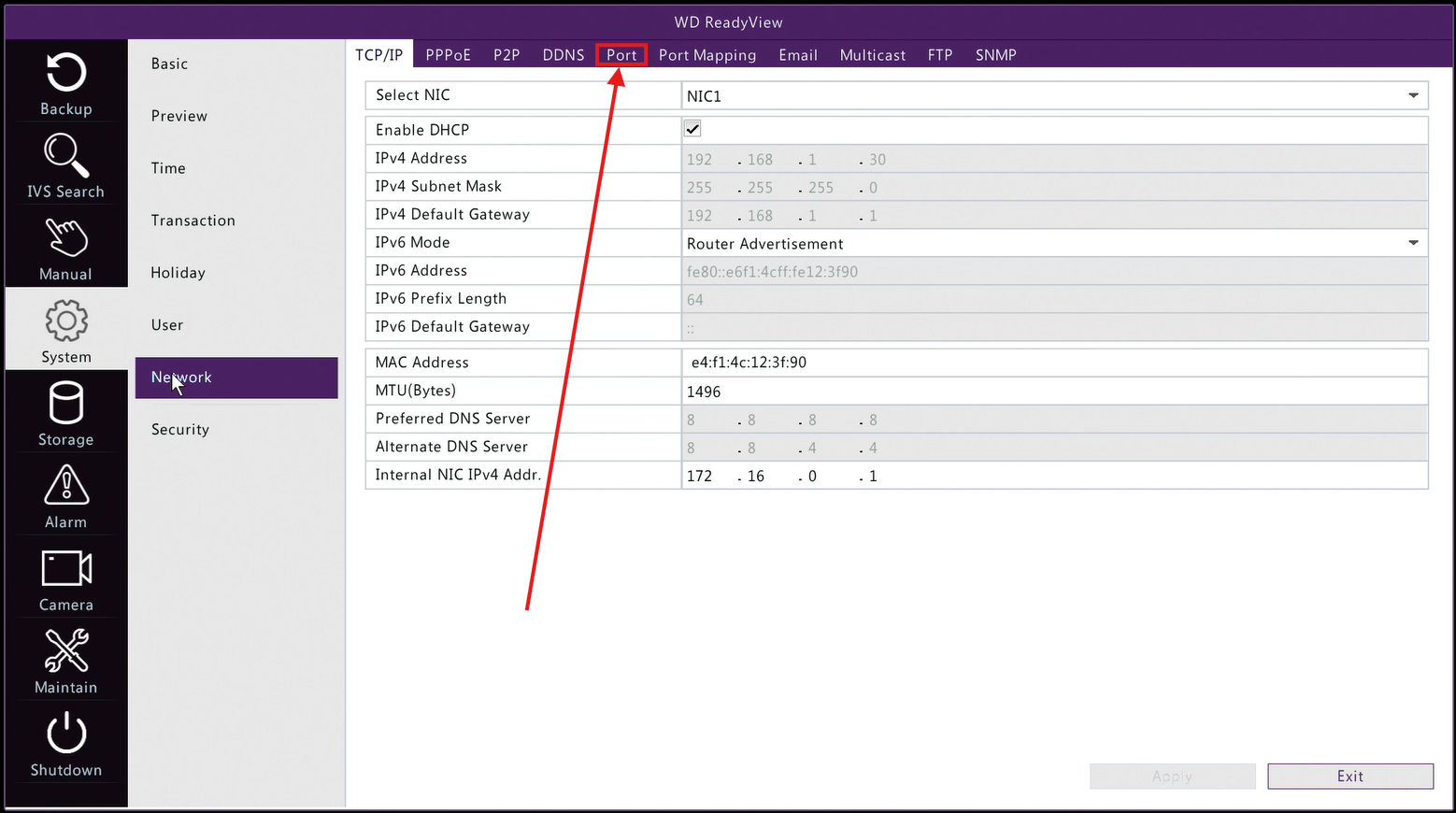
5. Click Port at the top of the page:
On this Page you can find your Port number for the URL, you will use the number listed as the RTSP port:
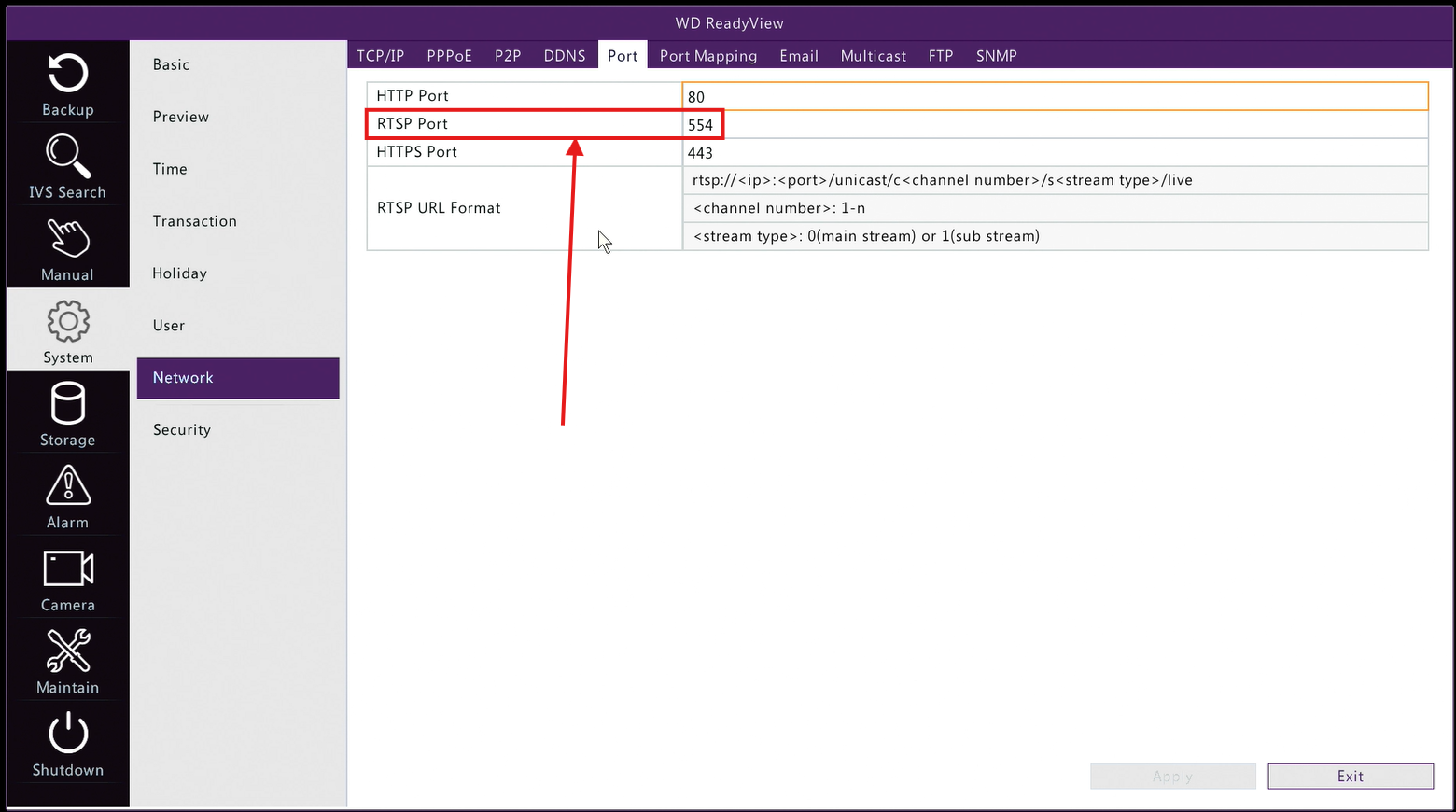
In this example, we can see its 554, so that would make the example URL so far (Make sure for your URL you use the port number listed in your ReadyView):
rtsp://192.168.1.30:554/unicast/c<channel>/s<stream>/live
Obtaining the Channel
- To get the Channel number of the camera you want to stream, If you are back on the main feed, right click anywhere and choose Menu otherwise skip to 1b:
1b. Click on Camera on the left side:
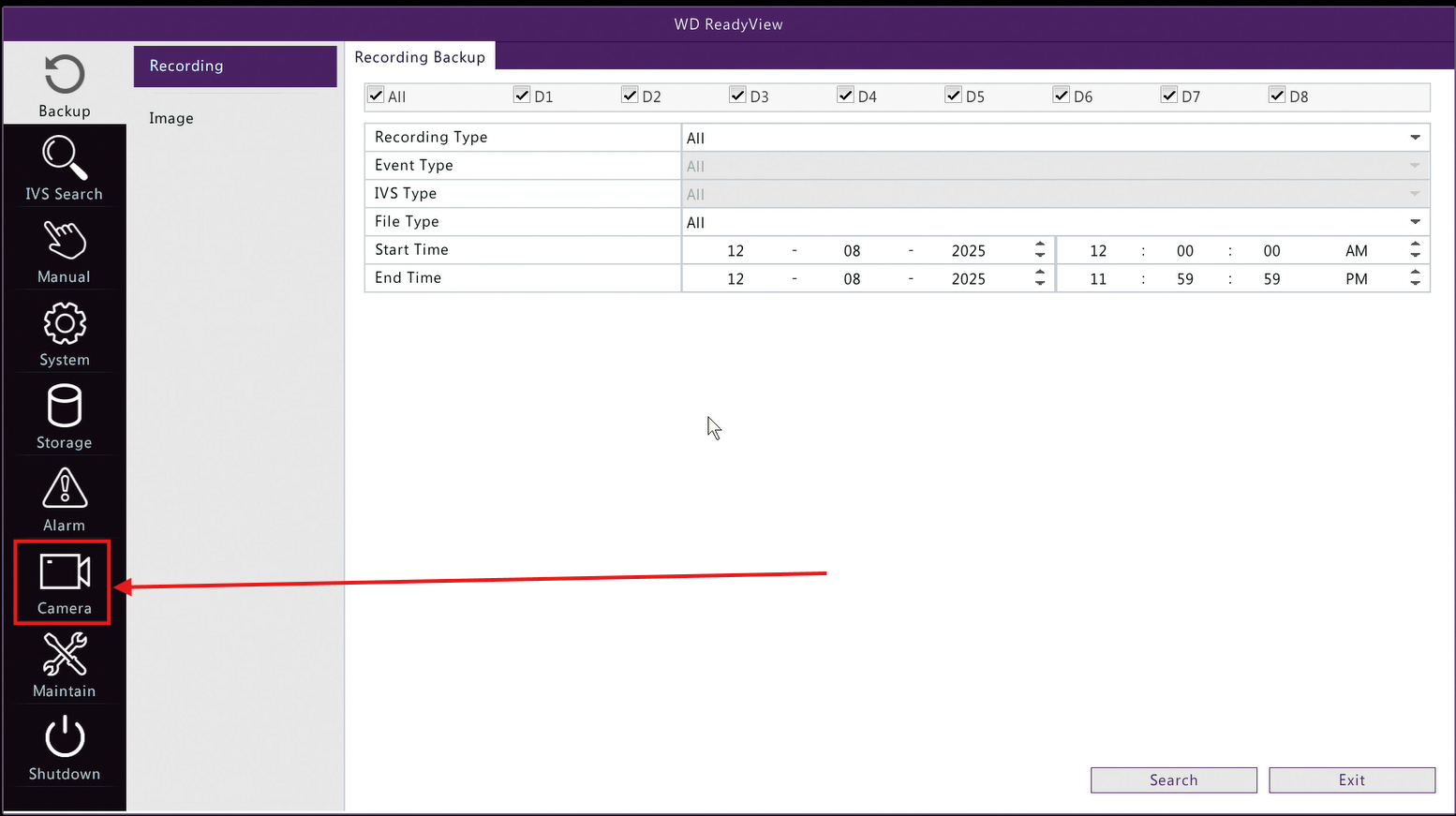
2. In the Camera Menu, you can Configure your cameras, as well as see what each Cameras number is:
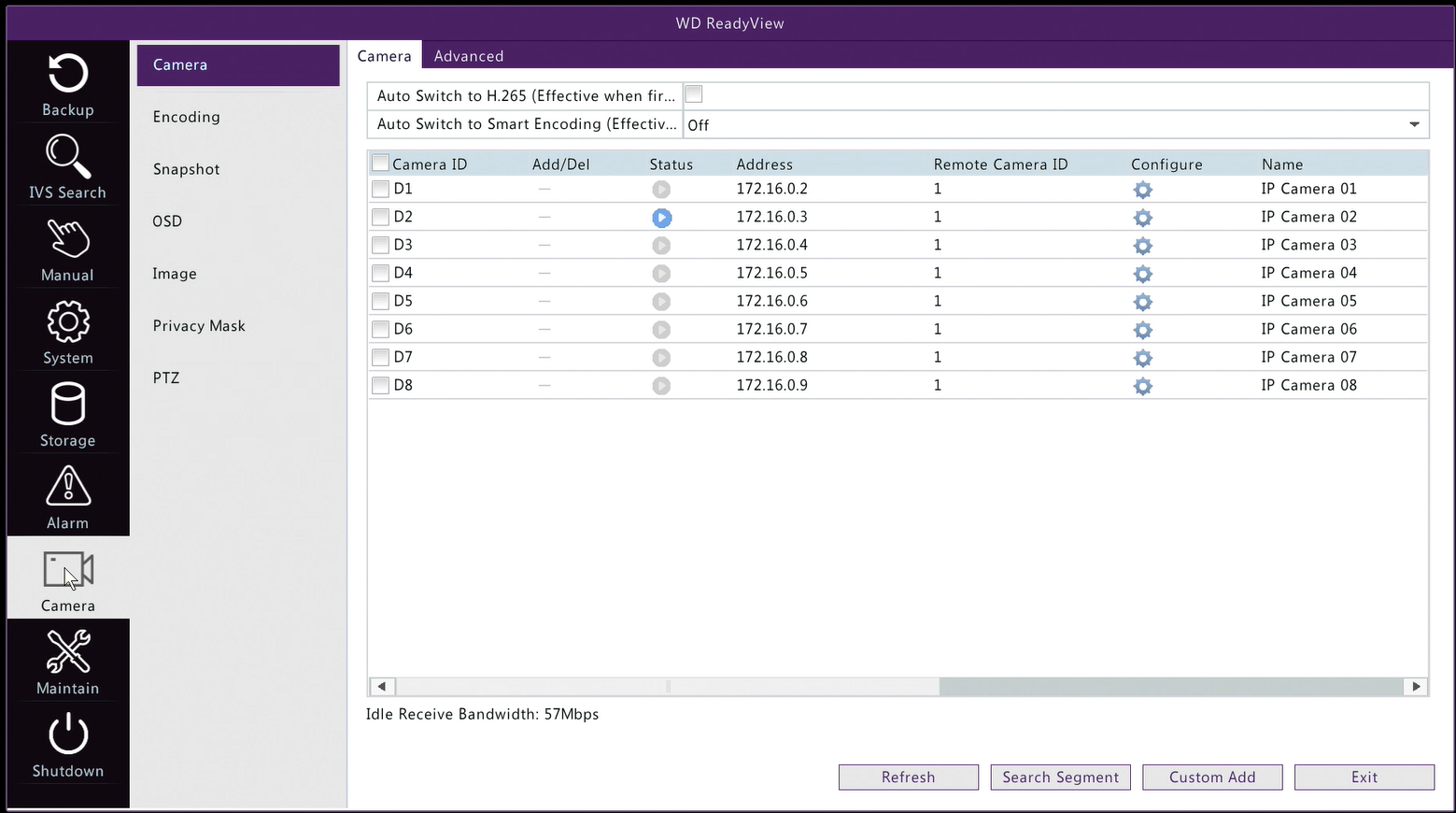
If you want to confirm you have the right camera for the stream you are setting up, you can click the blue play button next to it in the status column:
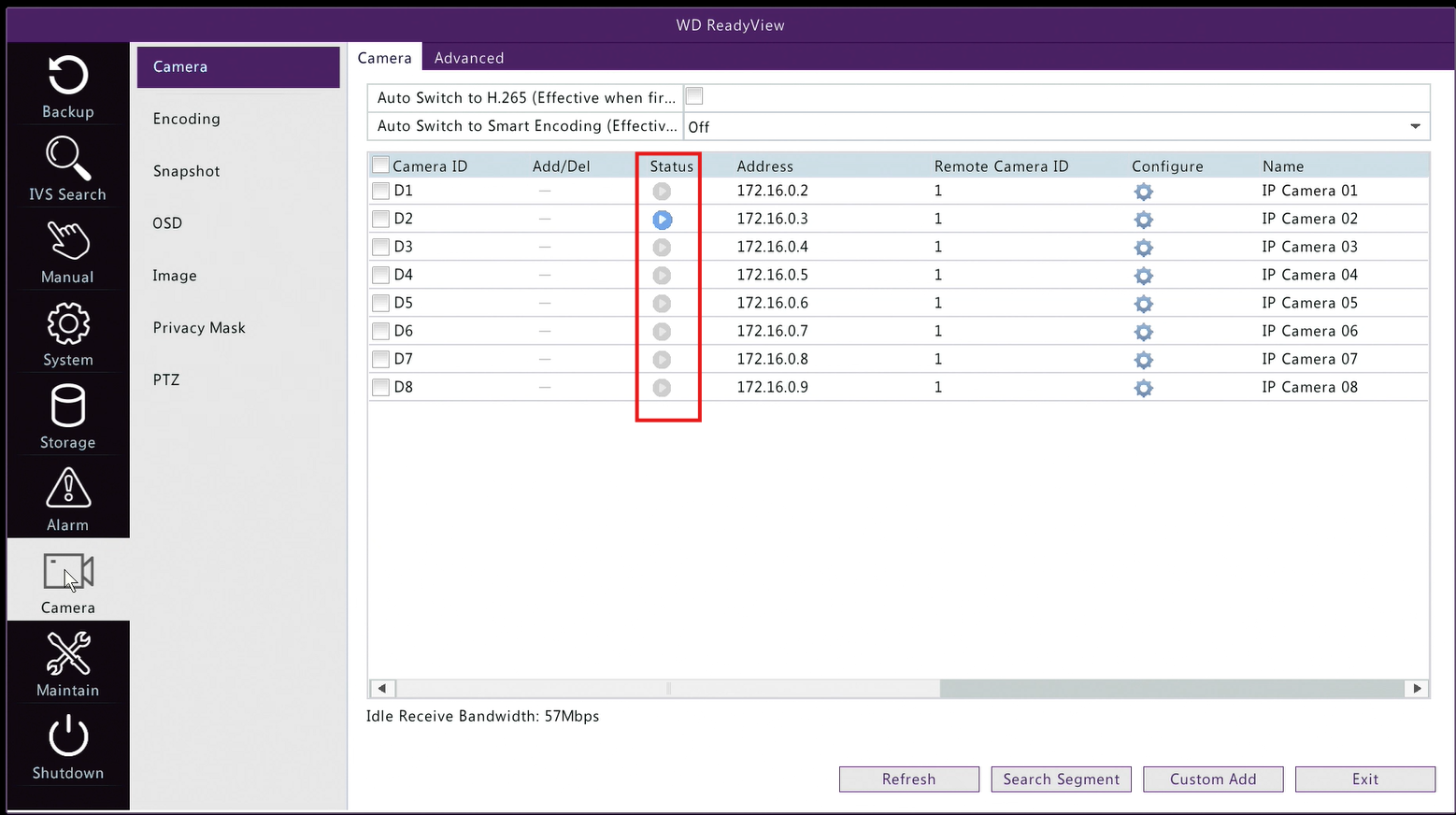
In this example, we only have one Active camera, so we will be using its number which can be found in the Camera ID column, as this is Camera 2, that would make our example URL:
rtsp://192.168.1.30:554/unicast/c2/s<stream>/live
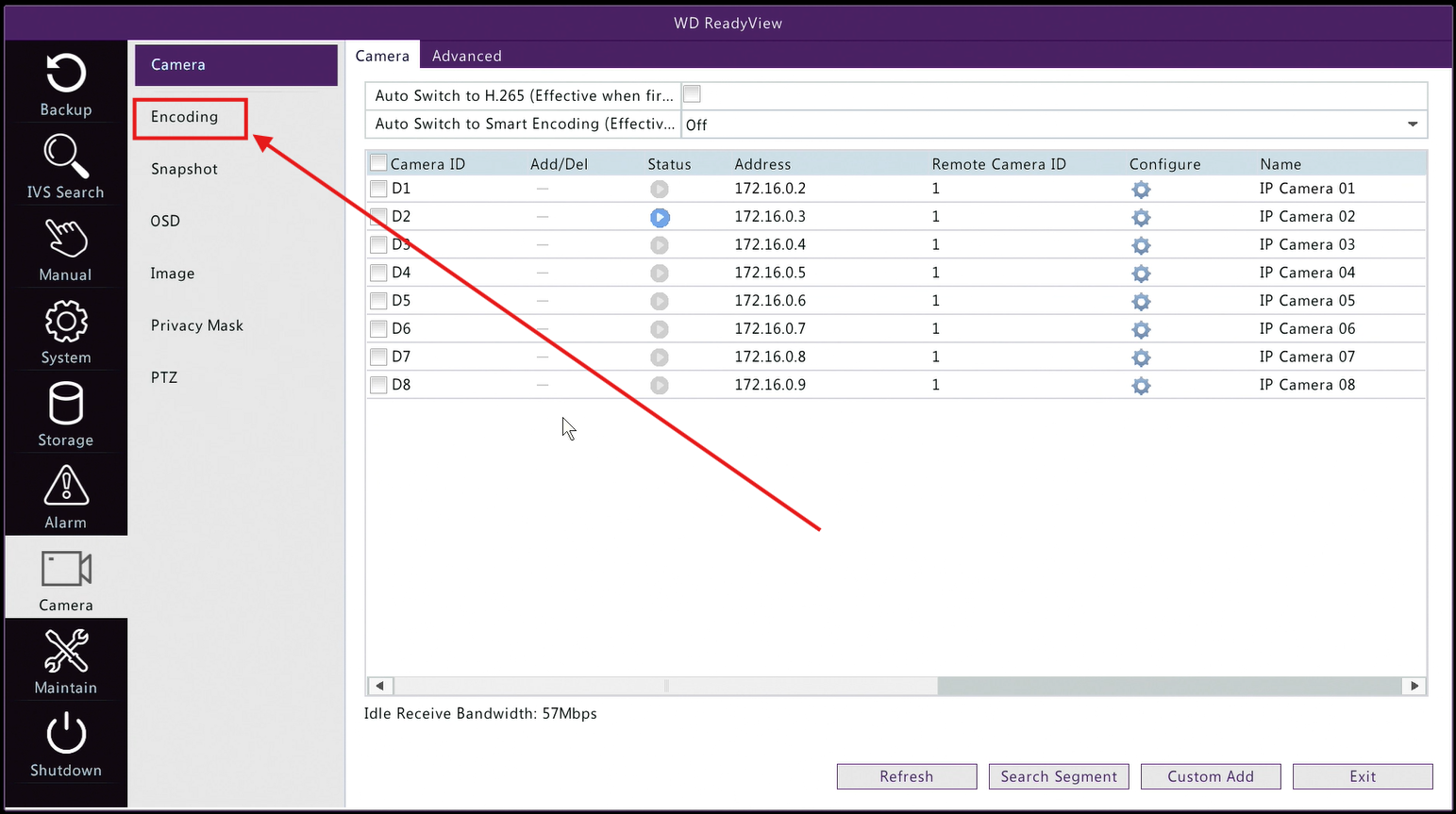
4. After getting that info, click Encoding on the left hand side:
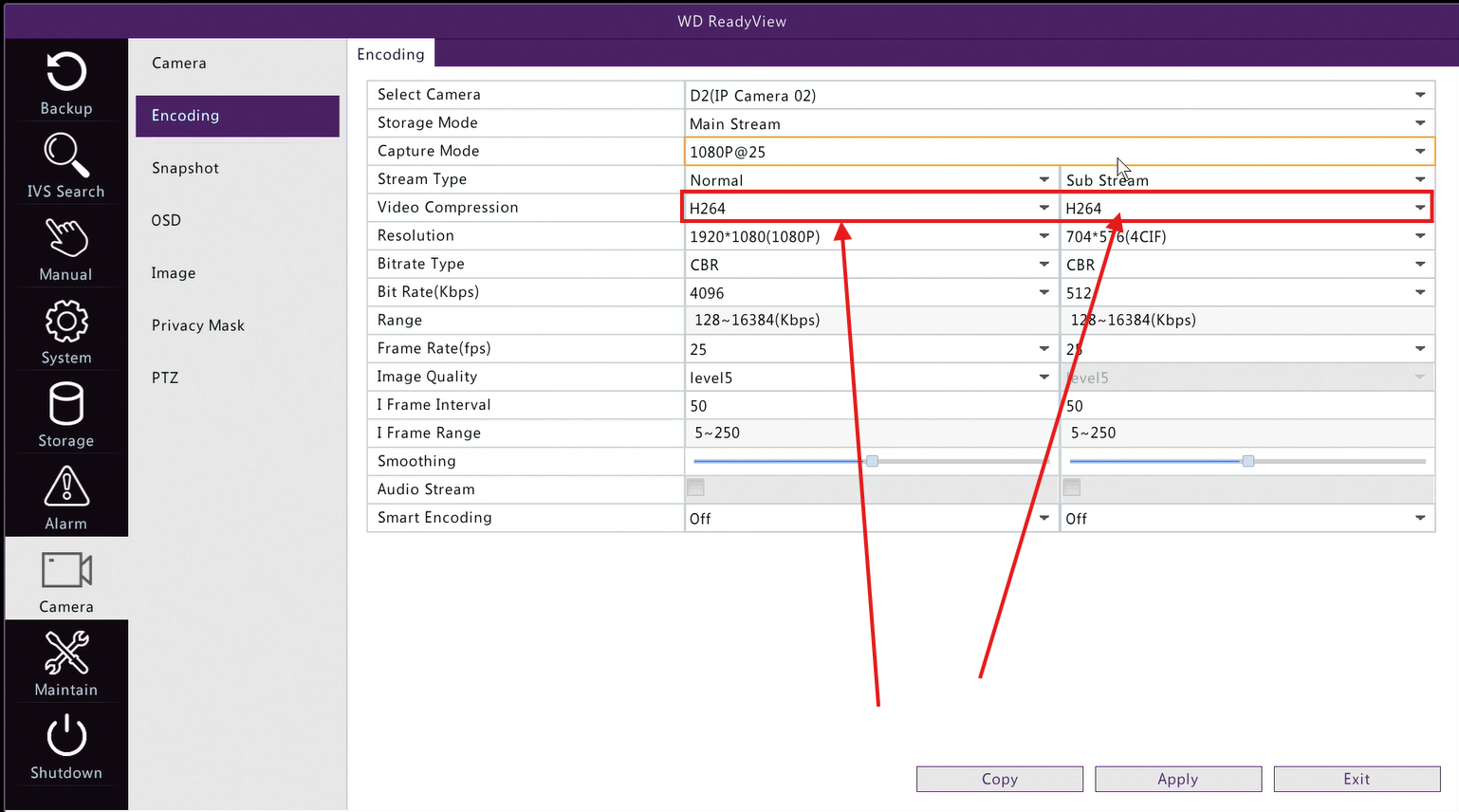
5. Make sure that Capture Mode is set to 1080p@25:
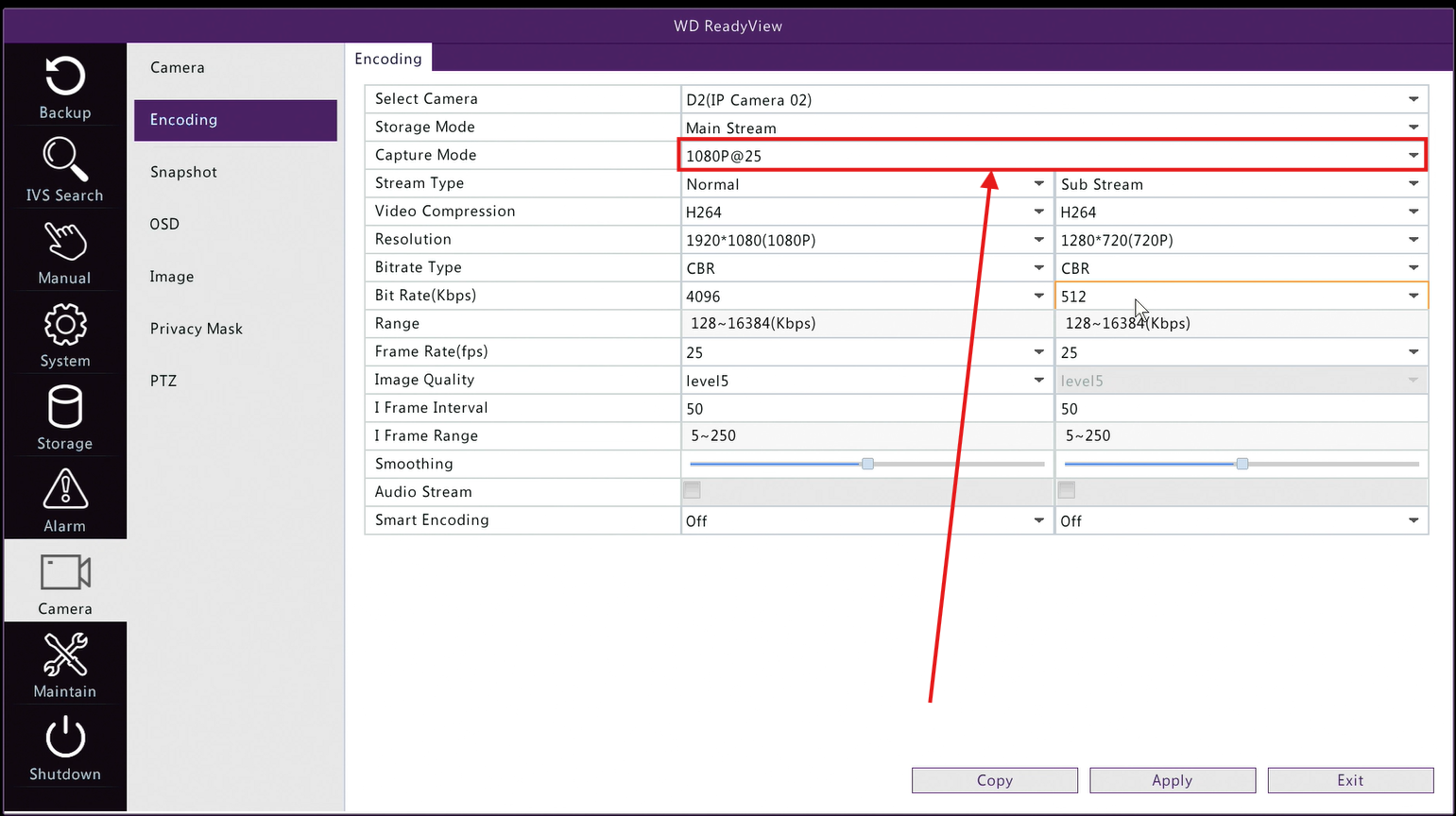

6. Set the Compression type for both the Normal Stream and the Sub Stream to H264 and then click Apply in the bottom right:
Which stream to use
Which stream to use will largely be a matter of personal preference, by default, the Normal stream is Higher quality, but it will use more data if that is a concern.
The Sub stream uses less data but the quality of the stream will be reduced.
The normal stream has a Value of 0 so if we were to use it our example URL will be:
rtsp://192.168.1.30:554/unicast/c2/s0/live
The Sub stream has a value of 1 If we were to use this our example URL would be:
rtsp://192.168.1.30:554/unicast/c2/s1/live
Setting up the stream in VLC
Now that you have your RTSP URL its time to get it set up in the VLC app, for this example we will be doing it on an Android device, however the process is relatively similar on an Iphone:
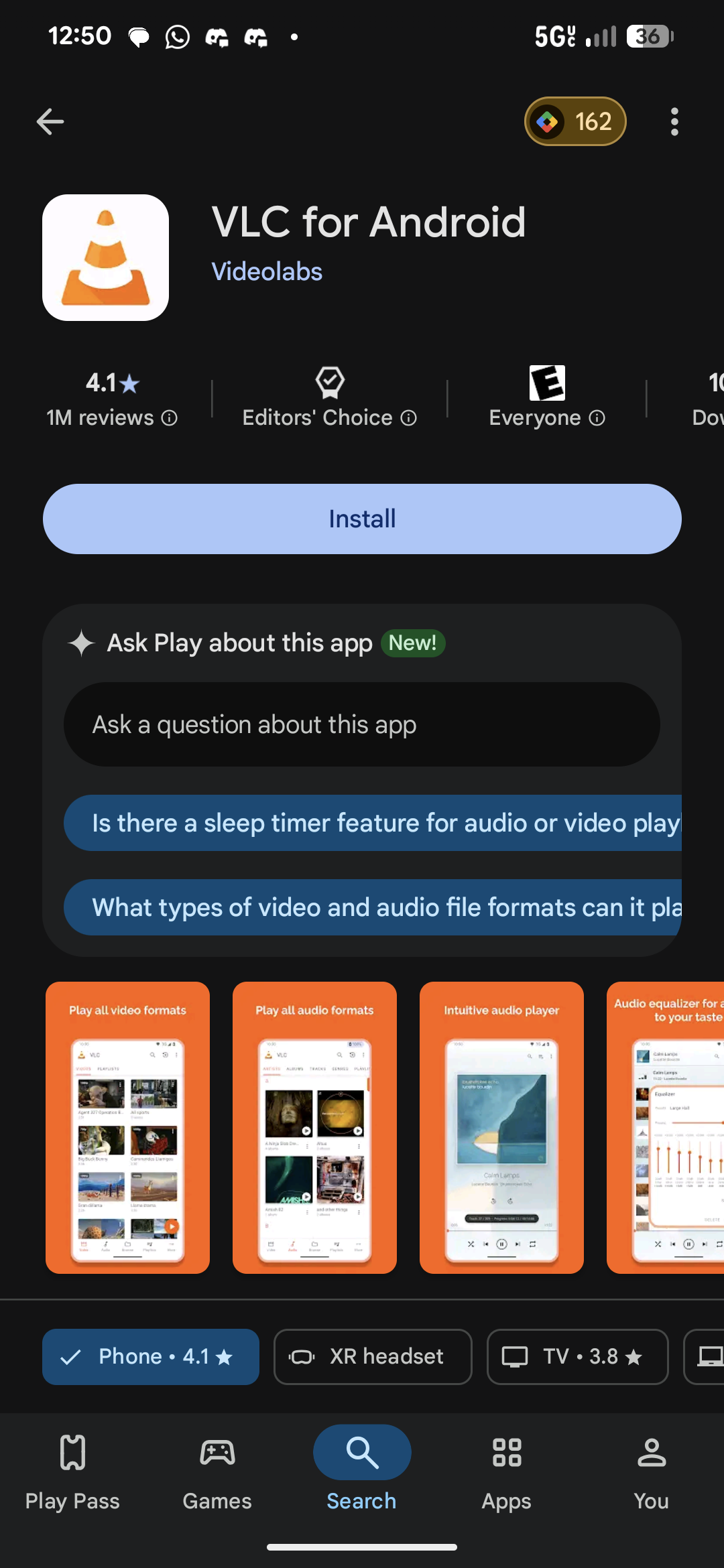
1. Download VLC from the App store (iPhone) or the Play store (Android):
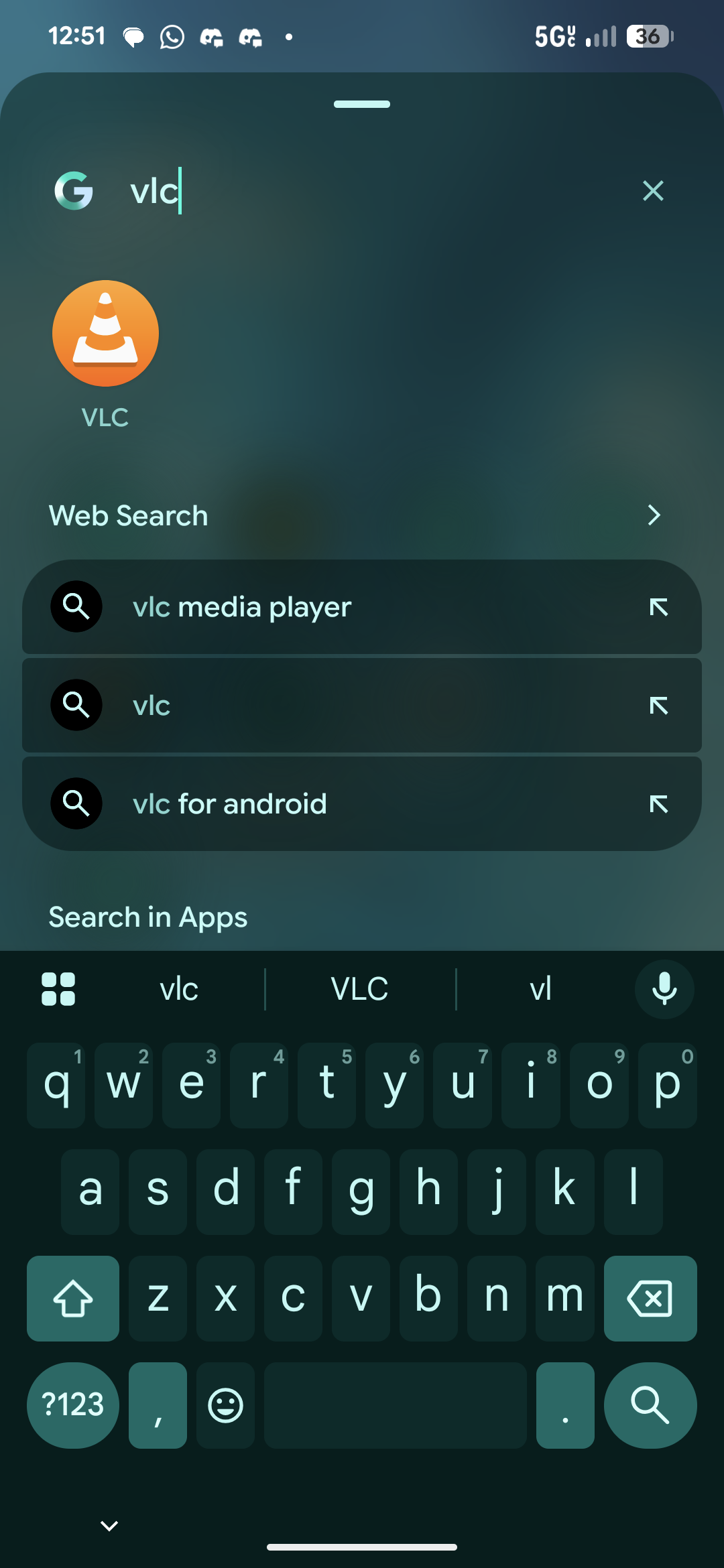
2. Once you have it downloaded, Locate it in your Apps, it will be represented by a traffic cone:
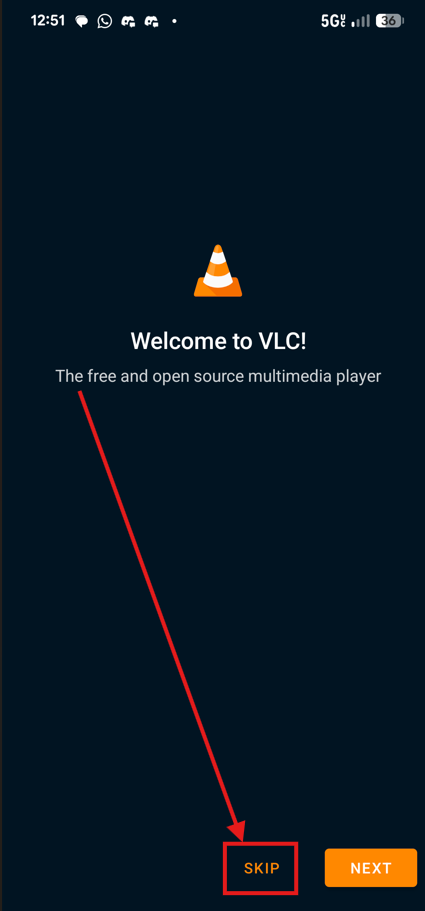
3. Unless you plan on Using VLC to play Music or video Files then click Skip on this screen:
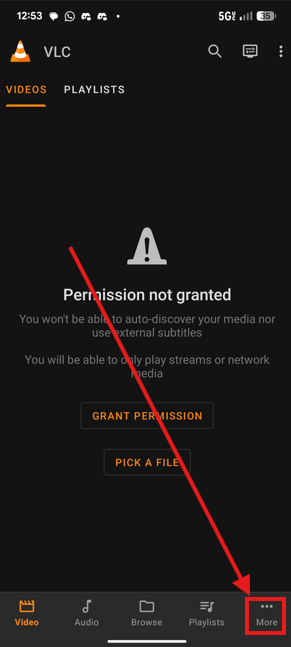
4. Click More in the bottom right hand corner:
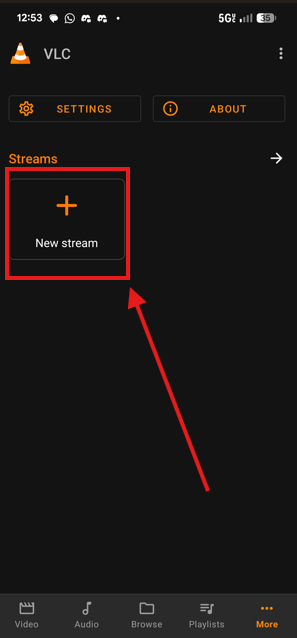
5. Click New Stream:
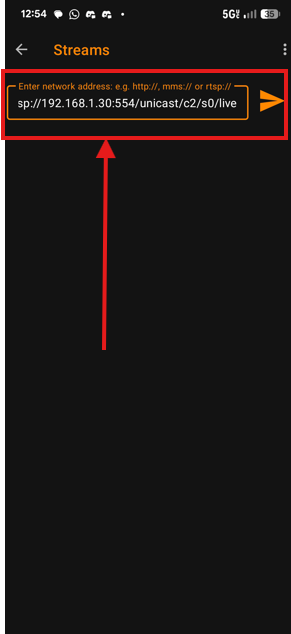
6. Put your RTSP address in the box at the top and click the Triangle to the right of it:
7. You're all set, it VLC will start Loading the Live stream:
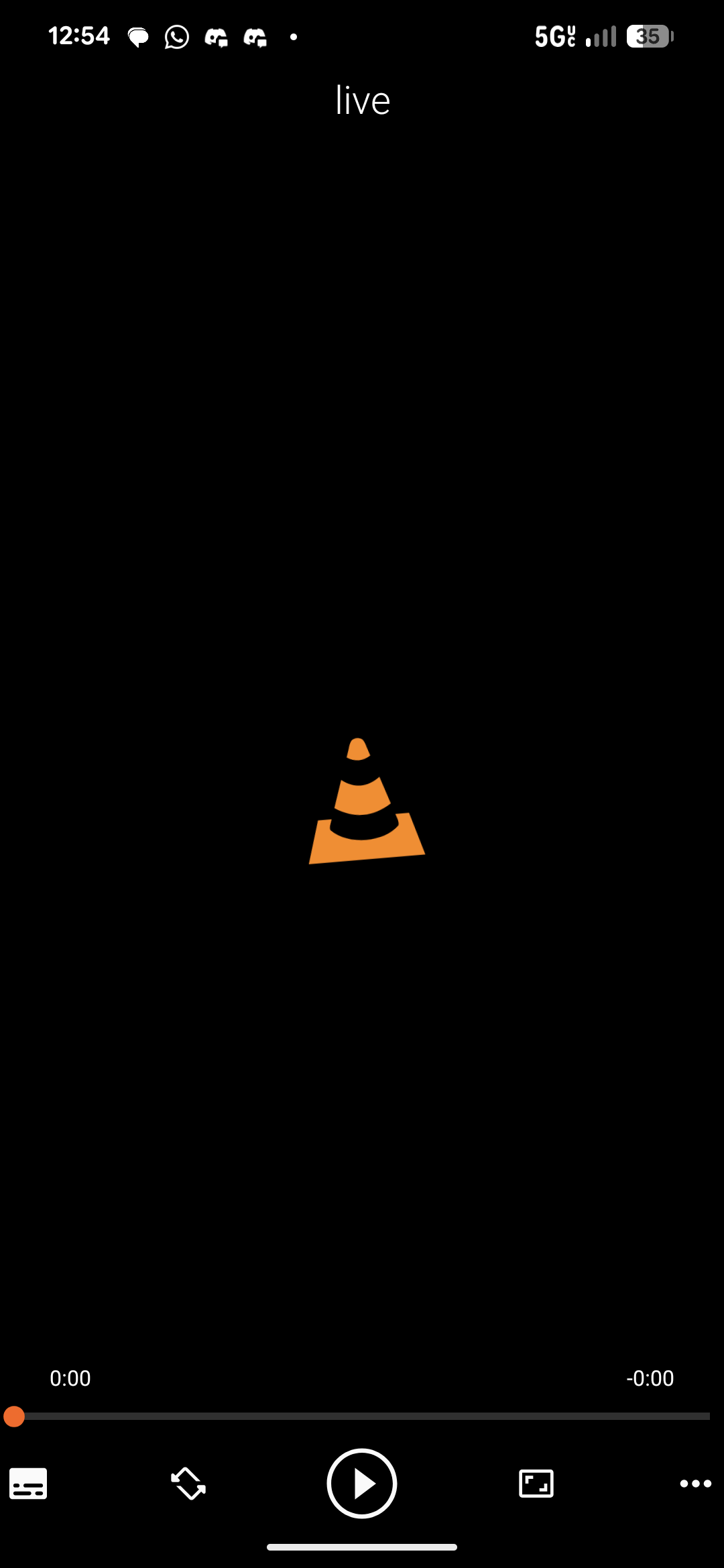
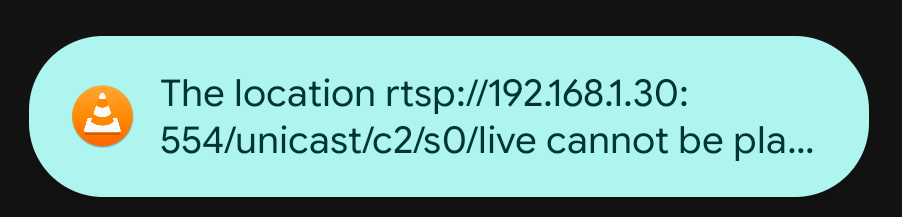
Note, our NVR is not network connected, you will not be able to use the example Address to connect:
If you would like to try an Alternate method other than VLC, you can connect the Readyview cameras to Homekit as well using the same information we just retrieved, if you are interested in trying that, you can find the steps provided by one of our Community members here:
Remote Viewing Trouble Shooting
The Above steps should work for remote viewing as well! Though if you are having issues when connecting to your camera when not on the same internet network, here are some things you can try:
1. Make sure your NVR has a static IP in your router/modem settings (If you are unsure of how to do this, contact your Internet Service provider If they provided your router/modem, or the Manufacturer of your router/modem if you bought your own.
2. Another thing to try while in your router/modem (Once your NVR has a static IP) would be to forward port 554 to your NVR devices IP address.
Note: We understand wanting to keep your already existing security system, ReadyView has not been supported for a few years now, we are providing this guide both as a courtesy for our loyal customers and in the interest of having as much information available as possible, we are not able to walk you through the steps.
By following these steps, you acknowledge and agree that you are proceeding at your own risk.