This article will show how to turn on or off Sync on Firefox, which allows you to synchronize bookmarks, extensions, personal info, and more, across multiple devices.
Turning on sync
1. Open the Firefox Menu by clicking the 3 lines in the top right of the window and click on Sign in, it will be next to Sync and save data at the top of the menu.
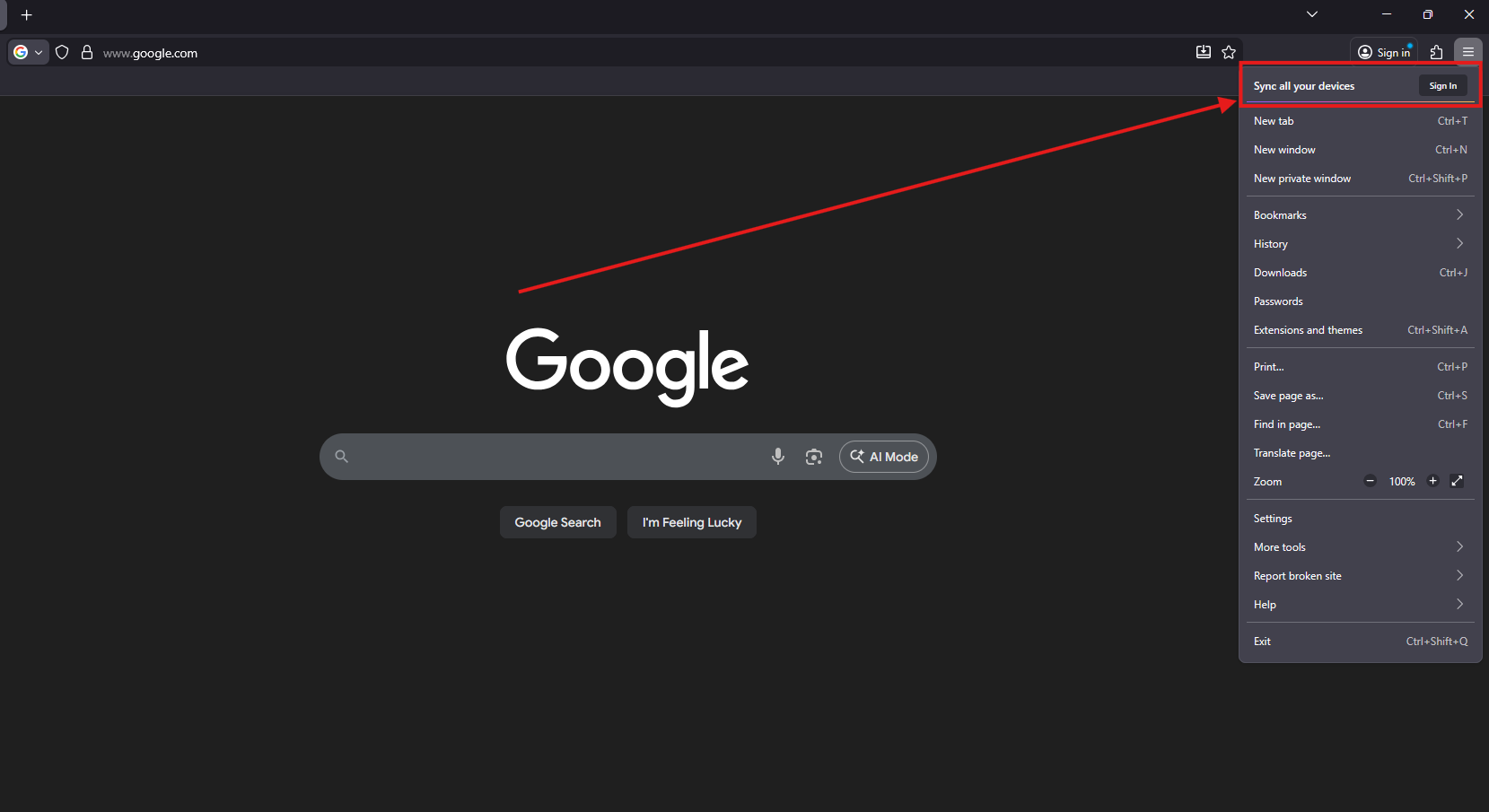
3. Sign into your Firefox account. If you don’t have an account, you’ll be prompted to create one.

4. If you created an account, get the code from your email and input it here, then click Start syncing.
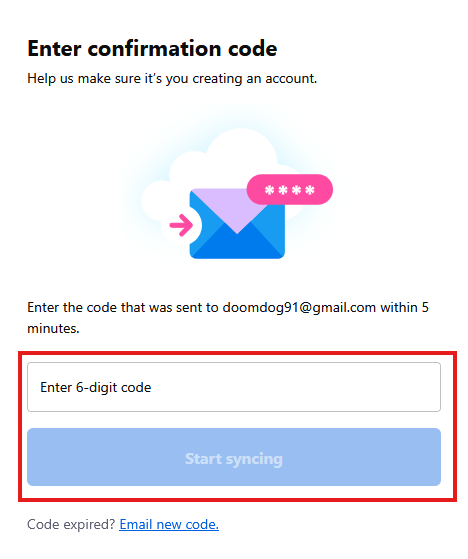
After you are signed in syncing should start automatically!
Managing Sync
1. To manage your sync settings, click the 3 lines in the upper right hand corner, and choose the option at the top that has your email listed.

2. Choose Sync settings from the menu.

3. Click Manage sync.

4. Select any of the options listed that you want to sync on the account. Once you’ve selected all that you want, click on Save.

Turning off sync
1.To turn off sync click the 3 lines in the upper right hand corner, and choose the option at the top that has your email listed.

2. Choose Sync settings from the menu.

3. Click Manage sync.
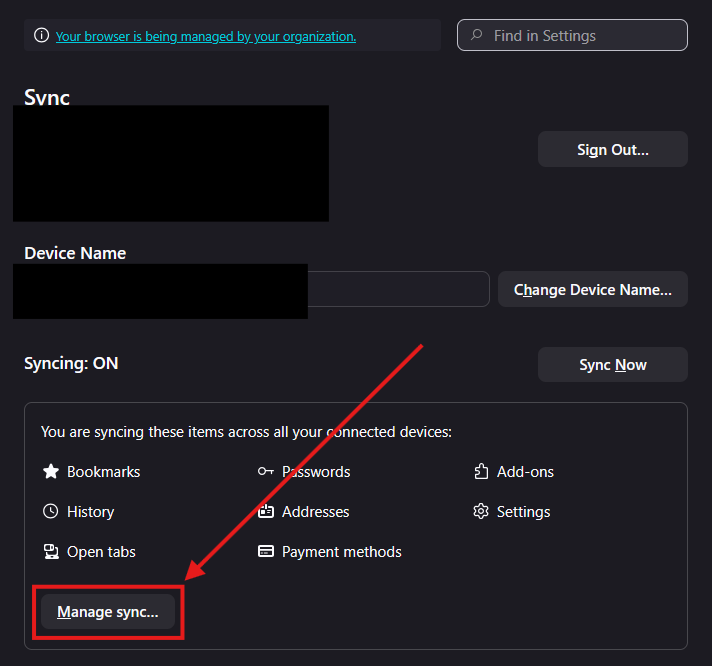
4. Click Disconnect.

5. One more box will pop-up, click Disconnect one more time.

That's it, Firefox will no longer sync your data across their browsers!