These days we are constantly hearing about the threat of Viruses and Malware, why wouldn't you want to help keep your friends and family protected!
Whether you have bought a License for someone else or you are trying to add people to your Family License, this guide will have all the steps you need to add someone as a member to your ESET Home group!
Adding a Member
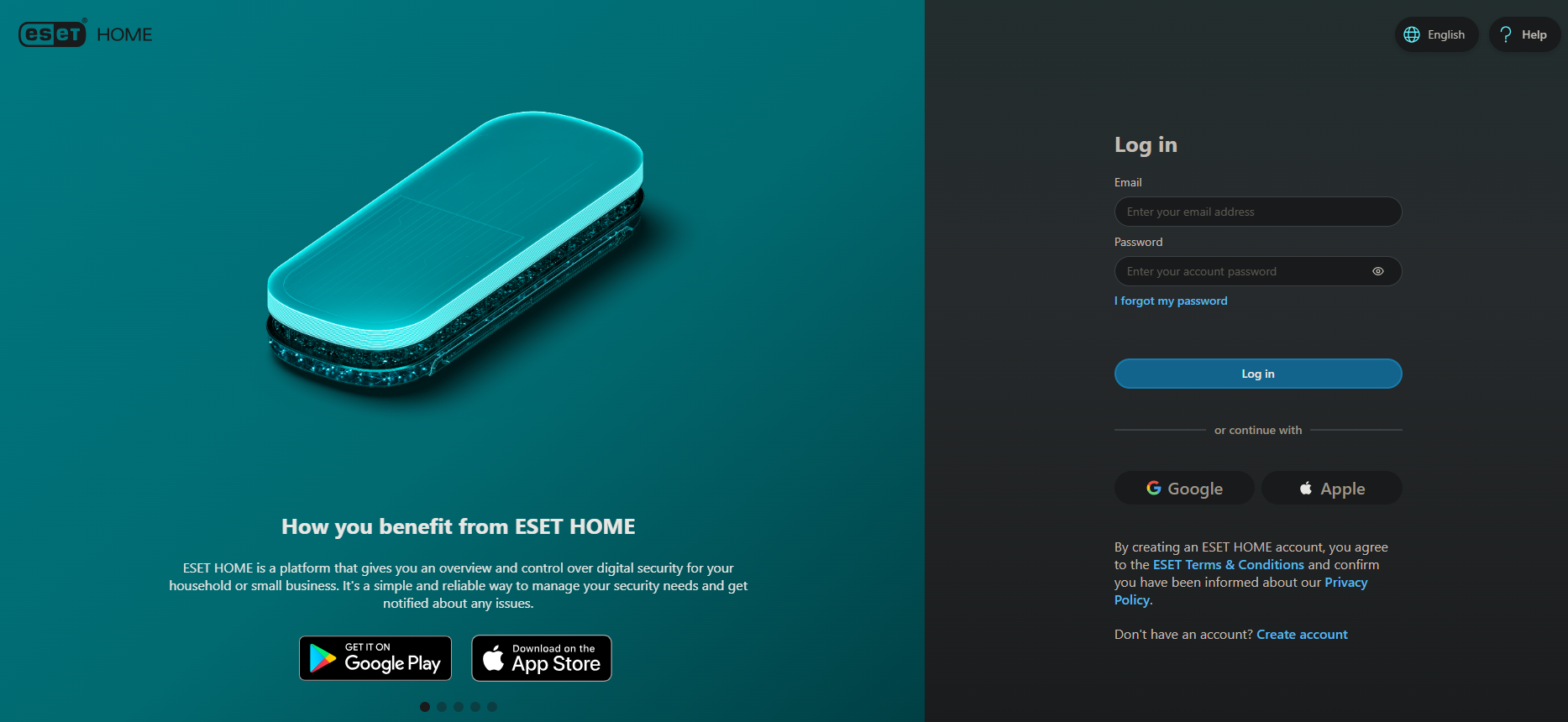
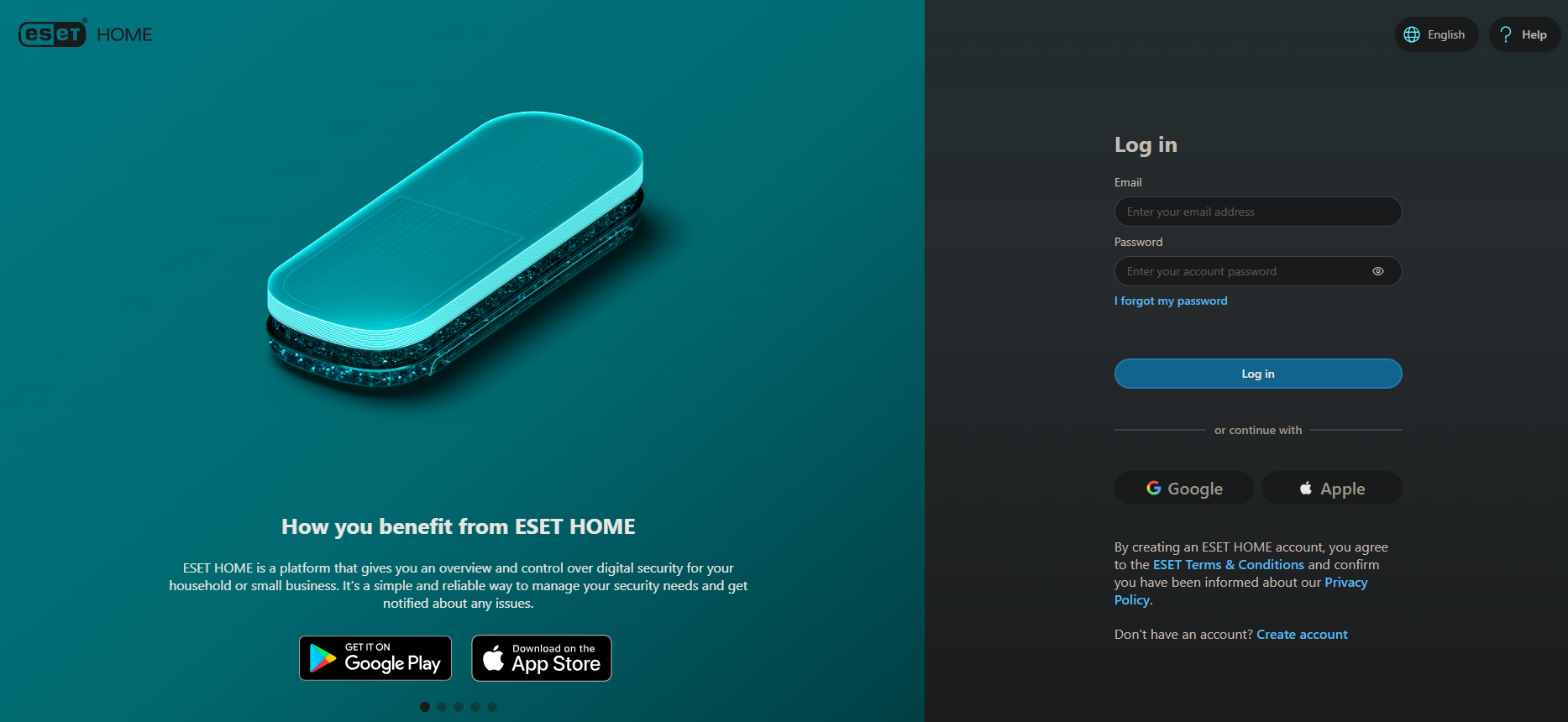
1. Navigate to ESET Home and log in to your account:
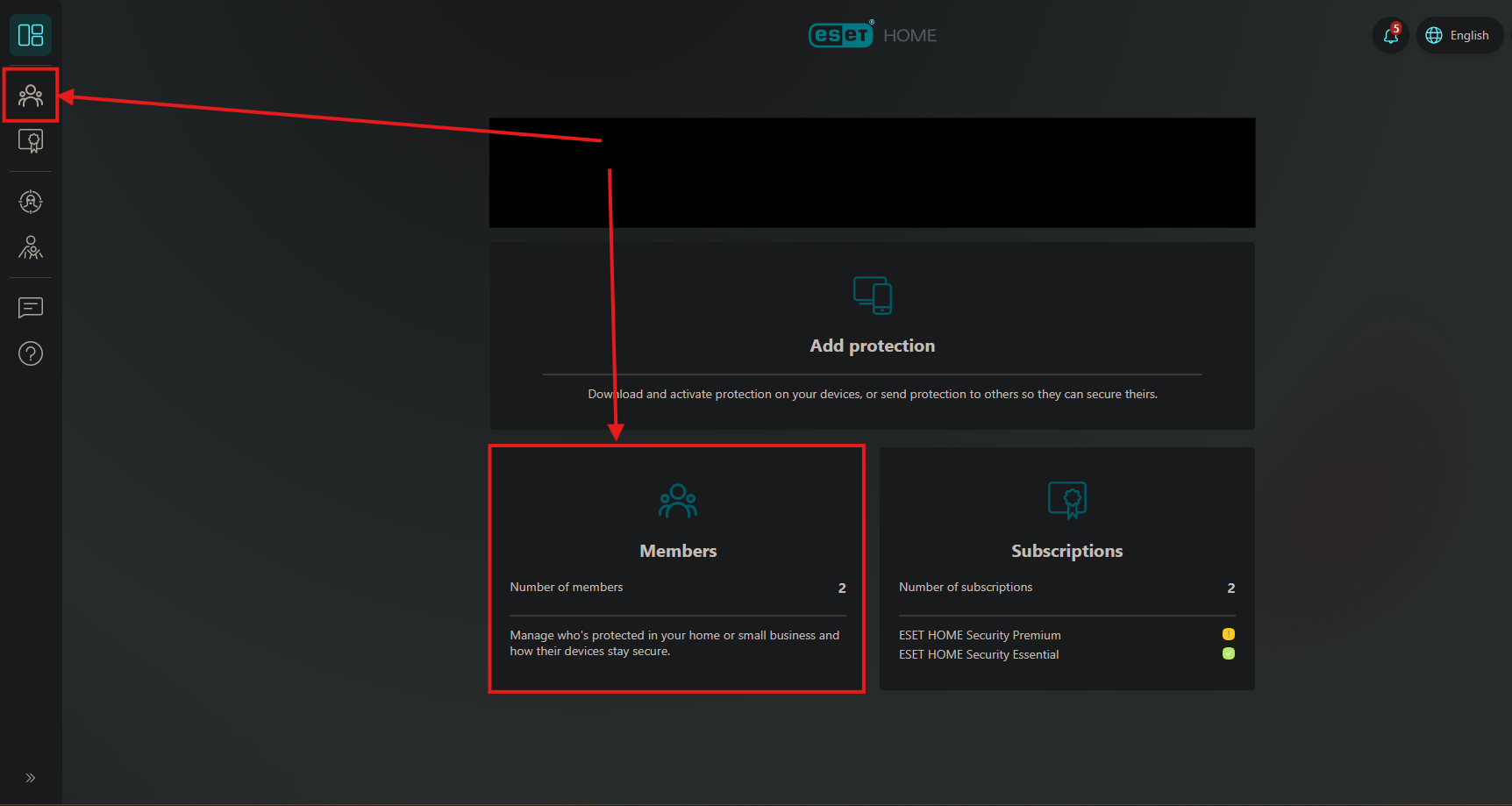
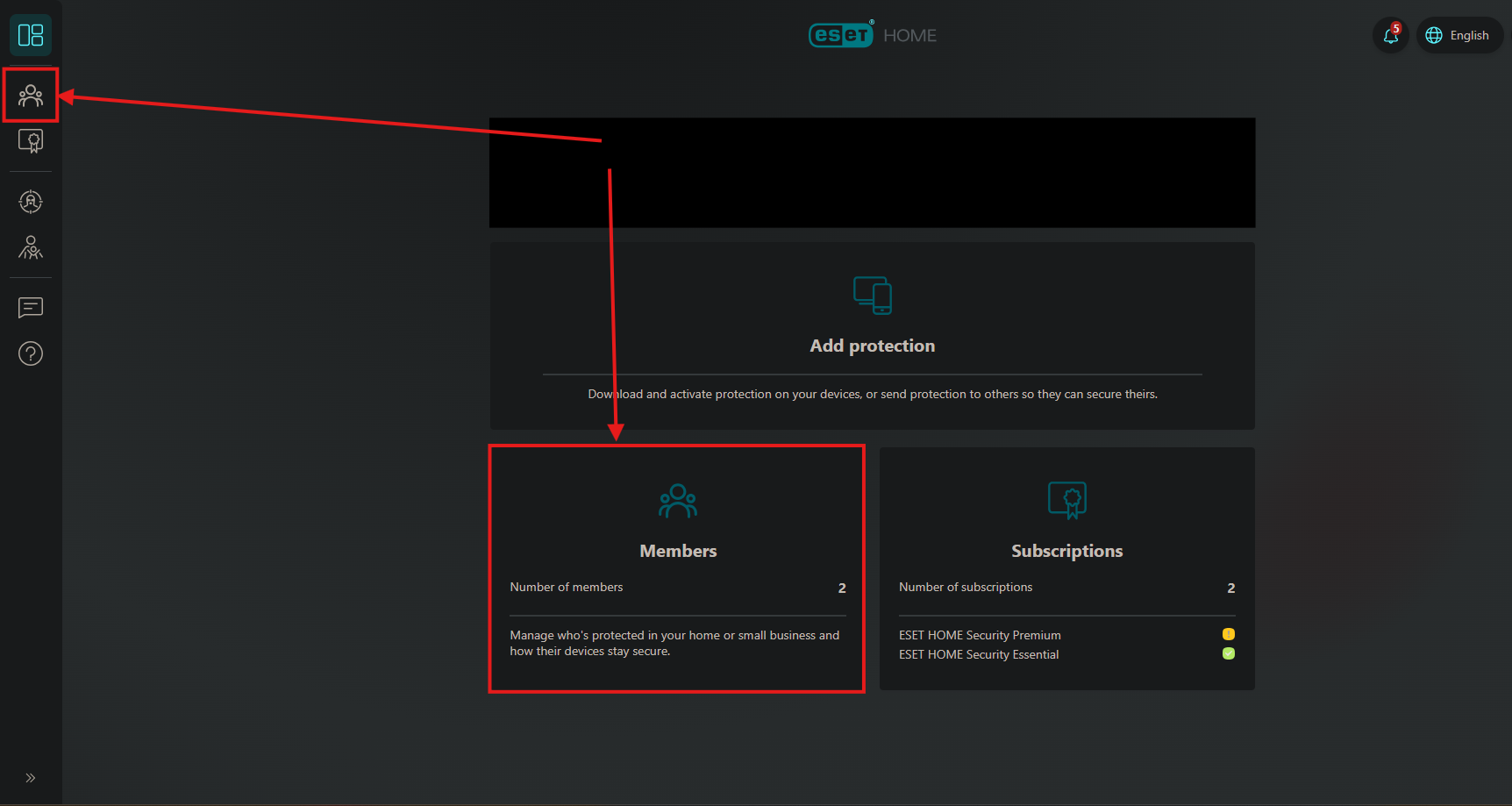
2. Once logged in, you can either click on the Members Icon on the left or the box that says Members in the bottom middle:
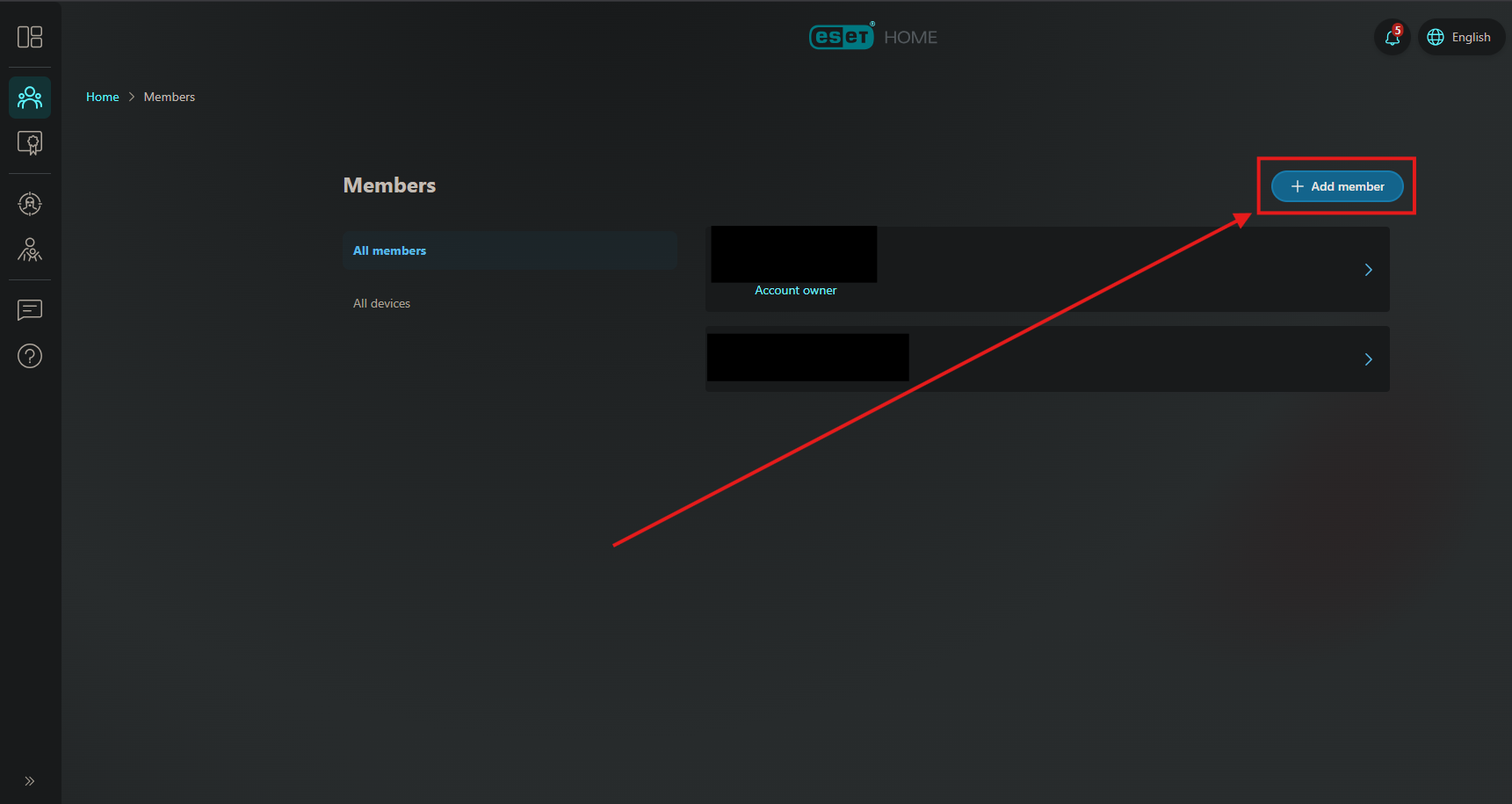
3. In the Members section you will see all the people who are already Members of your ESET Home group (including yourself), to add a new member, click +Add Member in the upper right:
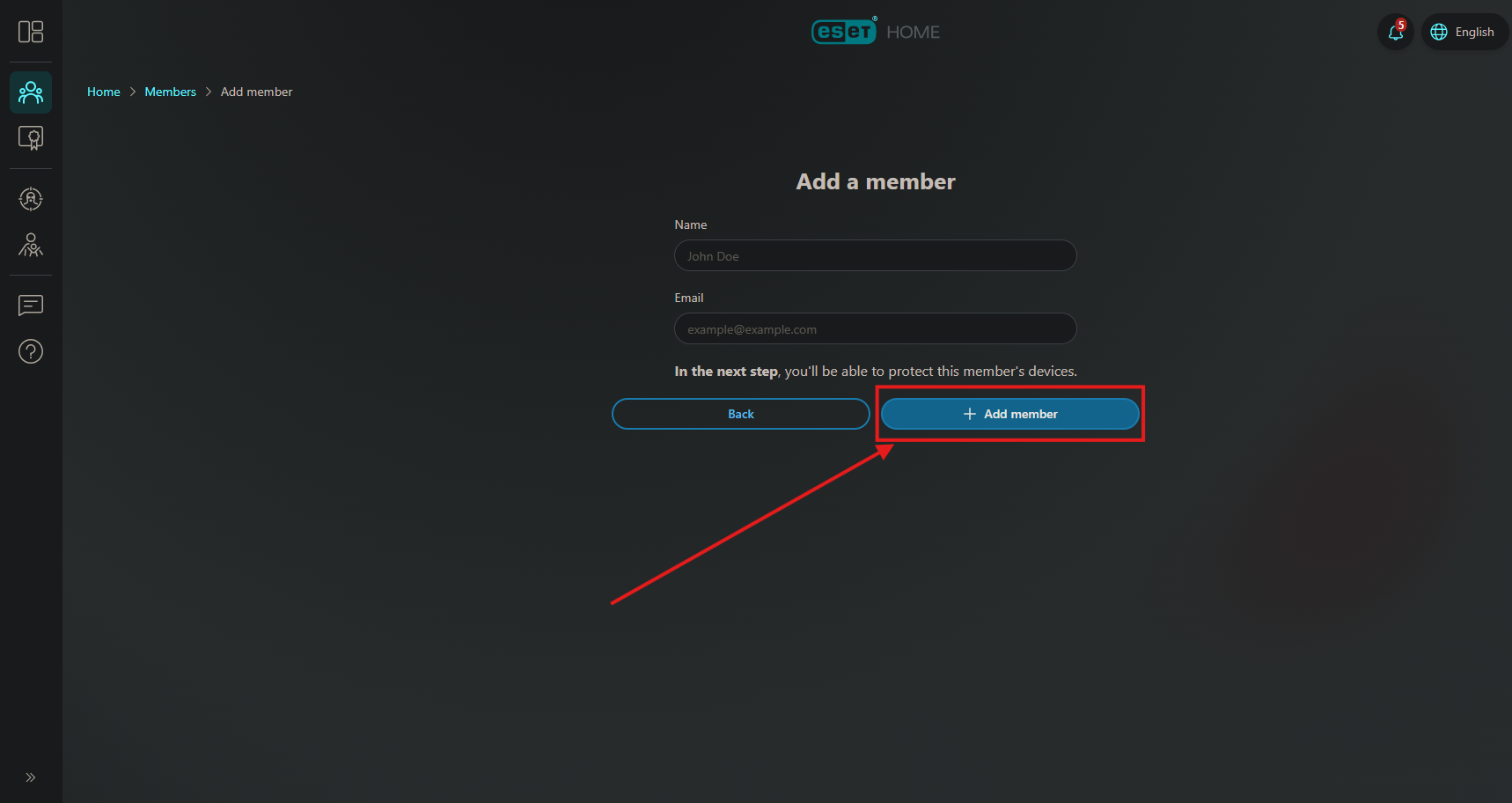
4. Input the First and Last name, and email address of the person you would like to add as a Member, then click +Add member:
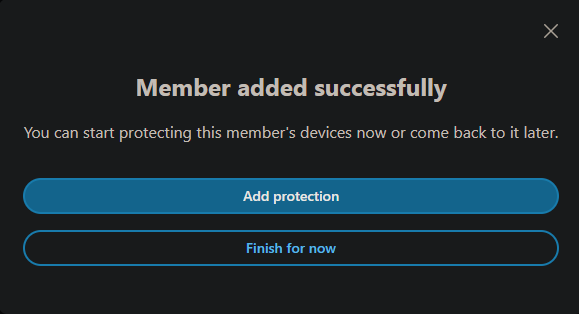
5. A box will pop up saying "Member added successfully". If you have an ESET License you want to attach to them, click Add protection and then continue to step 5. of the Attaching a license section. Otherwise, click Finish for now:
Deleting a Member
1. Navigate to ESET Home and log in to your account:
2. Once logged in, you can either click on the Members Icon on the left or the box that says Members in the bottom middle:
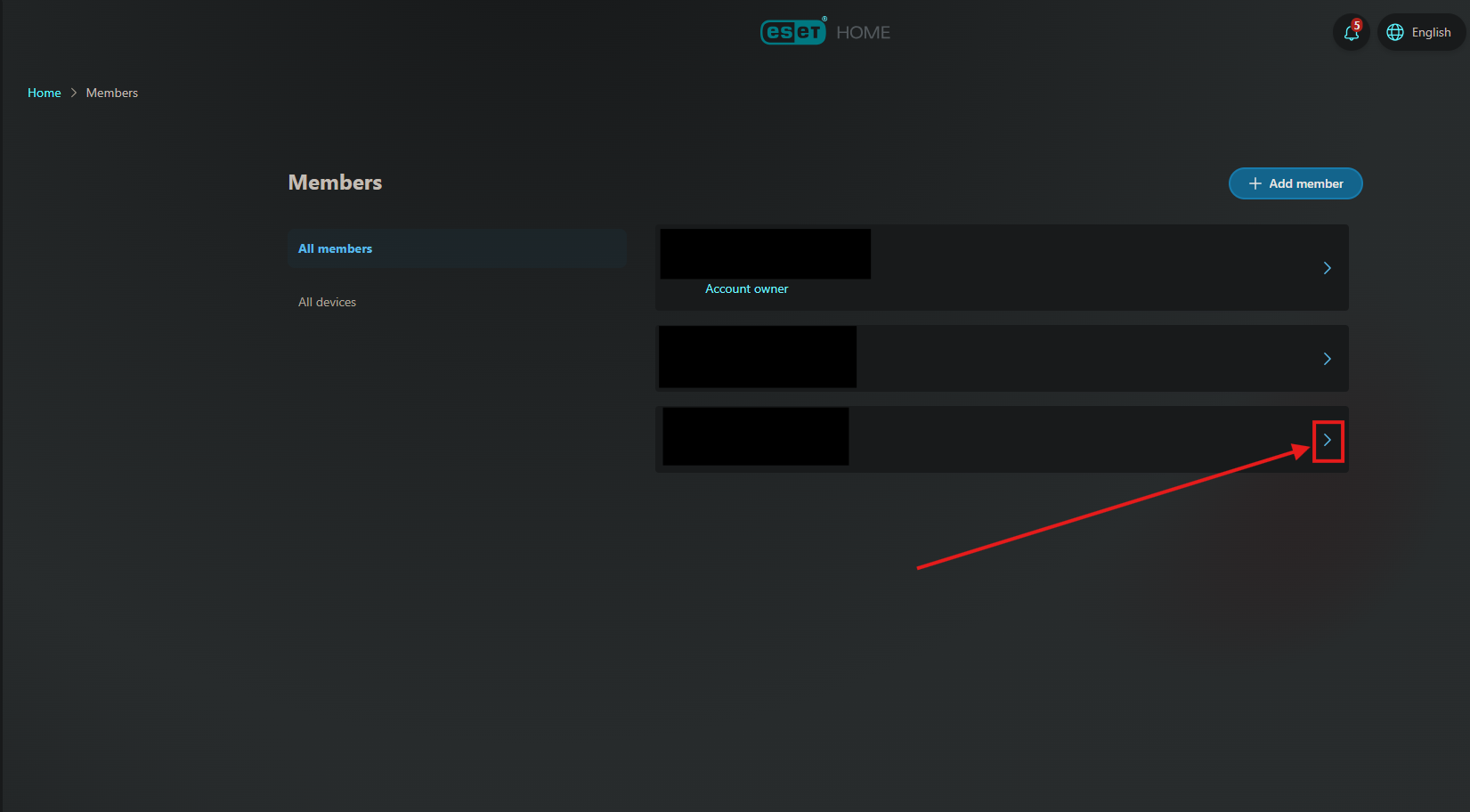
3. Click on the arrow to the right of the Member you would like to delete:
4. Click on the gear Icon next to their name:
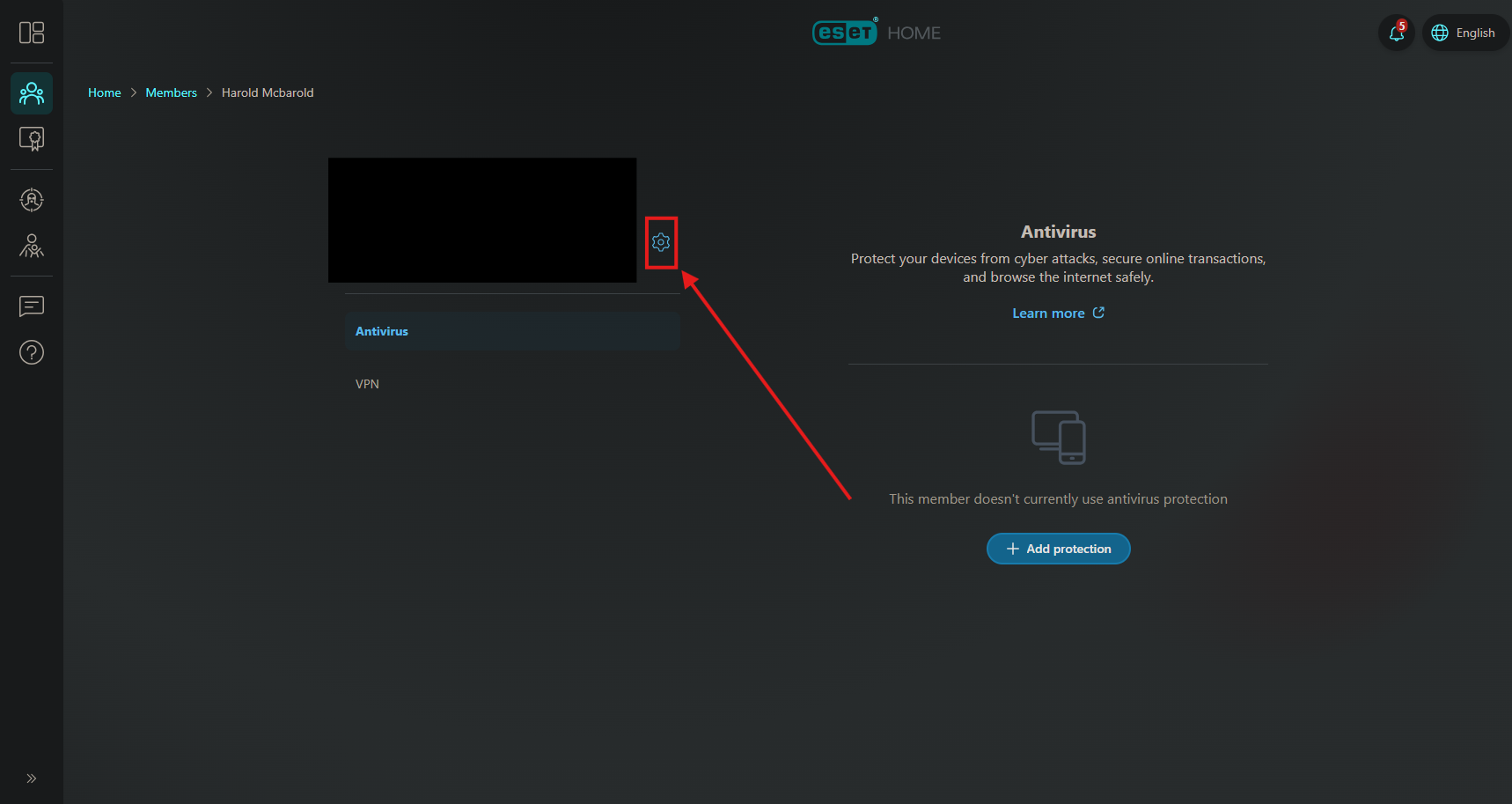
5. Click Delete:
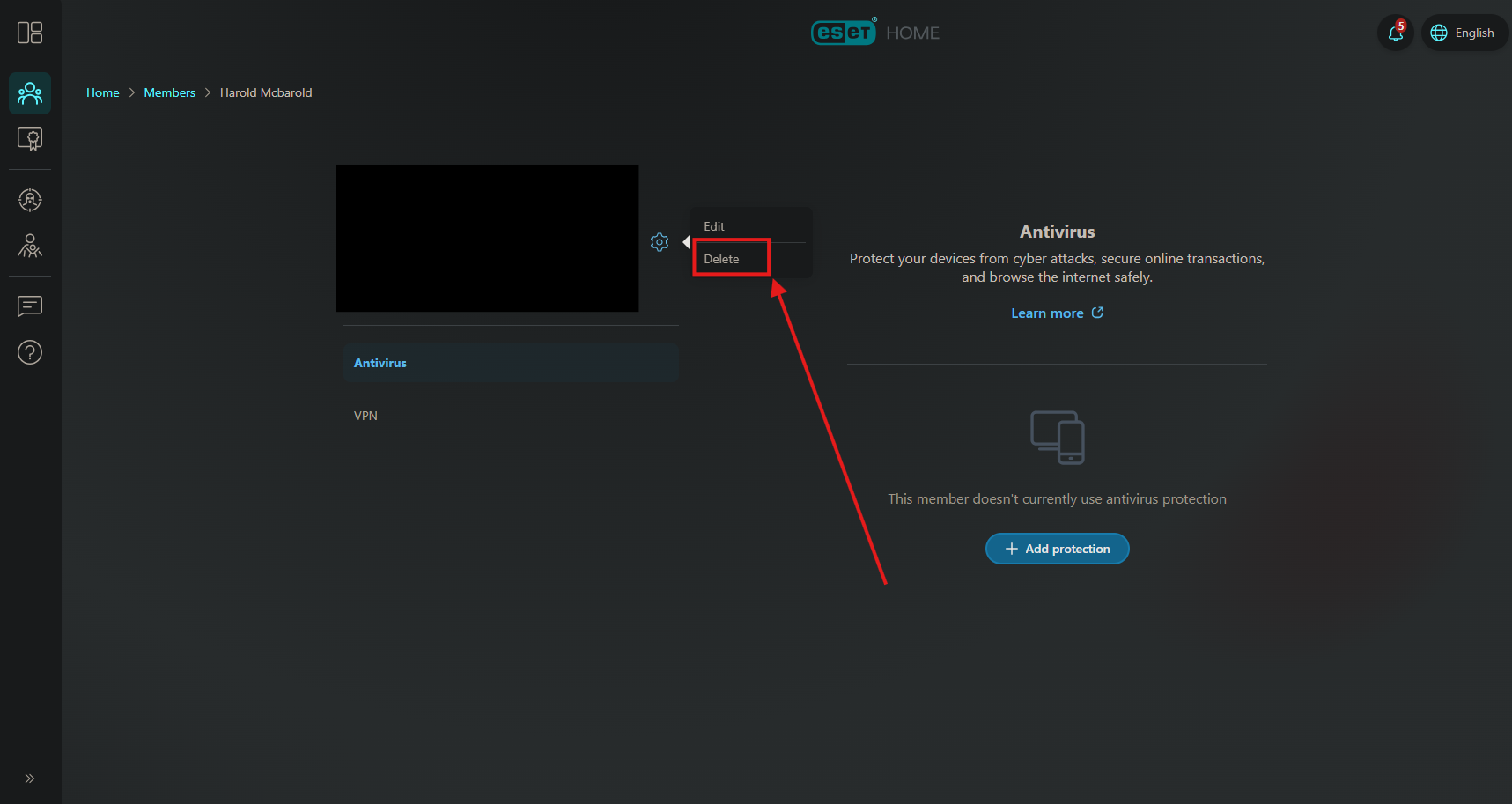
6. A window will pop up, confirming you would like to complete deletion, click Delete member:
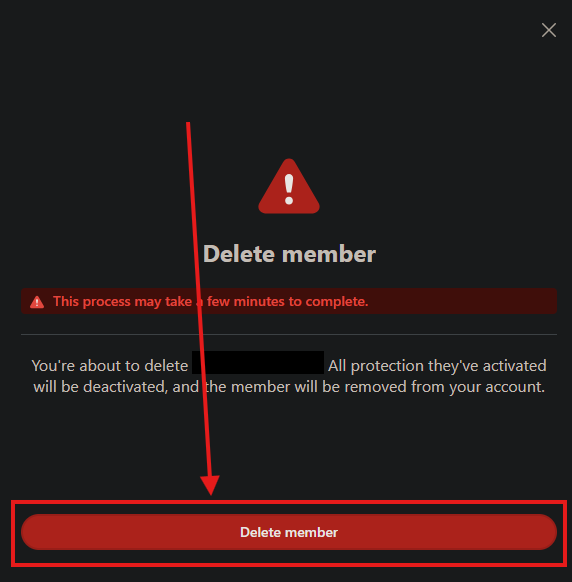
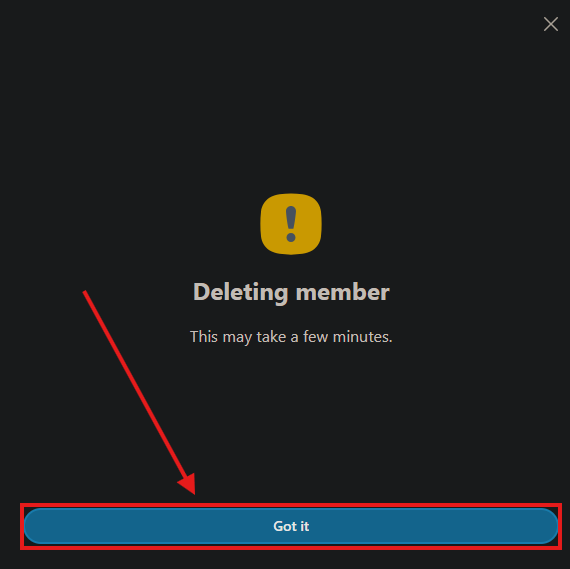
7. One more box will pop up confirming the deletion of the member, it may take a few minuets to complete, click Got it:
Attaching a License
1. Navigate to ESET Home and log in to your account:
2. Once logged in, you can either click on the Members Icon on the left or the box that says Members in the bottom middle:
3. Click on the arrow to the right of the Member you would like to Attach a License to:
4. Click on +Add protection:
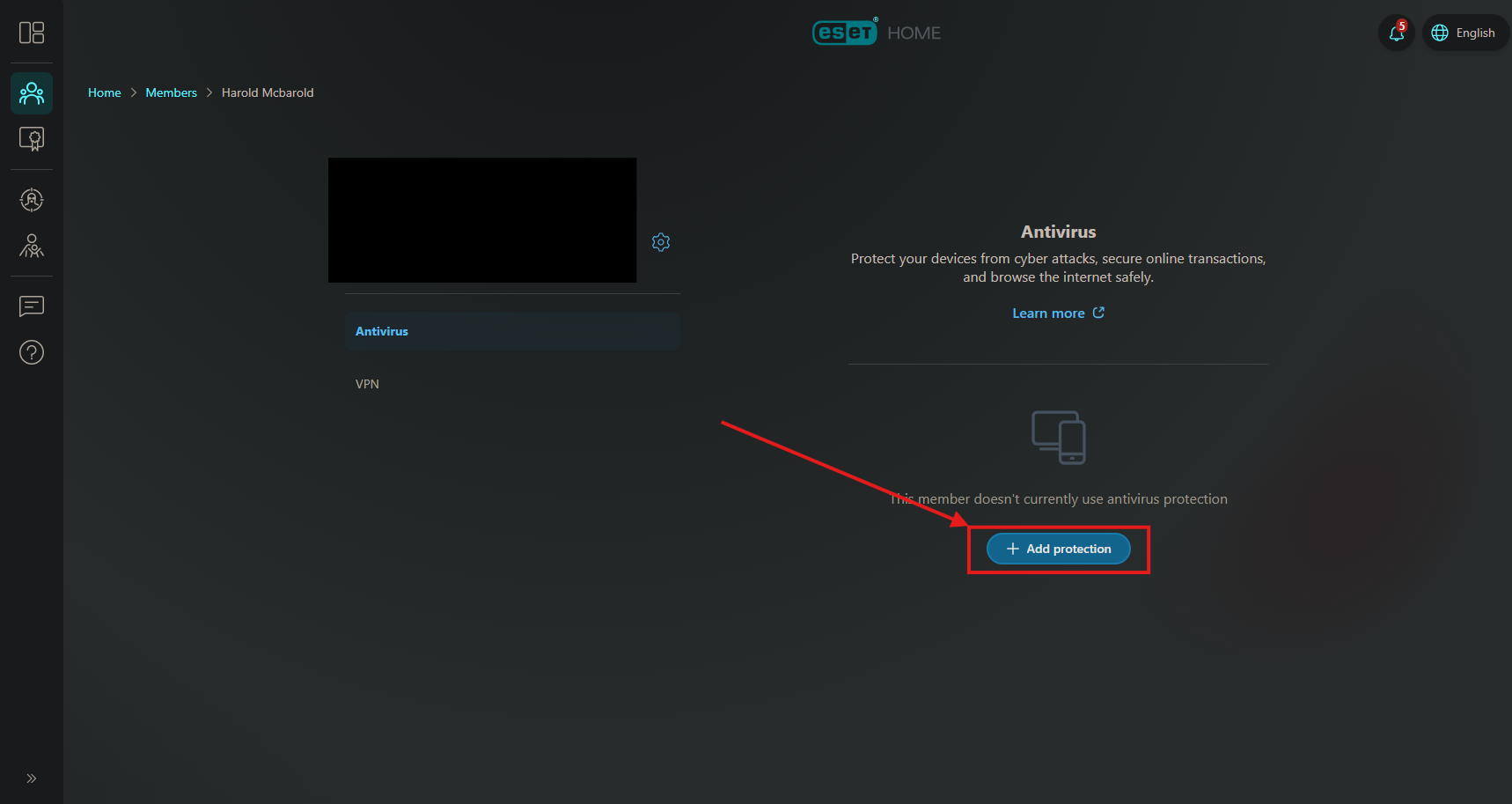
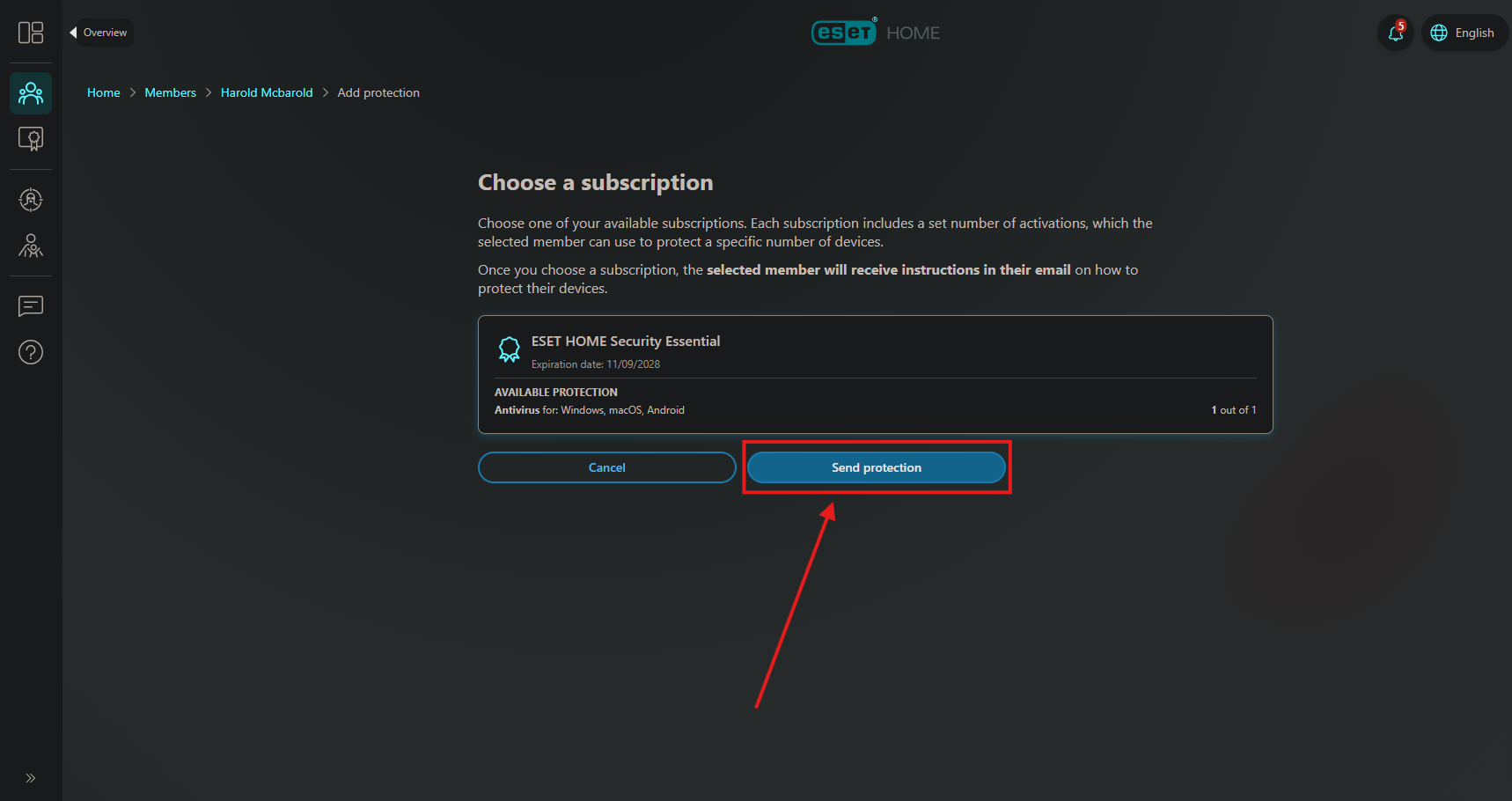
5. Choose the License you want to send, then click Send protection:
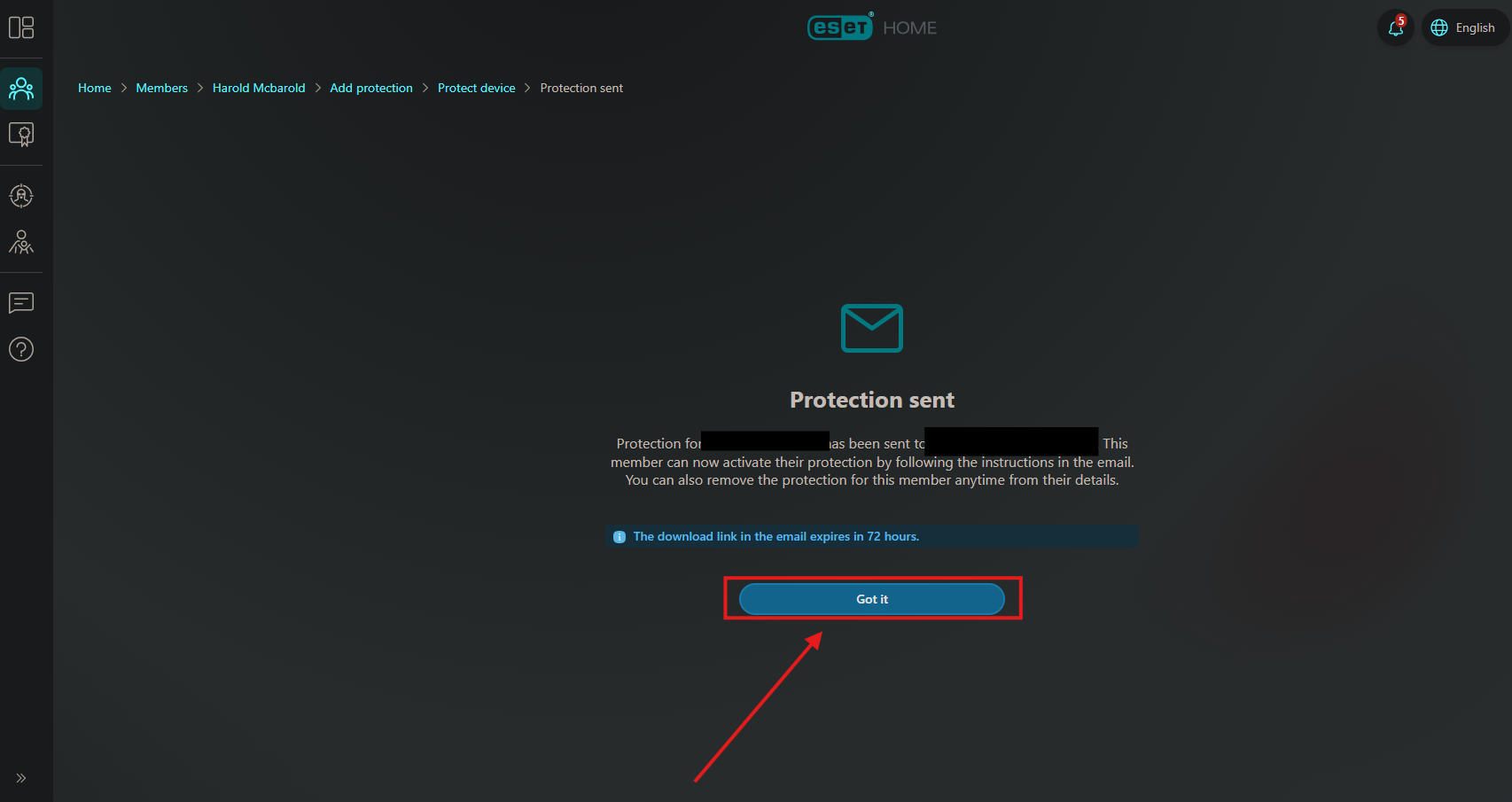
6. You will get a confirmation page, the person you sent it to will have 72 hours to open the email and download the software:
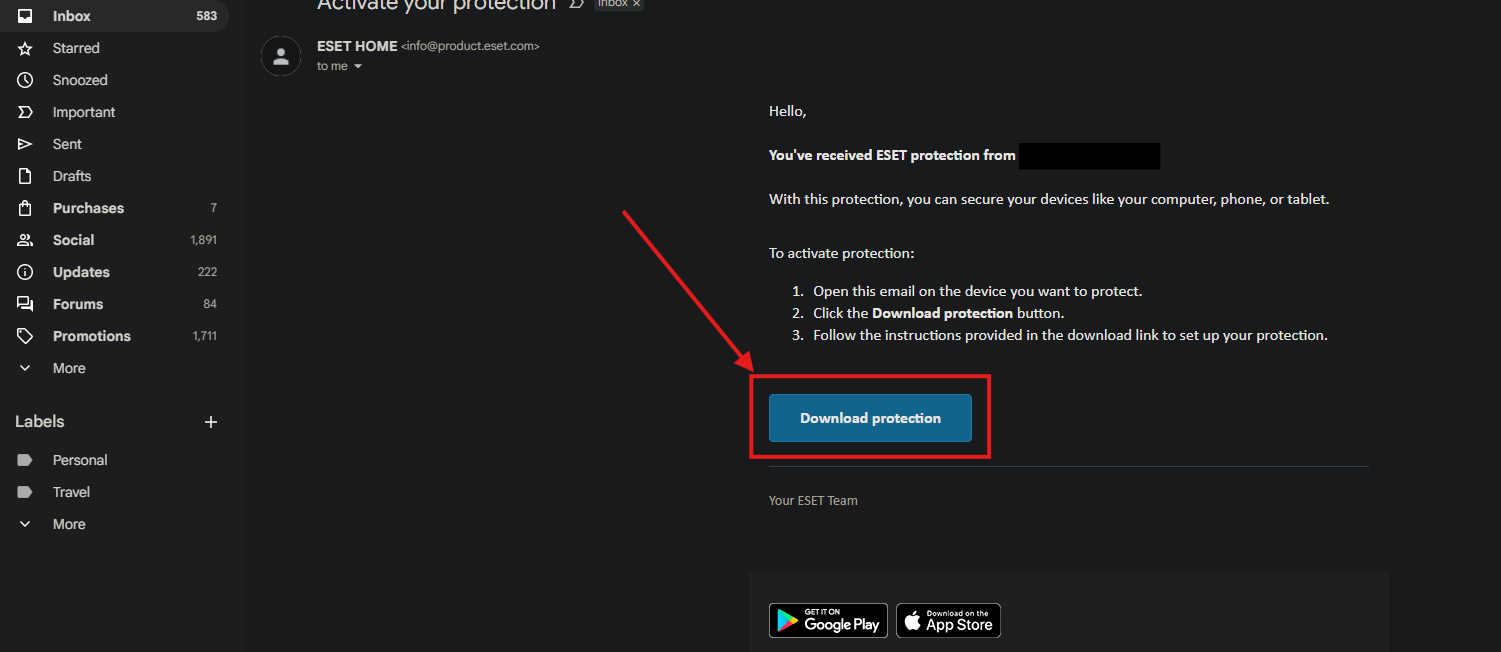
7. The email the new member receives will look like this:

They will open the email and click the Download protection button, the software will download, all they have to do from there is open it and follow the steps on the screen:
You're all set, that should be everything you need to know about managing Members in ESET home!