We have all experienced this at one point or another, you open one of your office apps and its saying you don't have a license, even though you know you activated it.
Fret not, you license is tied to your Microsoft account, all you should have to do is sign into the application!
In this guide we will be using Word as our example program, but the process is relatively similar in the others as well.
Opening the program
Windows
Windows 10
1. Open the start menu located in the bottom left-hand corner of your screen:

2. You have a few options from here;
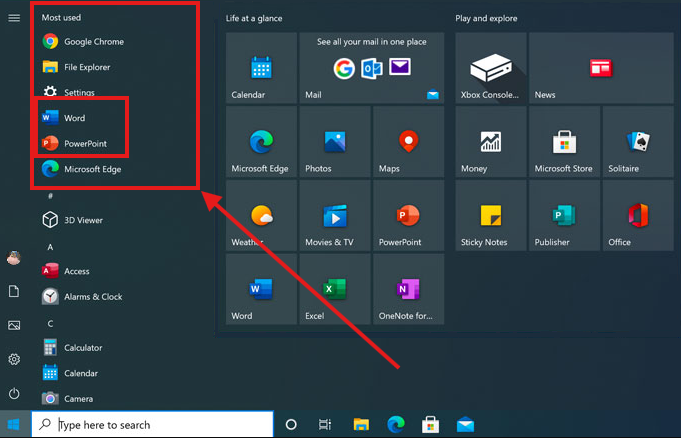
A. If you open the program it a lot, it may be at the top of your programs list in the most used section:
B. If its not at the top of the list, you can scroll down as the list is in alphabetical order, you should find it in the section for the Letter the program starts with:

C. You may also be able to find it on the right hand side in the life at a glance section:

D. If its not in any of those places, you can always search for the program by typing its name in the search bar at the bottom:

If you were unable to find the program through any of these methods, you may still need to install it, if so, please visit our guide on how to do so.
Windows 11
1. Open the start menu, typically located in the bottom middle of the screen:

2. You have a couple options from here;
A. It could be located in your pinned apps:

B. You can also search for the App using the search menu at the top:

Then select it either from the best match section, or by clicking open on the right side:

If its not showing up in either of those places, its possible you still need to install it, if so, see our guide here.
Signing into the program
- Upon opening the program, you should be prompted to sign in. Log in to the account you used when you activated office:

2. If you are not prompted, you may be signed in already, just not into the right account, once in word click the circle along the bar at the top of the screen:

3. Click on Add an account:

4. Sign into the Microsoft account you attached office to:

5. You should be signed in and good to go at this point, if you want to verify, you can click account in the bottom left hand corner:

6. You can see all info about your signed in account as well as your activation information here: