A Windows recovery drive is a useful tool you can create for each of your computers to have just in case something happens with your device, there are numerous instances where having one of these handy bootable USB devices can save you in a pinch and help you restore your system if you are unable to boot into windows!
Each Recovery Drive is specific to the computer that was used to create it, if you have multiple Windows devices, then we recommend creating one of these for each of your computers.
It is recommended that you Create a new Recovery Drive once a year to make sure you have all the latest updates.
This is different from a Password recovery USB for a local login on windows, to find out how to create one of those, visit our guide here.
The process here is the same on both Windows 10 and 11!
Creating Recovery Media
1. Plug an empty USB flash drive (Do not use one with files you want to save, this process will erase them off the drive) that is fat32 formatted and at least 32GB in size into one of the USB ports on your computer:
2. On your keyboard, press and hold the Windows key, while holding that key down, press and release the letter R:

3. The Run window will open, usually in the bottom right hand corner of your screen:
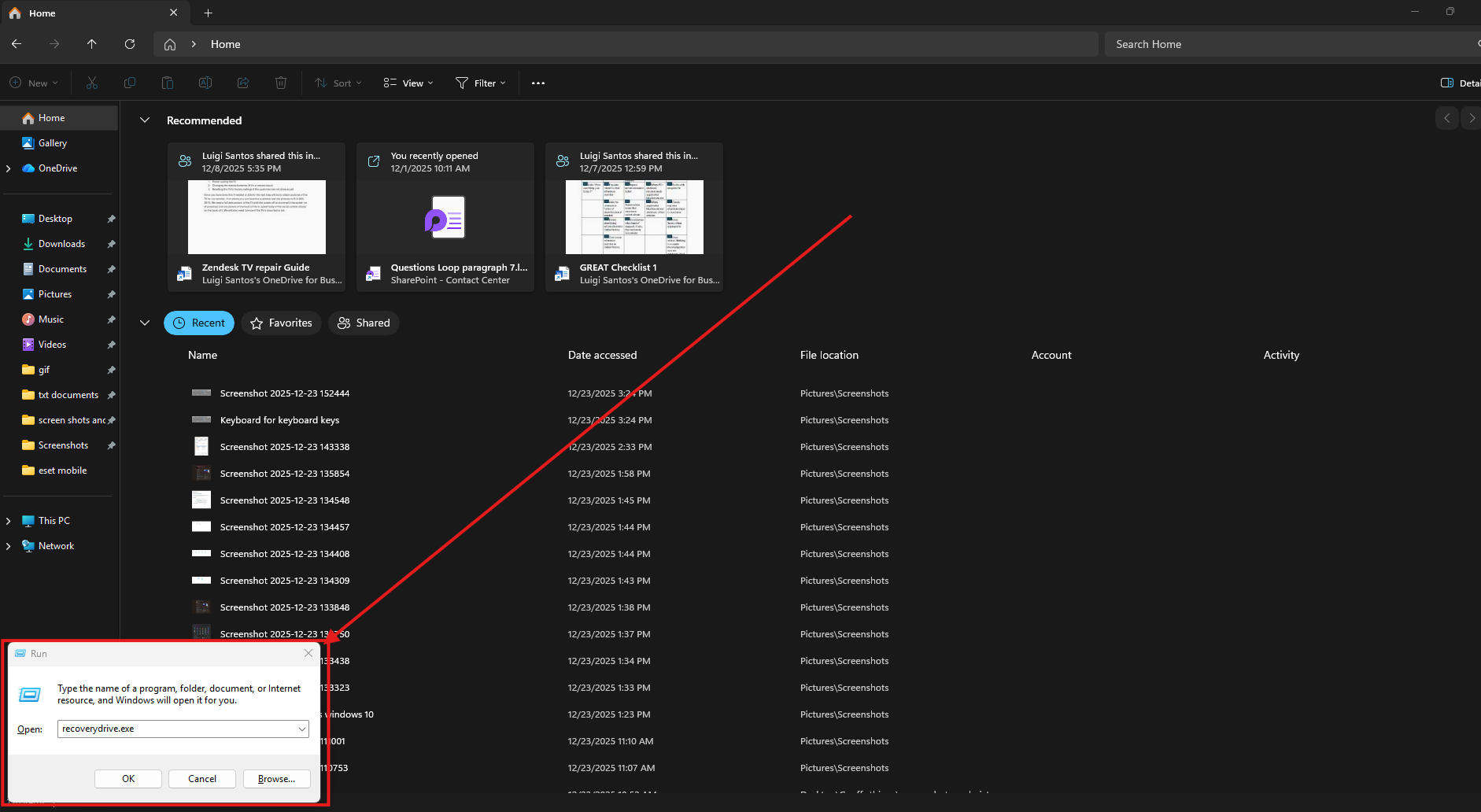
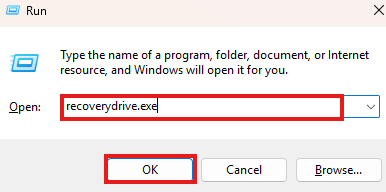
4. Click the box next to open and type in recoverydrive.exe then click ok:
5. Click Yes when prompted:

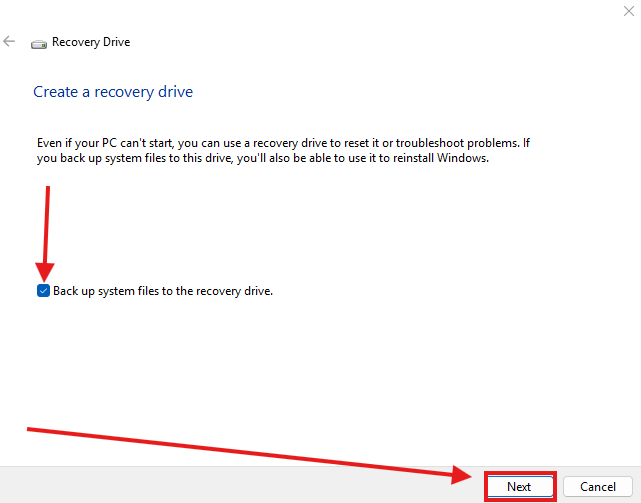
6. This will open the Recovery Drive window, make sure there is a check mark in the box next to Back up system files to the recovery drive then click Next:
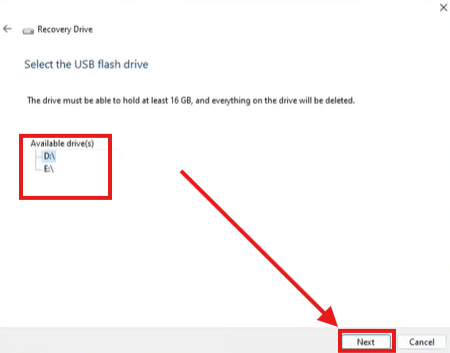
7. Windows will start looking for a Drive to turn into the recovery drive, this will take some time, if you did not connect your USB drive in step 1 you can connect it now:

8. Select the drive you connected and click Next:
9. When you are sure you have a blank drive with no important info selected click Create:
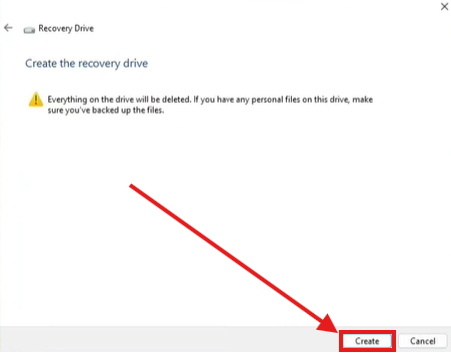
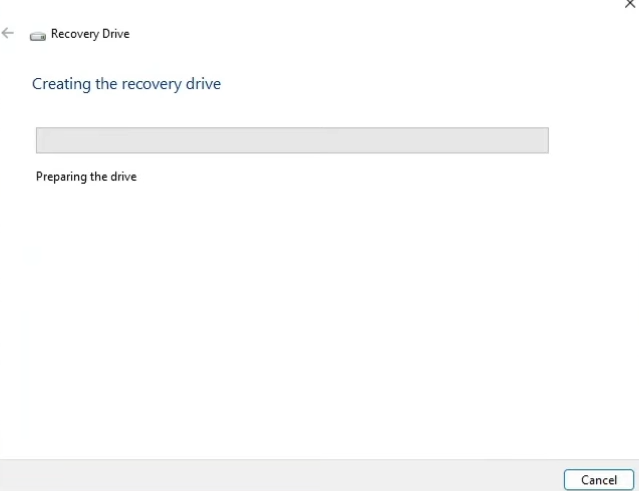
10. Windows will go through the process or creating the Recovery Drive:
11. Once it is done, you can click Finish:
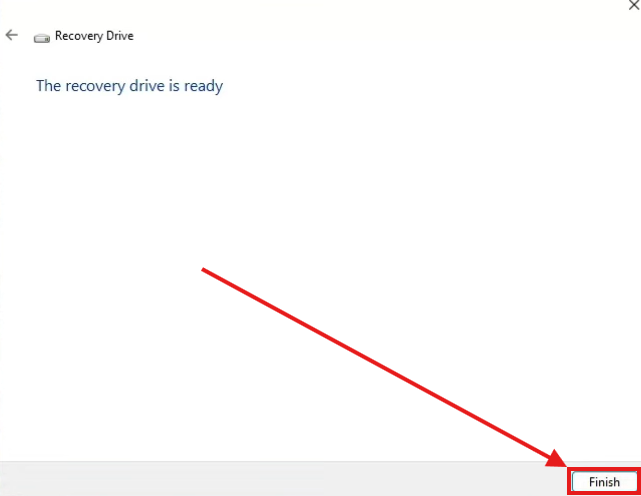
That's it, your recovery drive is ready to go! If you are interested in learning more about the recovery drive and how to use it to restore your system, you can visit our guide here.