This article will show you how to Turn sync on and off in Chrome. Sync allows you to synchronize bookmarks, extensions, personal info, and more across multiple devices using Google Chrome.
Turning on sync
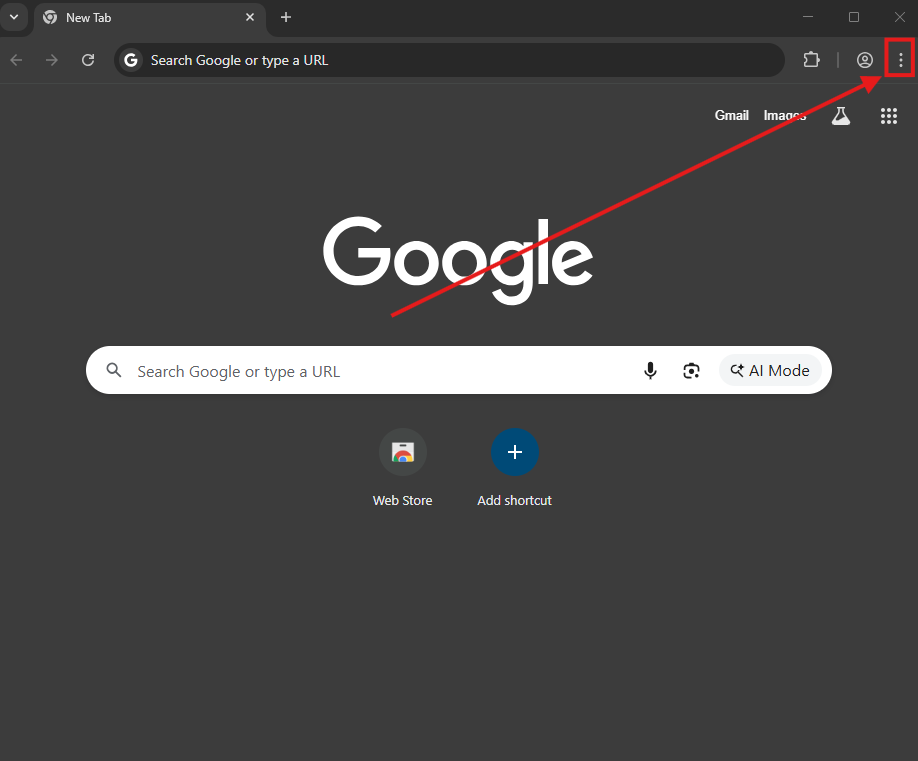
1. Open a new Chrome Window. Open the menu (the three dots) at the top right and click on Settings.

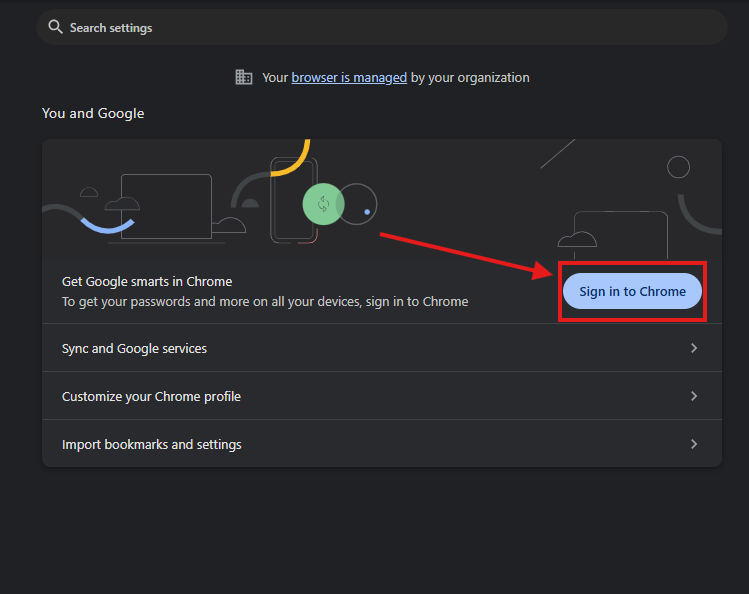
2. If you're not signed in yet, you may have to click Sign in to Chrome and sign into your Gmail account.
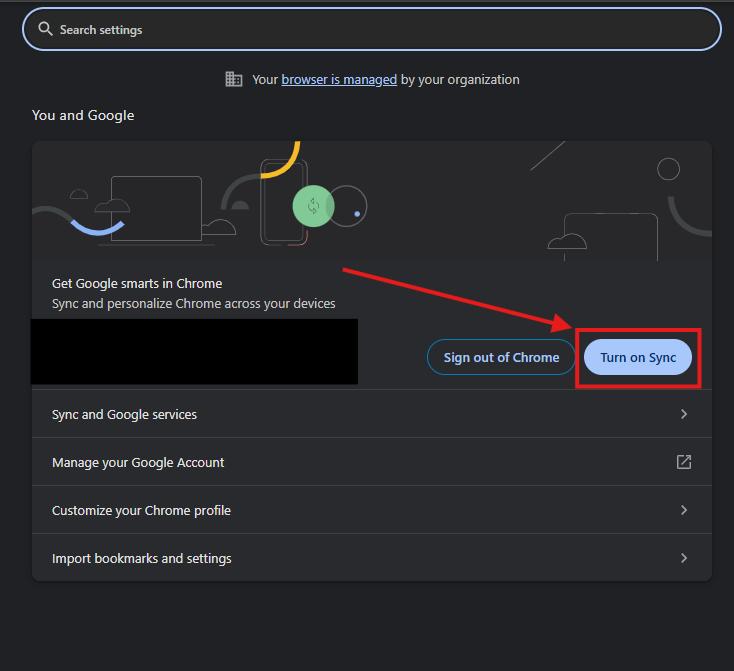
3. Click on Turn on sync.
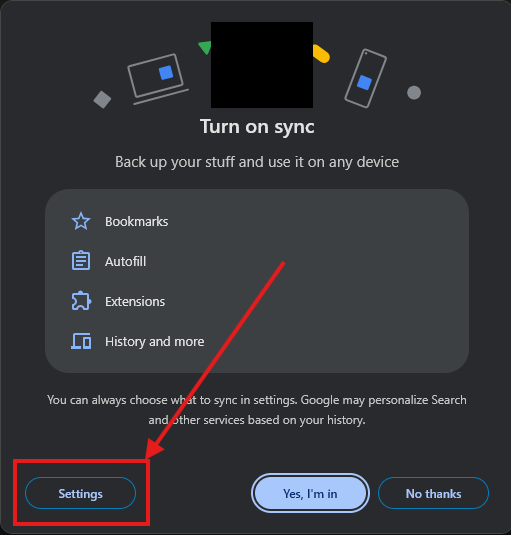
4. Before confirming, click on Settings.
5. This will take you to the Sync and Google services page, Click on Manage what you sync.
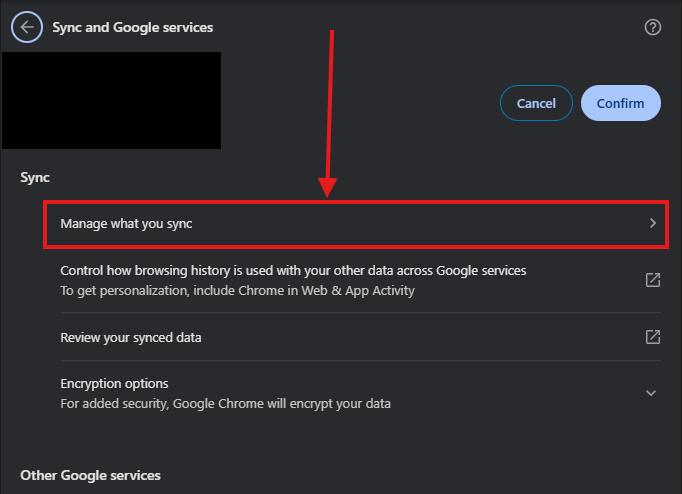
6. You can either choose Sync everything, or Customize sync.
Sync everything will sync all your Chrome browser data from each computer that has chrome with sync on
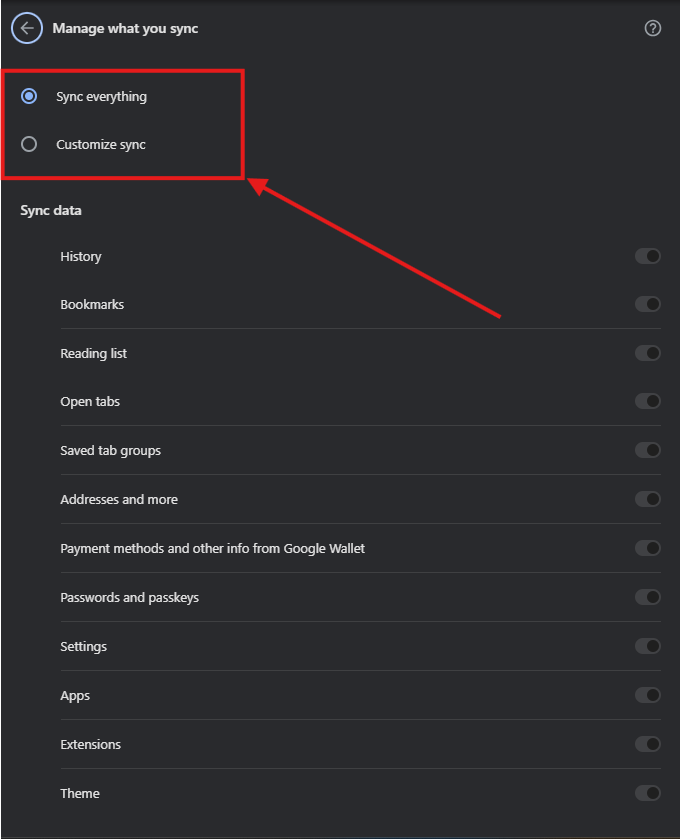
Customize sync will let you pick and choose what you want to be synced to this browser from your other chrome browsers. You can do so using the switches on the right Dot on the right side is on, Dot on the left side is off.
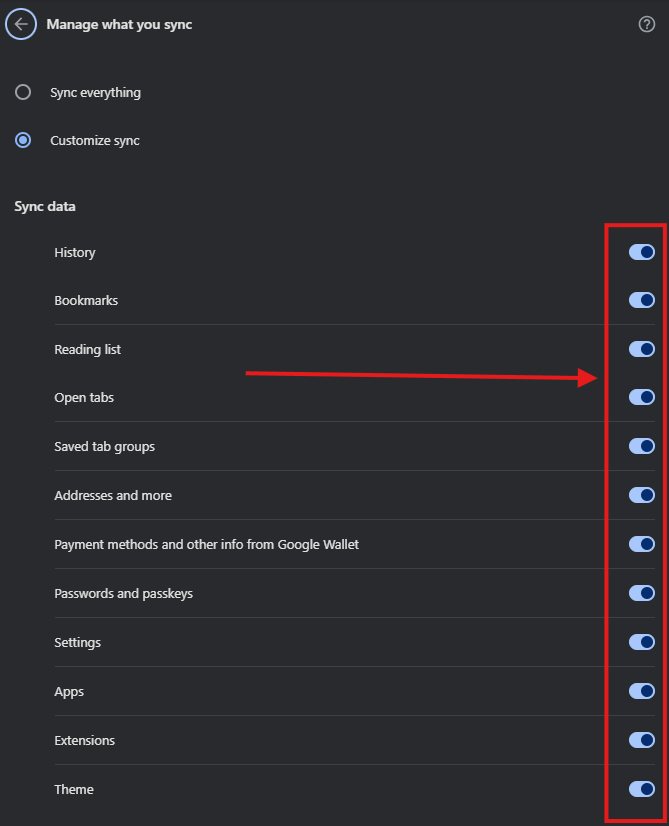
7. Once you have chosen what you would like to sync, click the Arrow at the top to go back a page.

8. Click Confirm
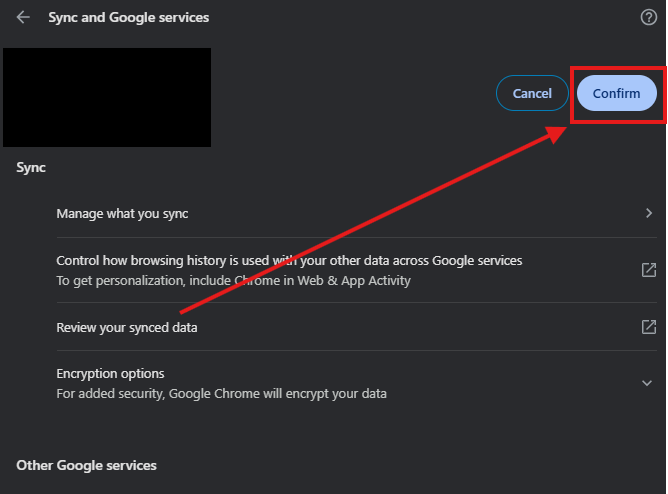
That's it, sync is now on and working! It will take a bit of time as it works to synchronize all the data.
Turning off sync
1. Open a new Chrome Window. Open the menu (the three dots) at the top right and click on Settings.


2. Click Turn off.
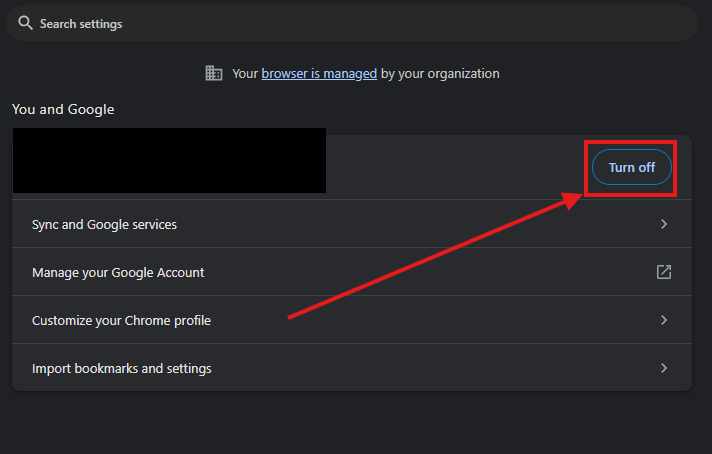
3. A box will pop up asking if you would like to turn it off.
If you want to remove all the data that was synched check the box next to Remove bookmarks, history, passwords, and more from this device Before you click turn off.

Otherwise, just click turn off.

Note: Turning off sync will sign you out of the browser, if you want to sign back in again, you can, doing so will not turn sync back on.