ESET will attempt to stop you from installing if you have another antivirus already on your computer. If you manage to install anyway, your system will run more slowly and may experience issues launching some applications. The best thing to do is to remove any pre-installed antivirus software before installing ESET.
In this example, we will be uninstalling McAfee.
Here is how to uninstall the other anti-virus software:
Windows 10
- Click on your Windows start button, typically found at the lower left corner of the screen. Click the gear icon found here to go to Settings.

- Select Apps to open the Apps and Features menu.

- Scroll through the list of programs until you find the other antivirus program. Click it and select Uninstall. The program’s uninstaller will launch, follow the prompts to remove the program.
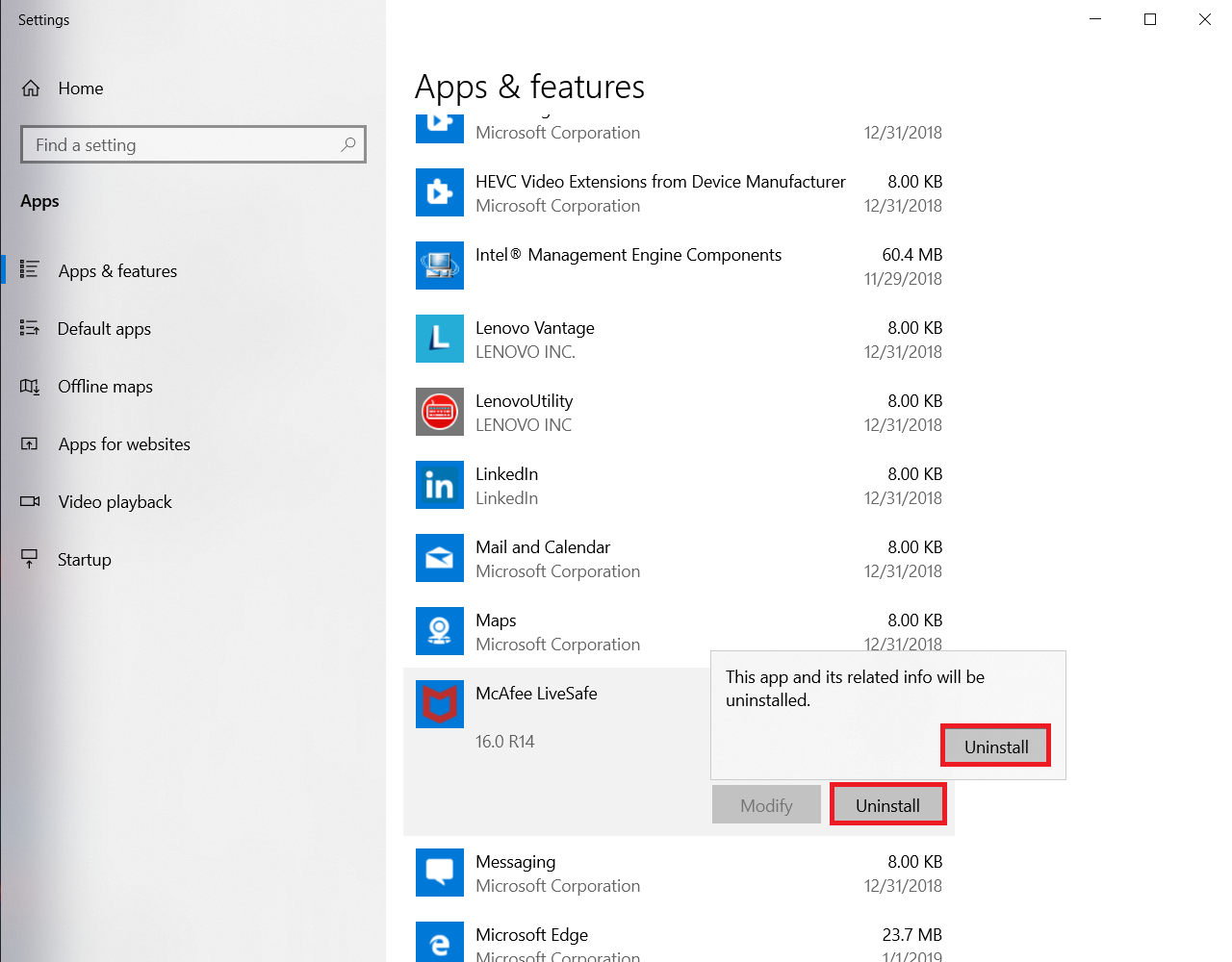
- After the uninstall finishes you will be prompted to restart your system. Restart your computer.
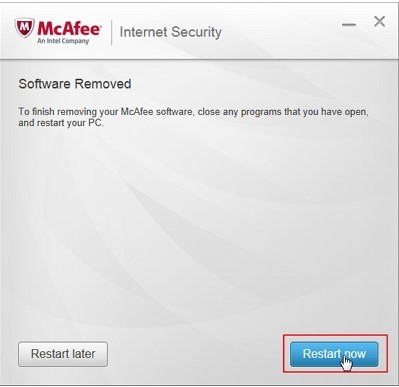
- You can now install ESET on your computer after the restart completes.
Windows 11
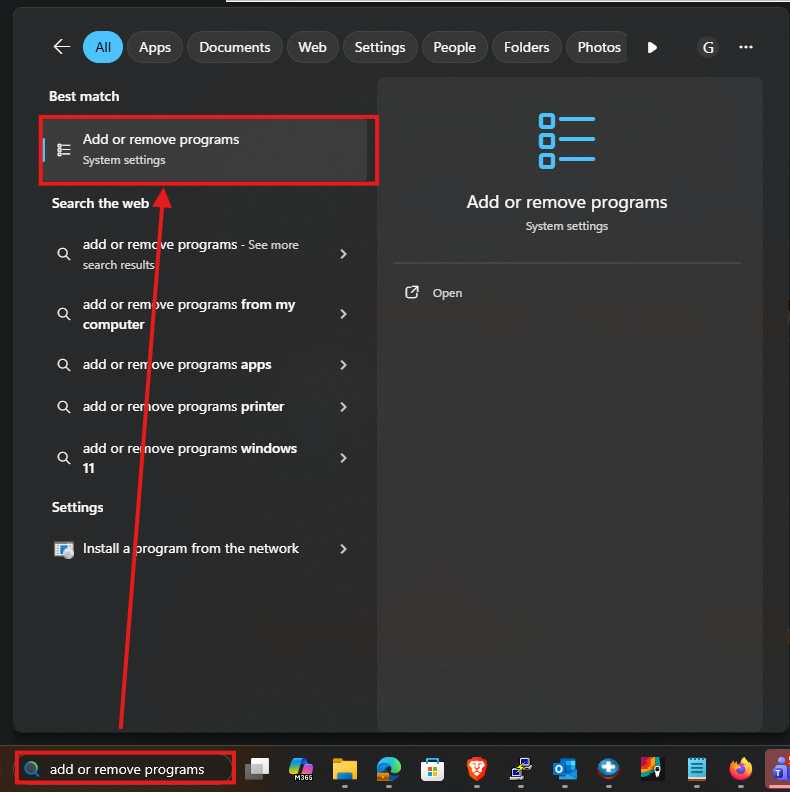
- Click on the start button typically located in the lower middle of the screen.

2. Type Add or remove programs in the search bar and then click Add or remove programs at the top:
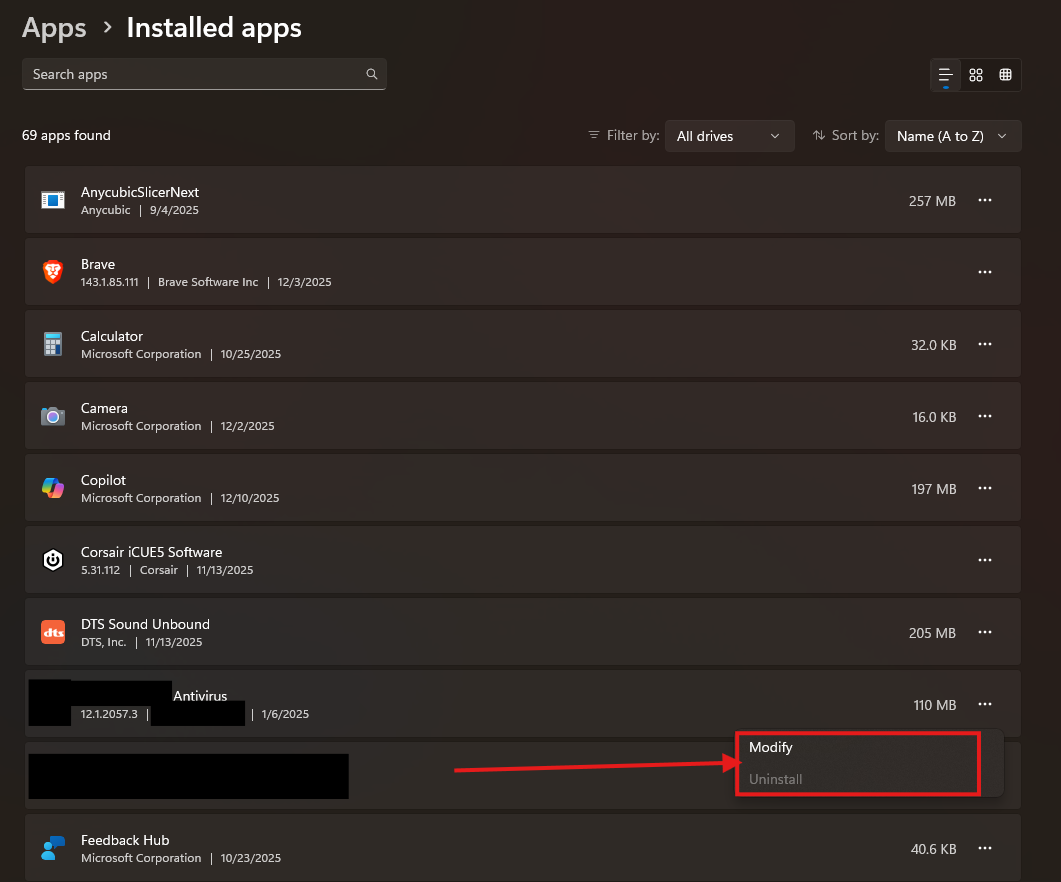
3. Find the Antivirus you want to uninstall, and click the 3 dots next to it:

4. Click either Uninstall, or if that is not available click Modify, then move through the uninstall process:
5. Once uninstall is completed, restart your computer and that's it!