Today, we will walk you through on how to update your drivers for your NVIDIA graphics card on a Windows 10 or 11 system. Most game companies and games will recommend you have the latest drivers installed for your video card and you can take care of these driver updates through the NVIDIA GeForce software.
If you are unsure of whether you have an Nvidia Graphics card or not, you can visit this page for instructions on how to do so.
Downloading the NVIDIA app
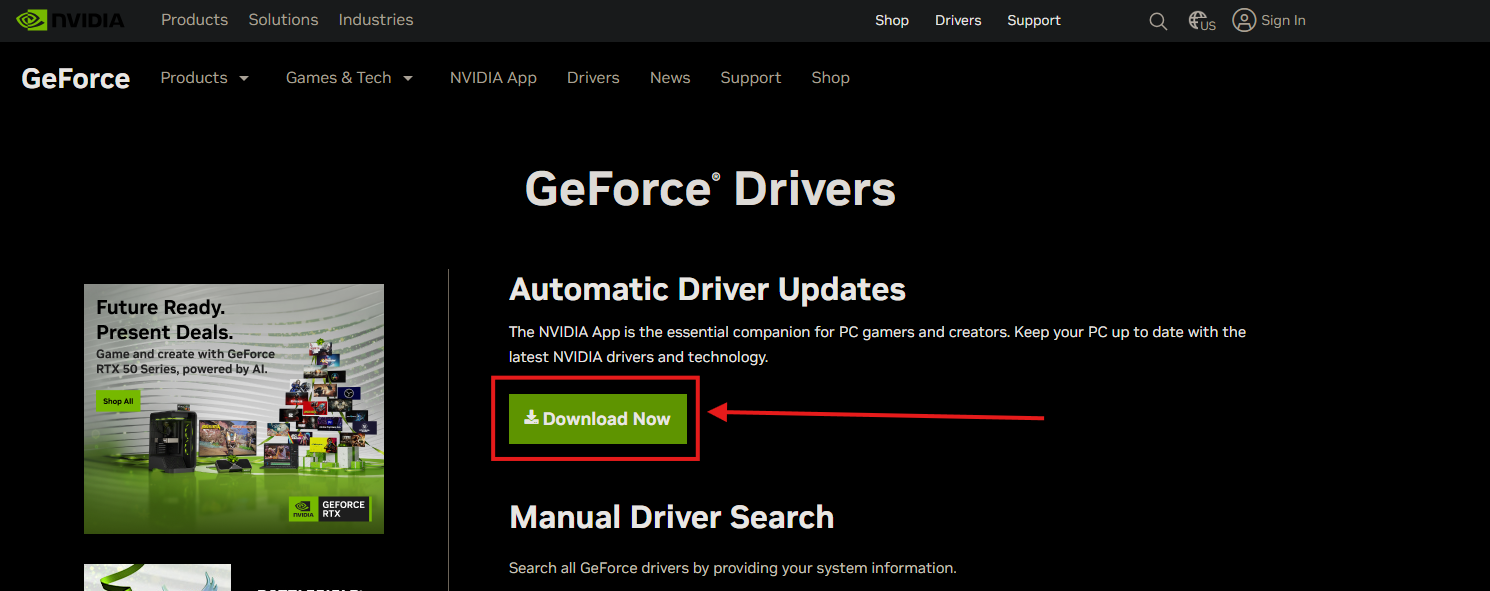
If you do not have the software already installed on your computer, you can go to
https://www.nvidia.com/en-us/geforce/drivers/
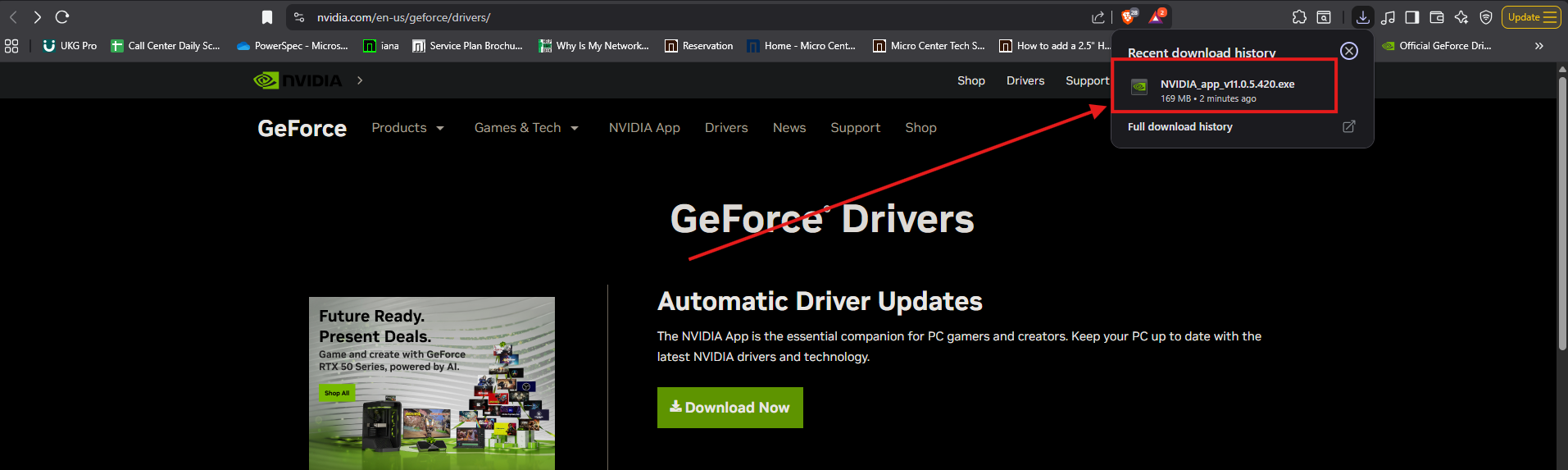
and select download now, and it will automatically start the download, simply follow the prompts in the installation to get this software onto your PC that has an NVIDIA graphics card installed:
Opening the Nvidia App
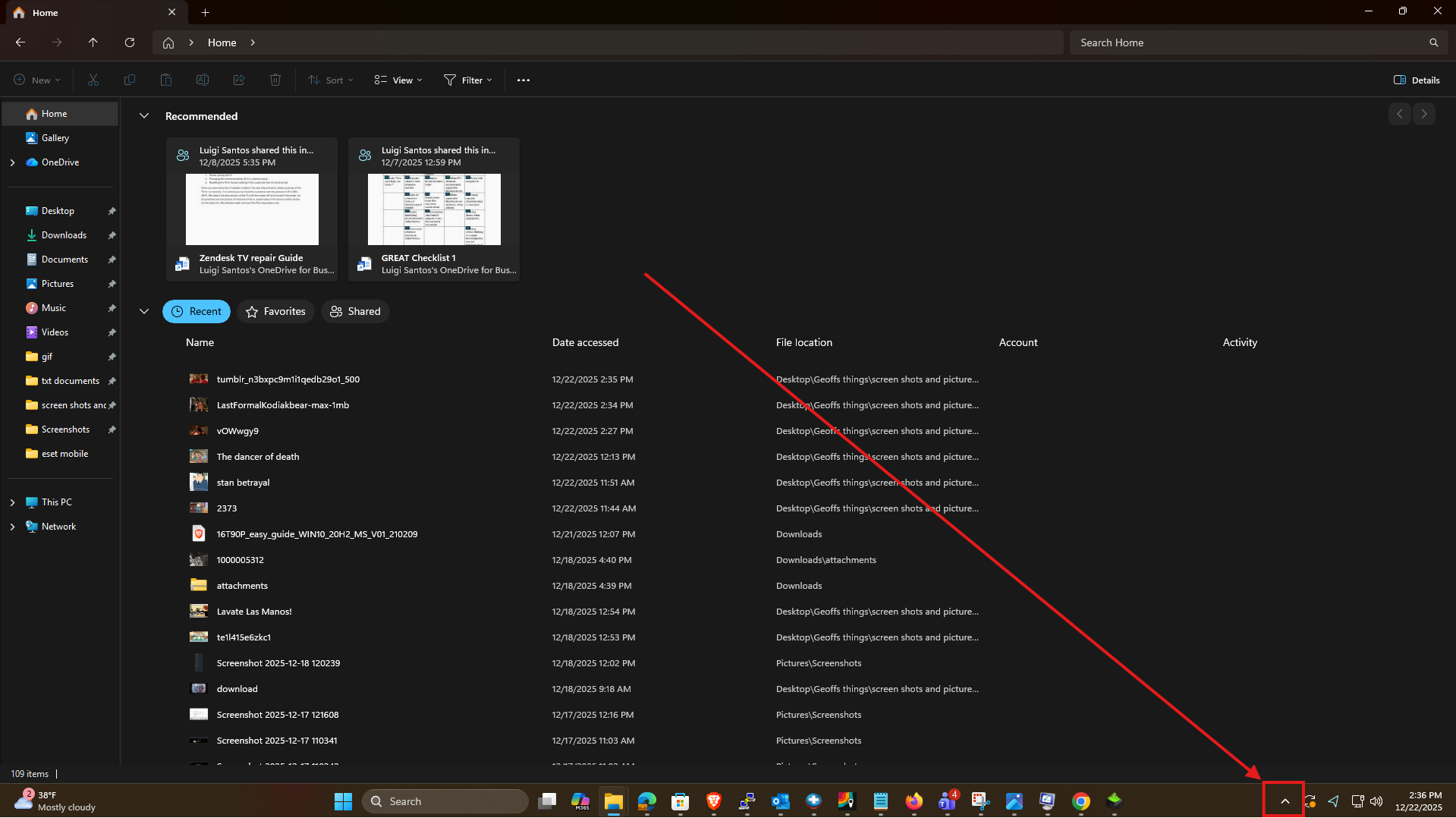
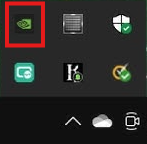
Once you have the software installed, or to open up the pre-existing software, click on the Hidden Icons arrow ^ found on your taskbar at the bottom right of the screen to the left of the time and date:
The icon for the app will look like a small version of the Nvidia logo. Left click on it to open the app:
You do not need to log into the Nvidia app to use it.
Using the Nvidia App to update your drivers
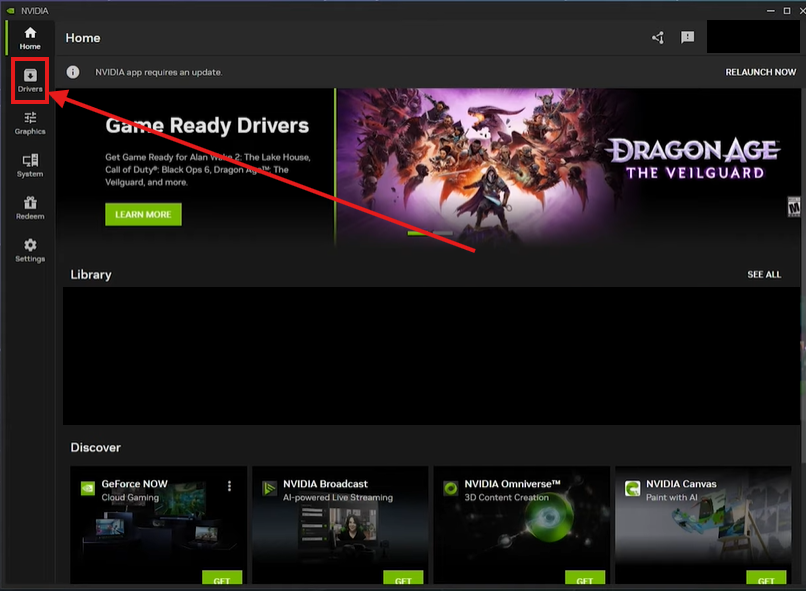
Once you have the Nvidia App open, you want to click on the drivers option on the left side of the app:
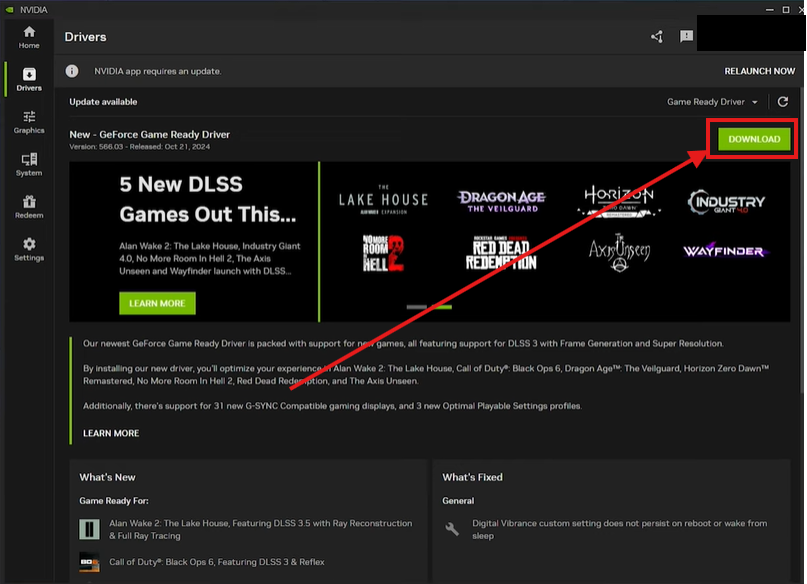
If there are updates available, you will see them in on this screen, to download the update click the Download button on the right:
Once it has completed downloading, click the Install button on the right:
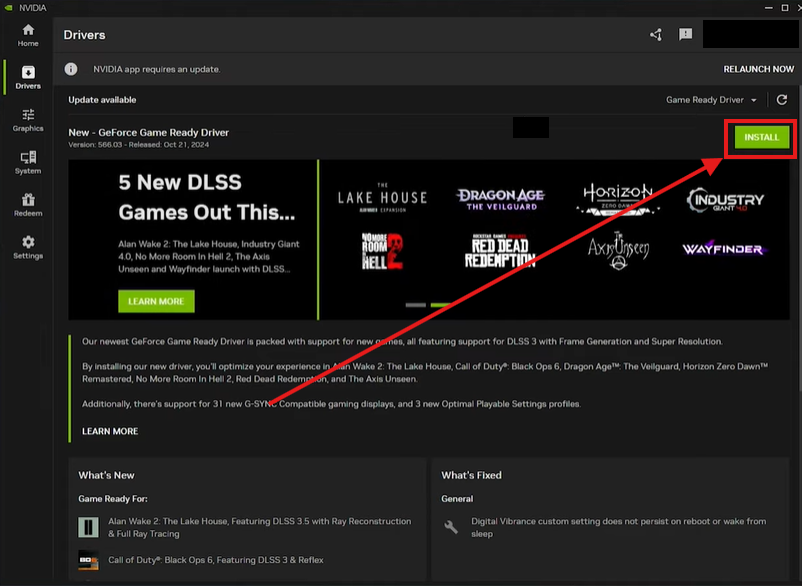
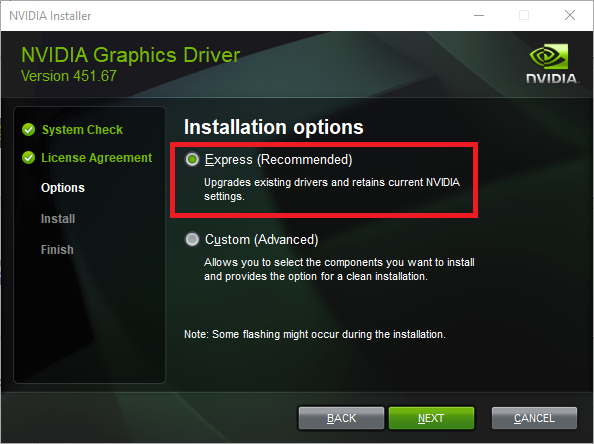
A window will pop up with two options, for the purposes of this guide, we will choose Express Installation then click Continue:
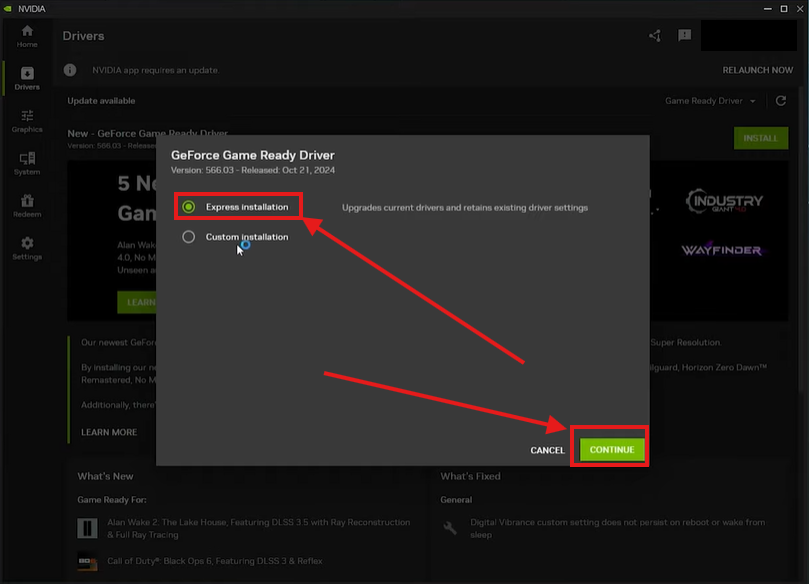
The app will begin to install the latest NVIDIA video card drivers at this point, and you can keep track of its progress with the progress bar. In most cases, this will take up to a few minutes.:
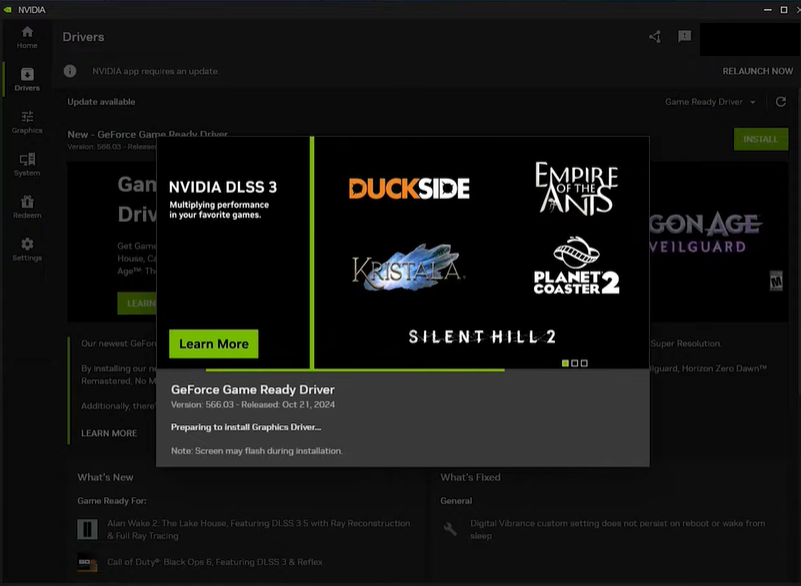
It is important to note your monitors may turn black temporarily during this installation and not to worry, this is completely normal – its just part of the update process!
Once the installation is completed, the software will show what has been installed, and you can click on Close to complete this process:
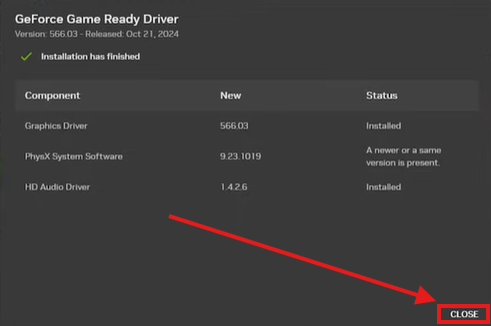
Occasionally, it may prompt you to restart your PC to complete installation, if it does, go ahead and restart the PC, and that's it!
Manual Installation of NVIDIA Drivers
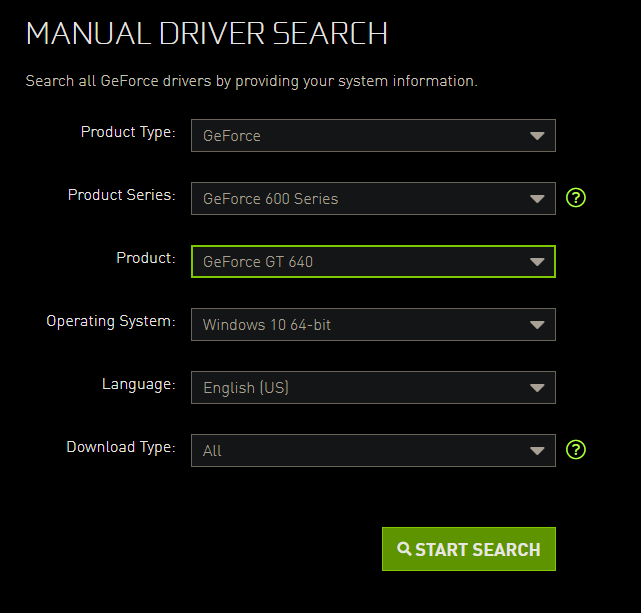
1. Go to Official GeForce Drivers | NVIDIA page and enter your Video Card information into the Manual Driver Search.
You will need to know what kind of video card you have. Once that information is entered, click Start Search:
(Note, the info you select will likely be different than what is show in this screenshot)
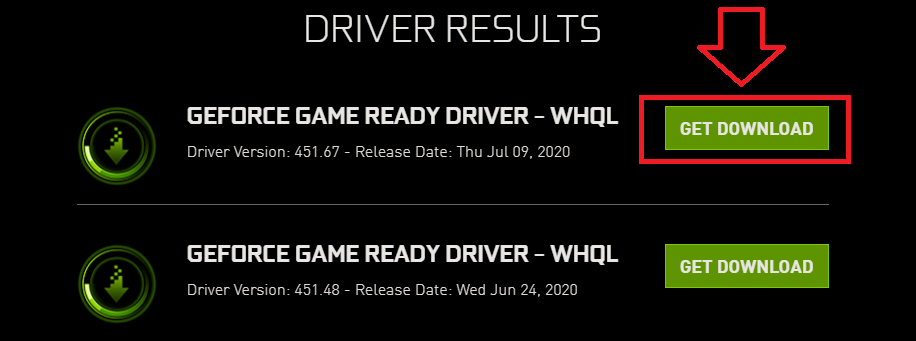
2. Scroll down to view all driver results. Downloading the one at the very top, with the most recent release date is recommended. Click on Get Driver or Get Download:
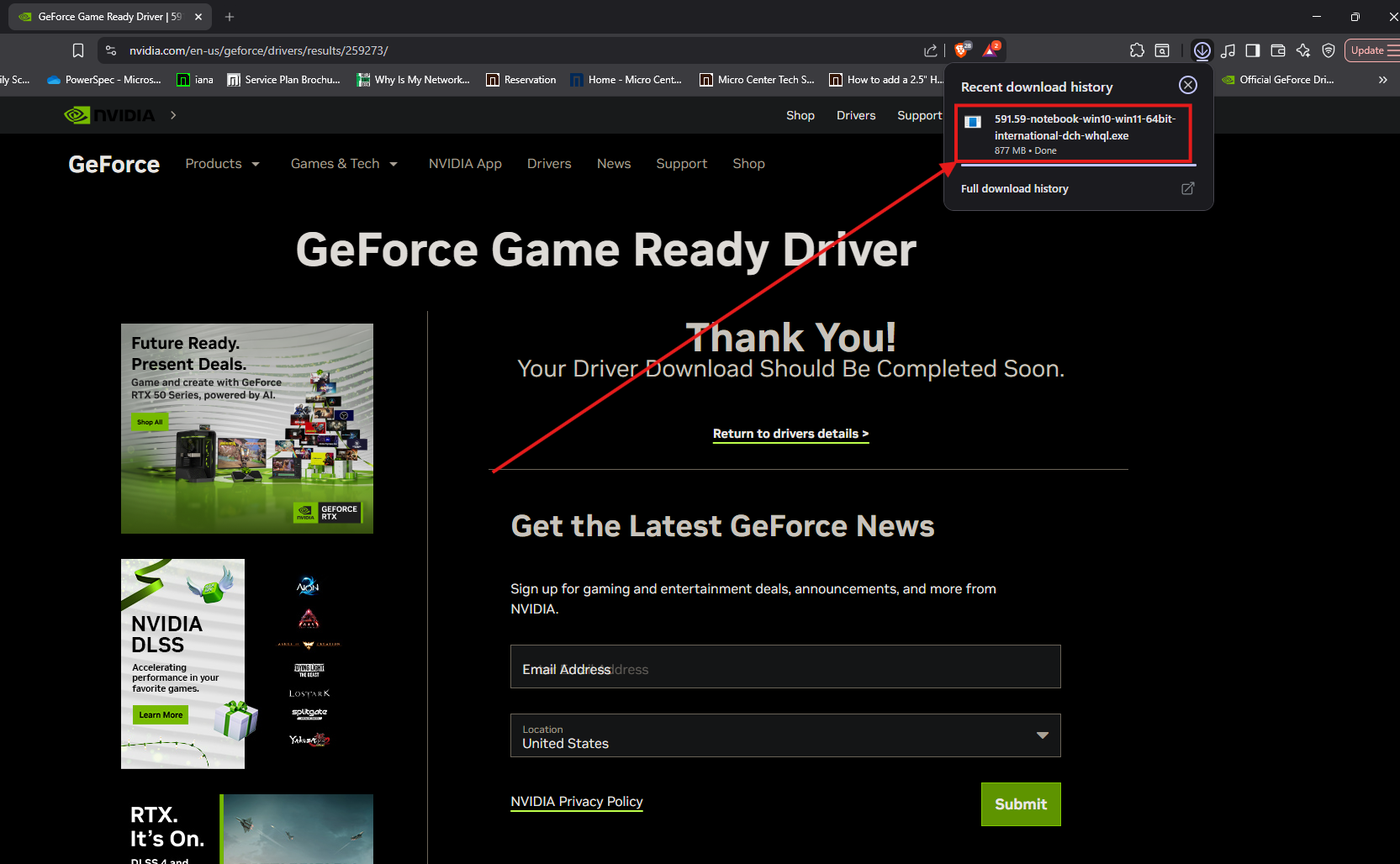
3. Click Download Now, and the driver should begin downloading:

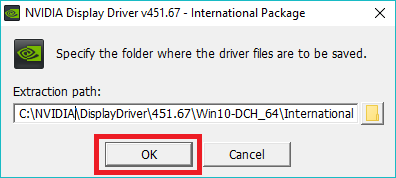
4. Once downloaded, run the .exe and then press OK on the prompt that comes up:
5. Click Agree and Continue to the Terms and Conditions:
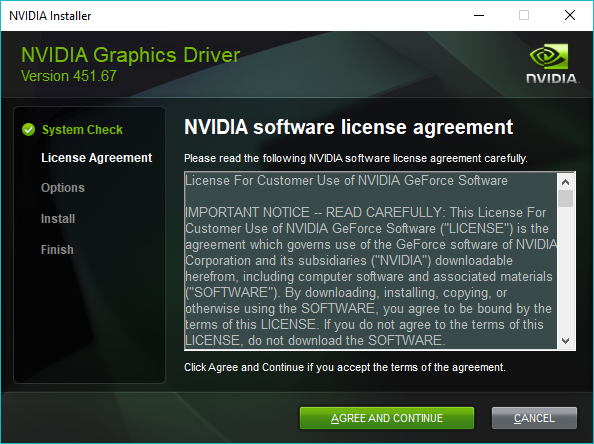
6. Make sure Express is checked, then click on Next. The driver should begin installing.
It is recommended to restart your computer once the driver has finished installing: