Clearing your browsing history, cache, and cookies helps protect your privacy, frees up space, and can sometimes improve browser performance. Below are step-by-step instructions for deleting browsing history in Microsoft Edge, Google Chrome, Mozilla Firefox, and Safari.
Microsoft Edge
- Open Edge:

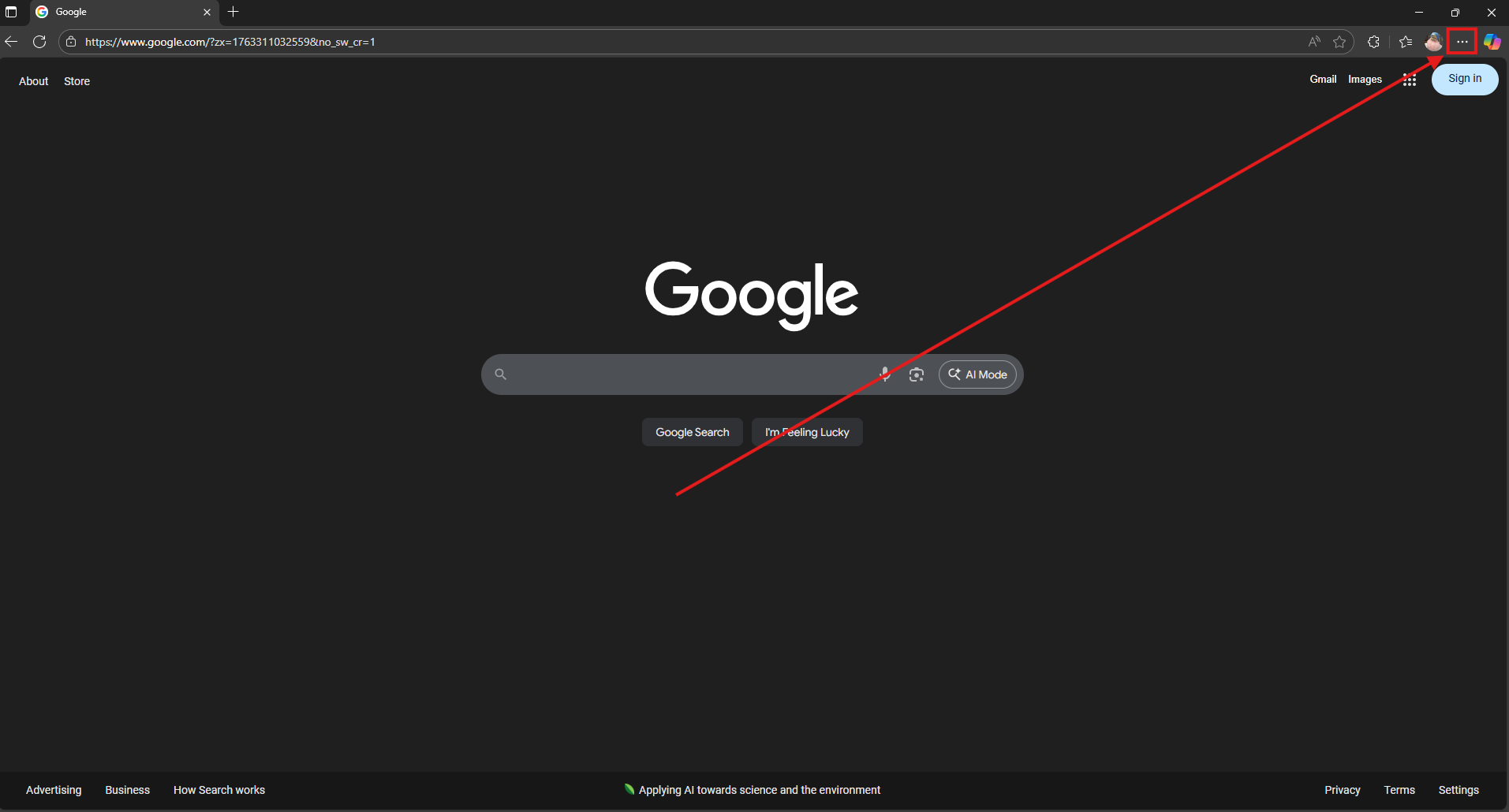
2. Click the three dots (…) in the top-right corner.
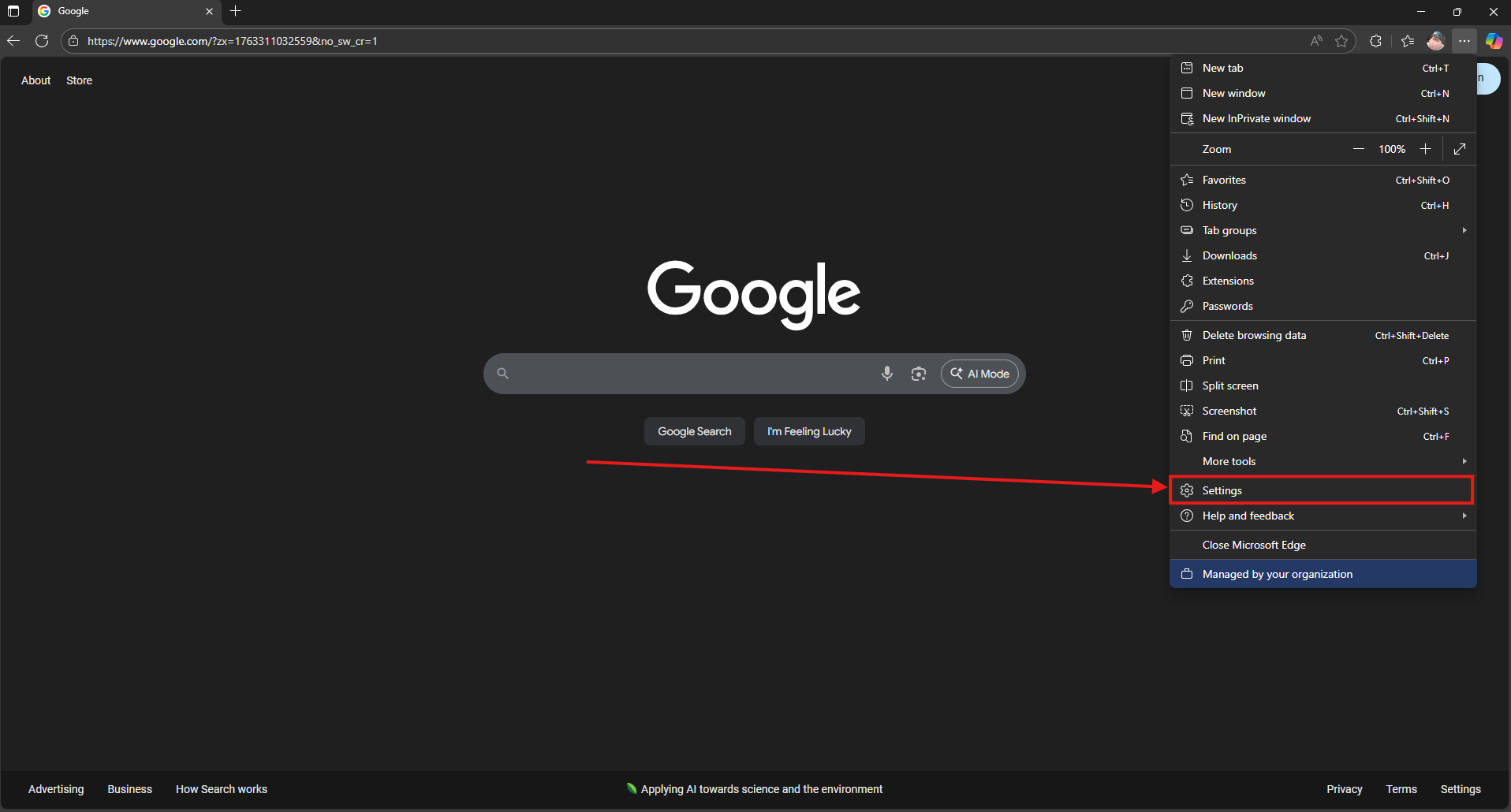
3. Select Settings.
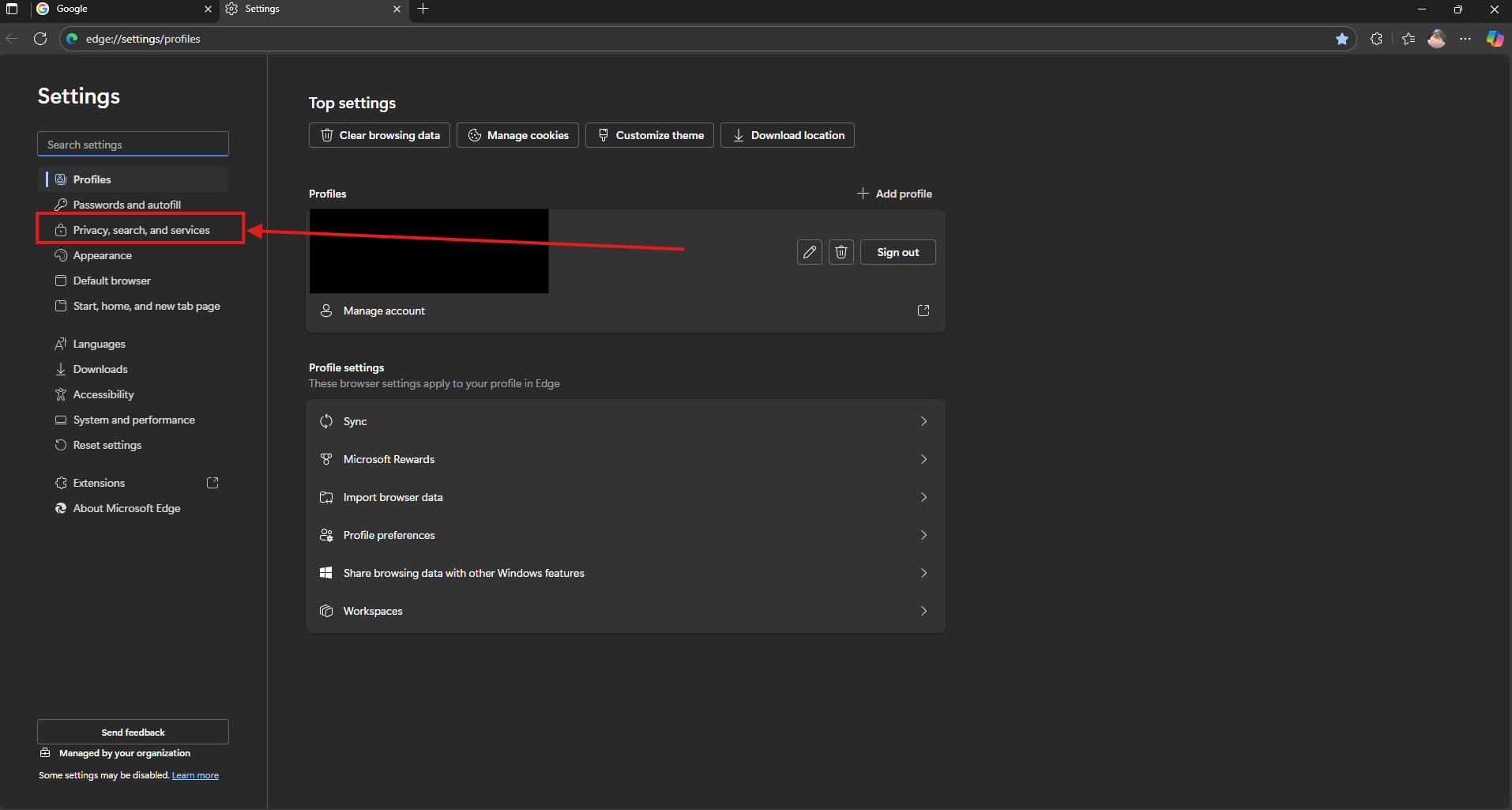
4. In the left-hand menu, choose Privacy, search, and services.
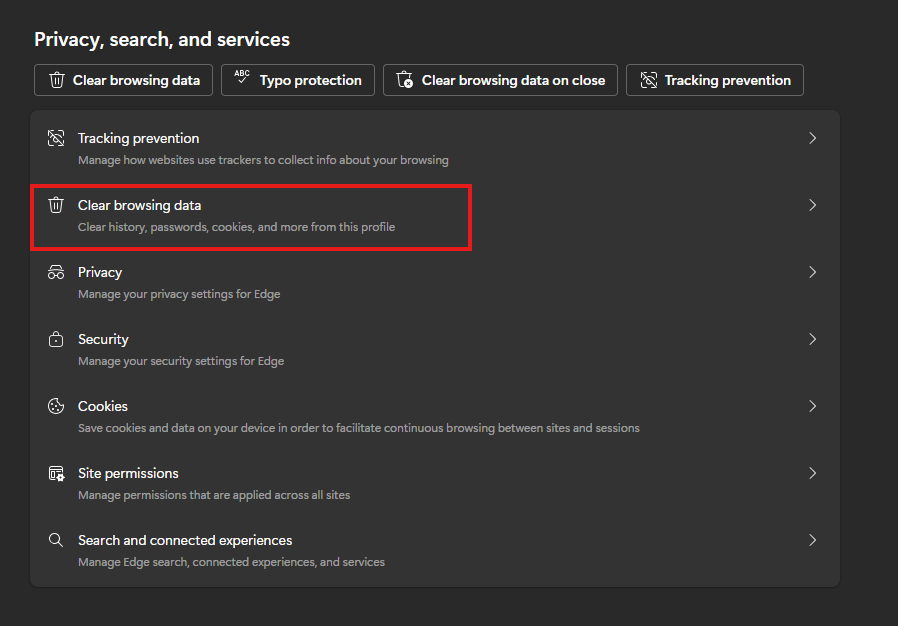
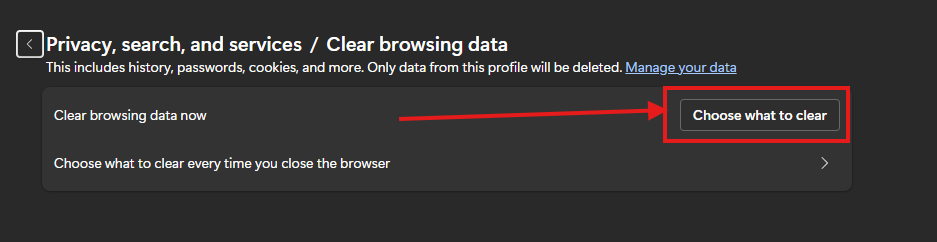
5. Click Clear browsing data.
6. Click Choose what to clear.
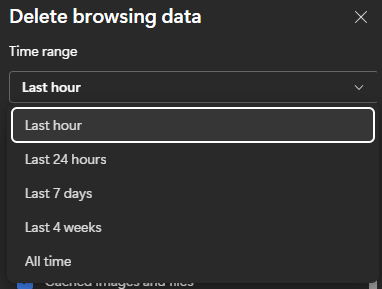
7. Select a Time range (e.g., Last hour, Last 7 days, All time).
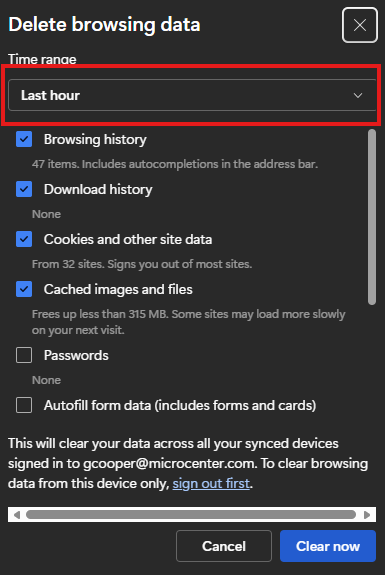
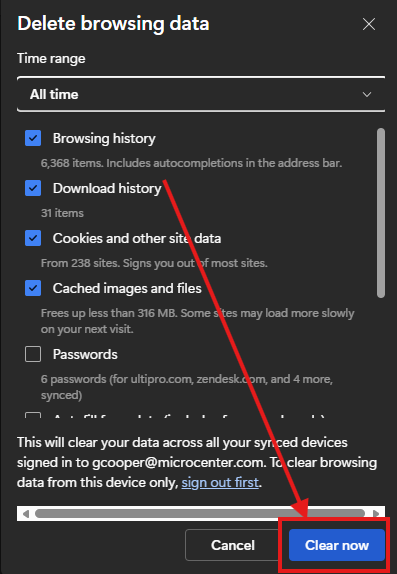
8. Check Browsing history and any other data you wish to delete.
9. Click Clear now once you have it set up how you desire.
Google Chrome
1. Open Chrome.

2. Click the three dots (⋮) in the top-right corner.
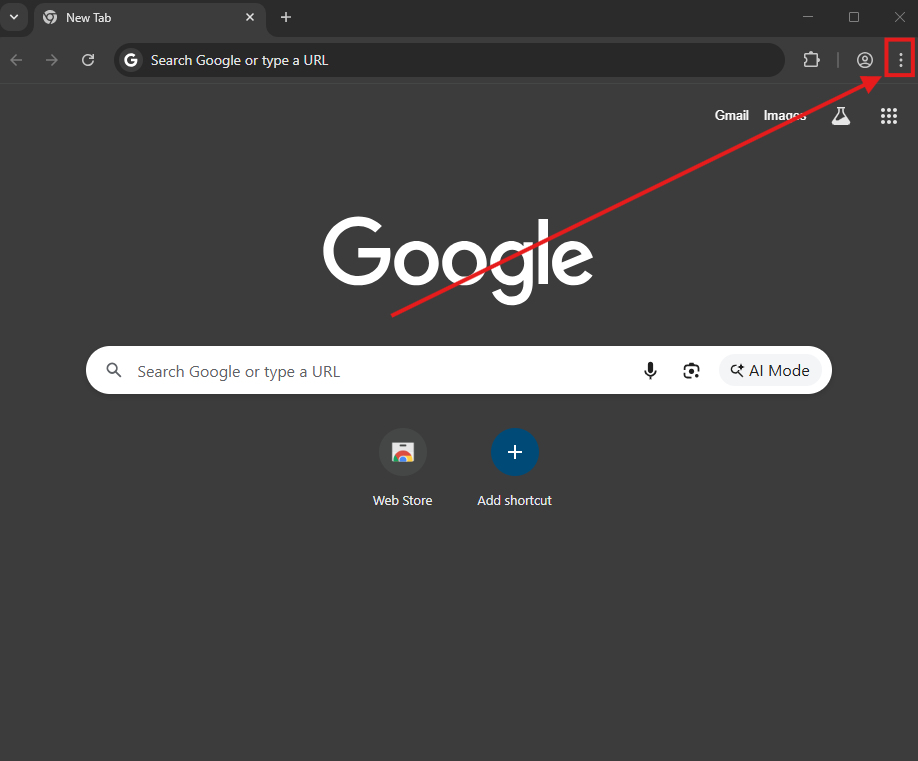
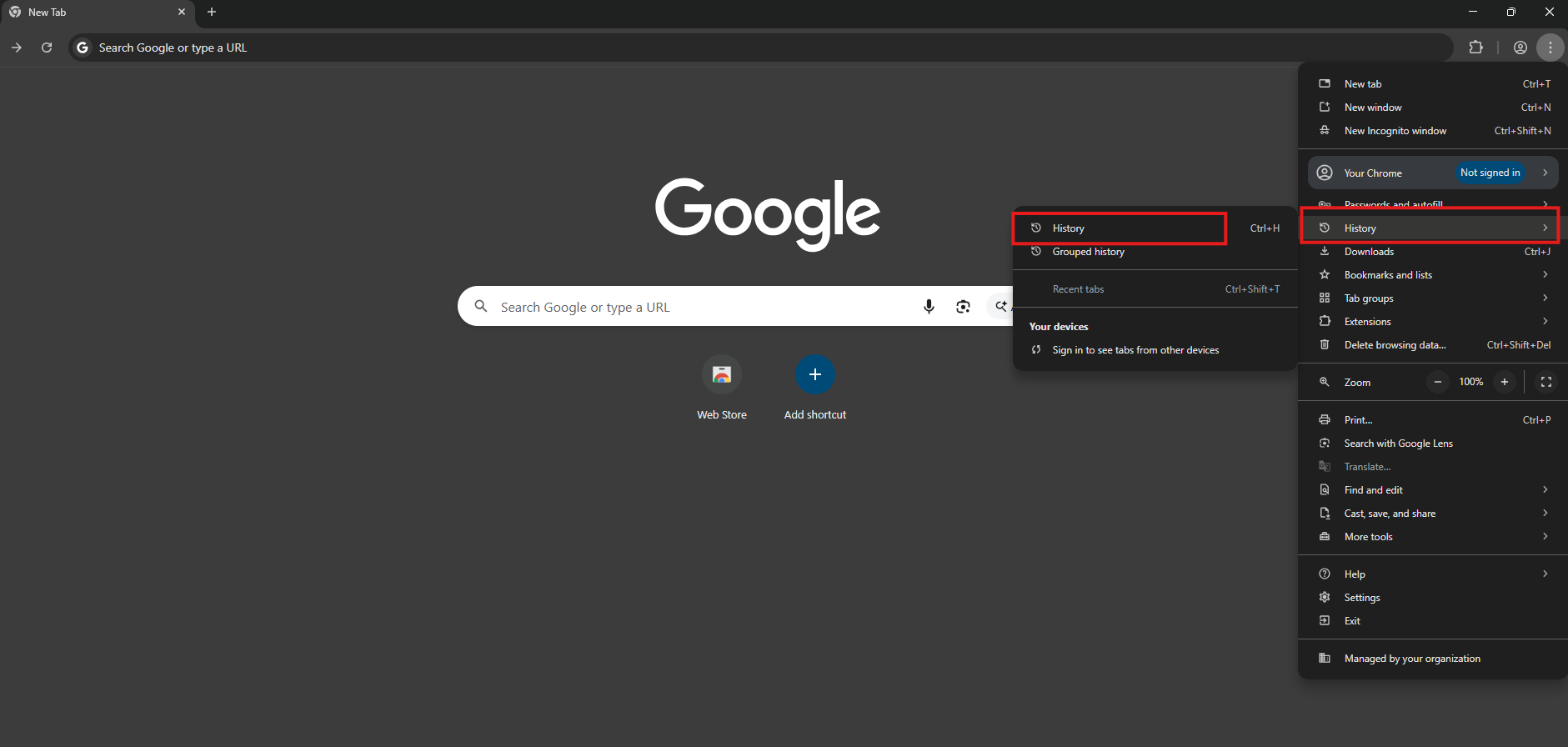
3. Hover over History, then click History in the submenu.
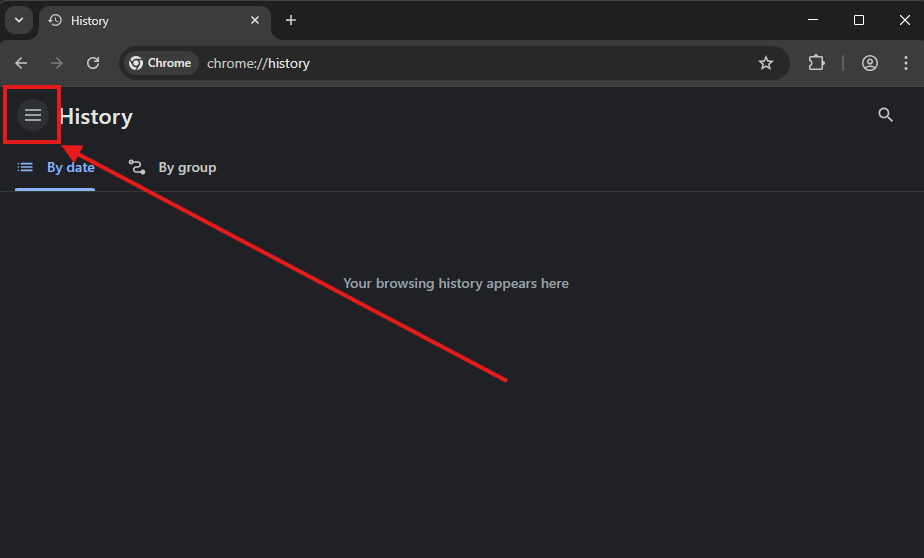
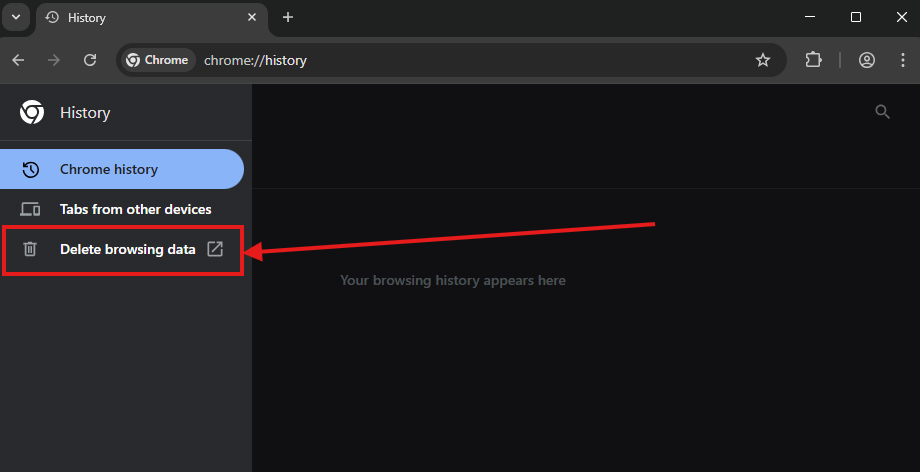
4. On the left, click Delete browsing data(you may need to click the 3 lines in the upper left first.)
5. In the popup, choose a Time range.
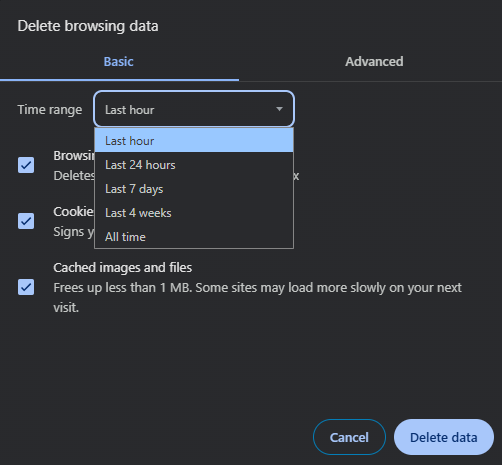
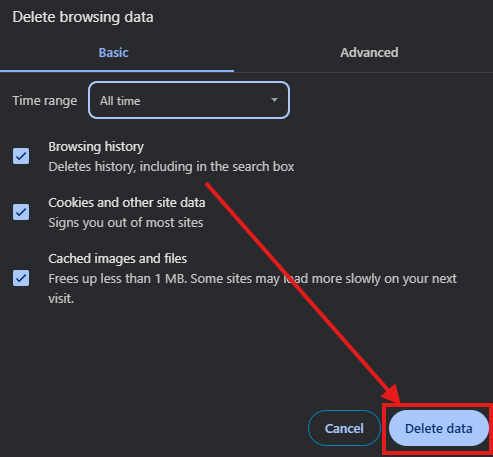
6. Put a Check next to anything you want to delete, once you have it all set up how you prefer, Click Delete data.
Mozilla Firefox
- Open Firefox.

2. Click the three horizontal lines (≡) in the top-right corner.
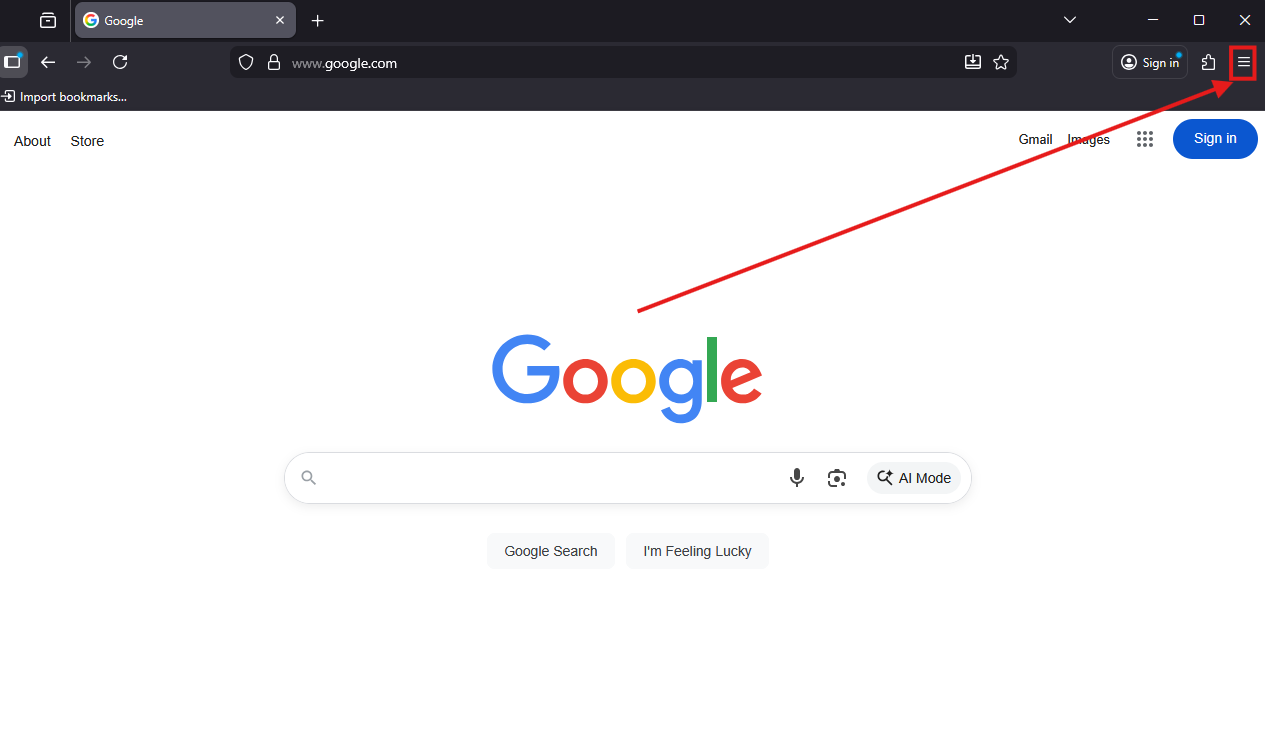
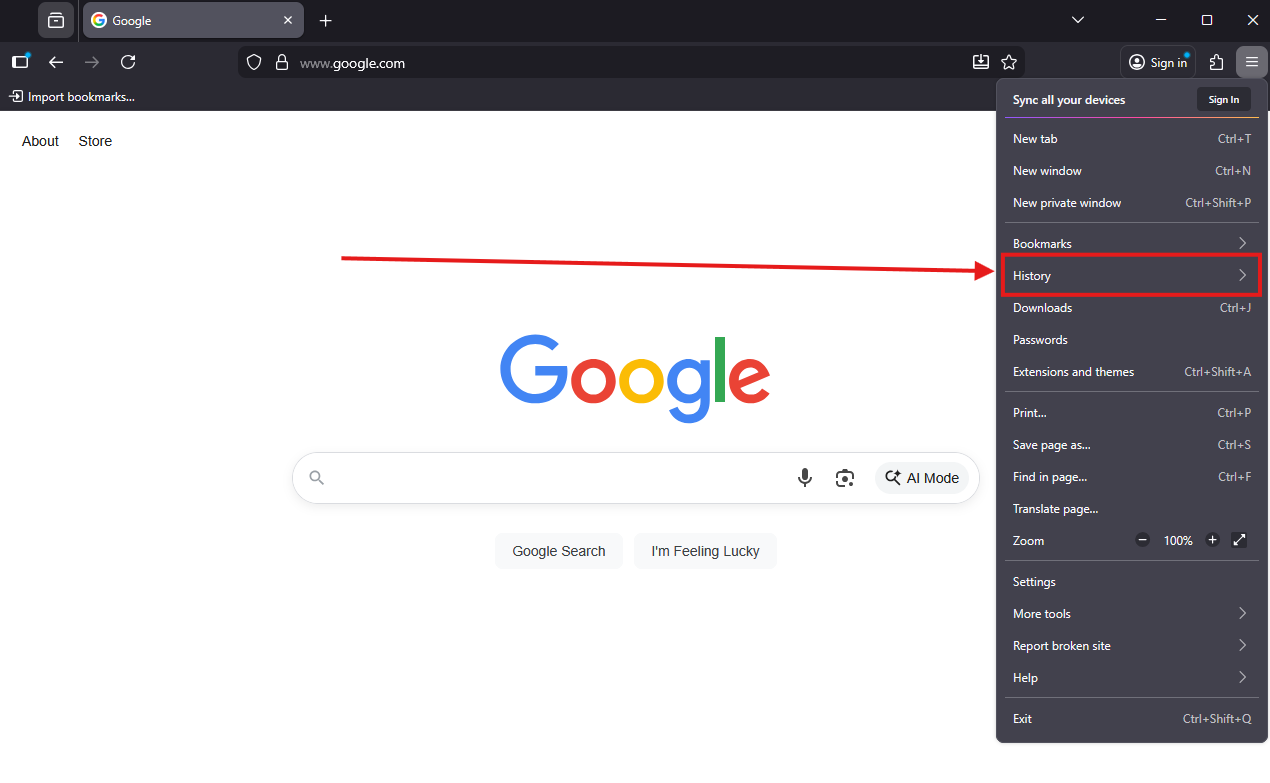
3. Select History, then click Clear Recent History.
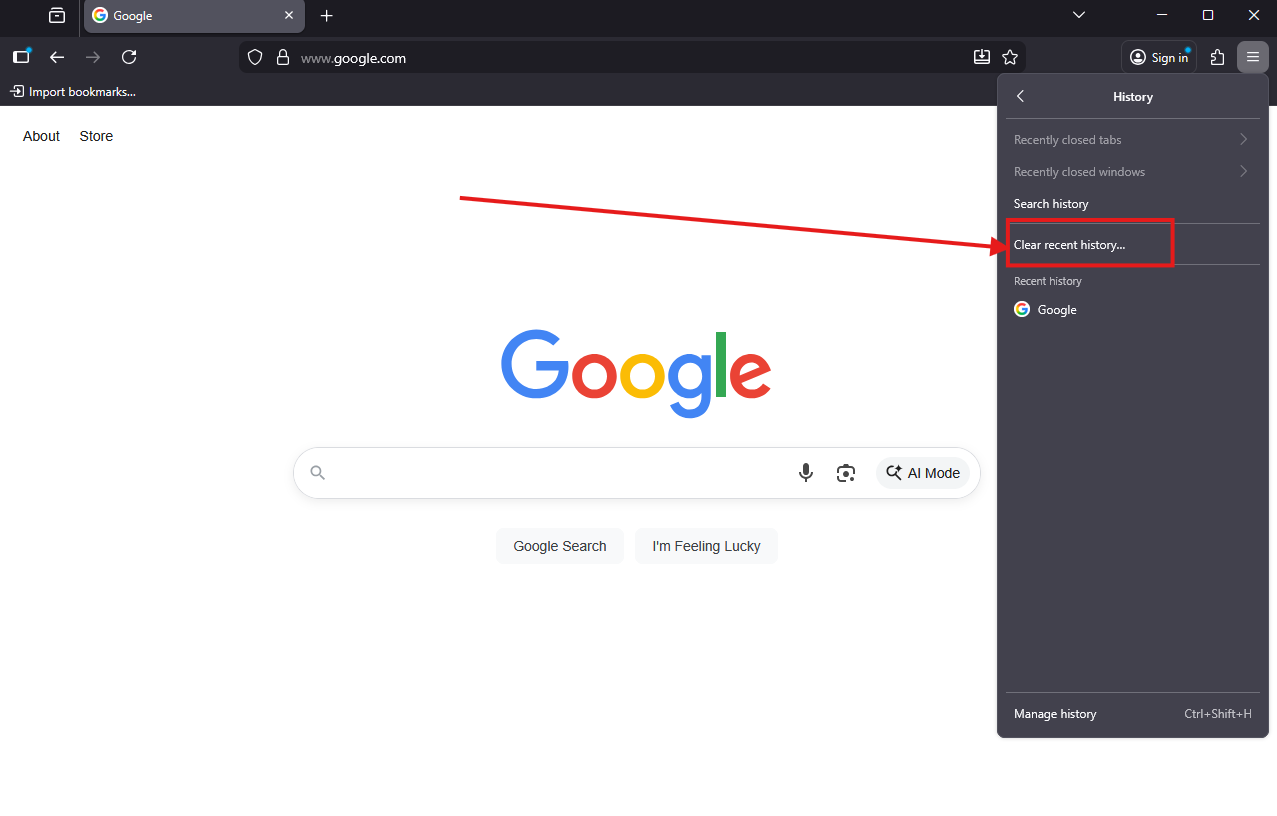
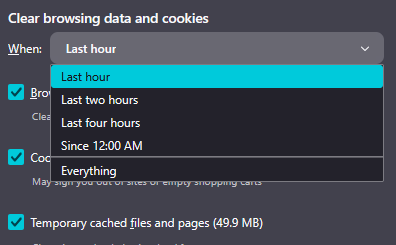
4. In the dialog box, choose a Time range to clear.
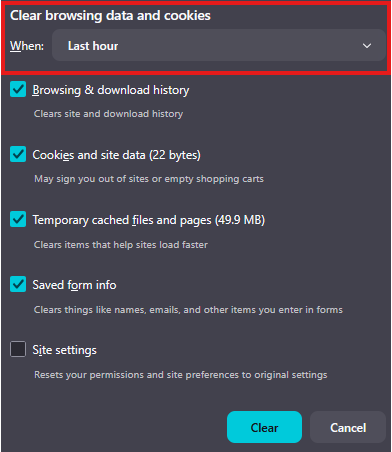
5. Put a Check mark next to anything you want to delete.
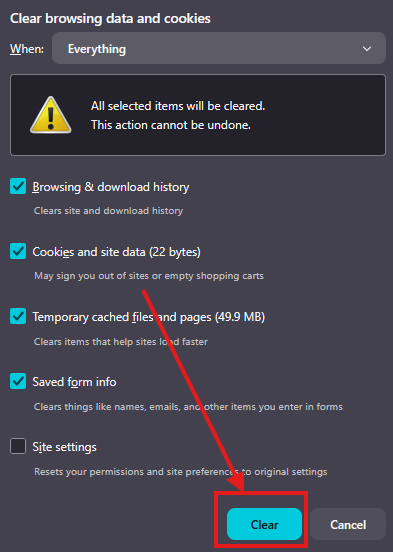
6. Once you have it set how you prefer, click Clear to delete the data.
Safari (macOS)
- Open Safari.
- Click History in the top menu bar.
- Select Clear History...
- Choose a Time range (e.g., the last hour, today, all history).
- Click Clear History.
This action also clears cookies and cache in Safari.